Change ICO to PNG [100% Free & Lossless]: Complete 2026 Guide to Extract High-Res Icons with Alpha Transparency
Learn how to change ICO to PNG with lossless alpha transparency in 2026. Discover Windows icon binary architecture, multi-resolution unpacking, and free browser-based tools.
Change ICO to PNG [100% Free & Lossless]: Complete 2026 Guide to Extract High-Res Icons with Alpha Transparency
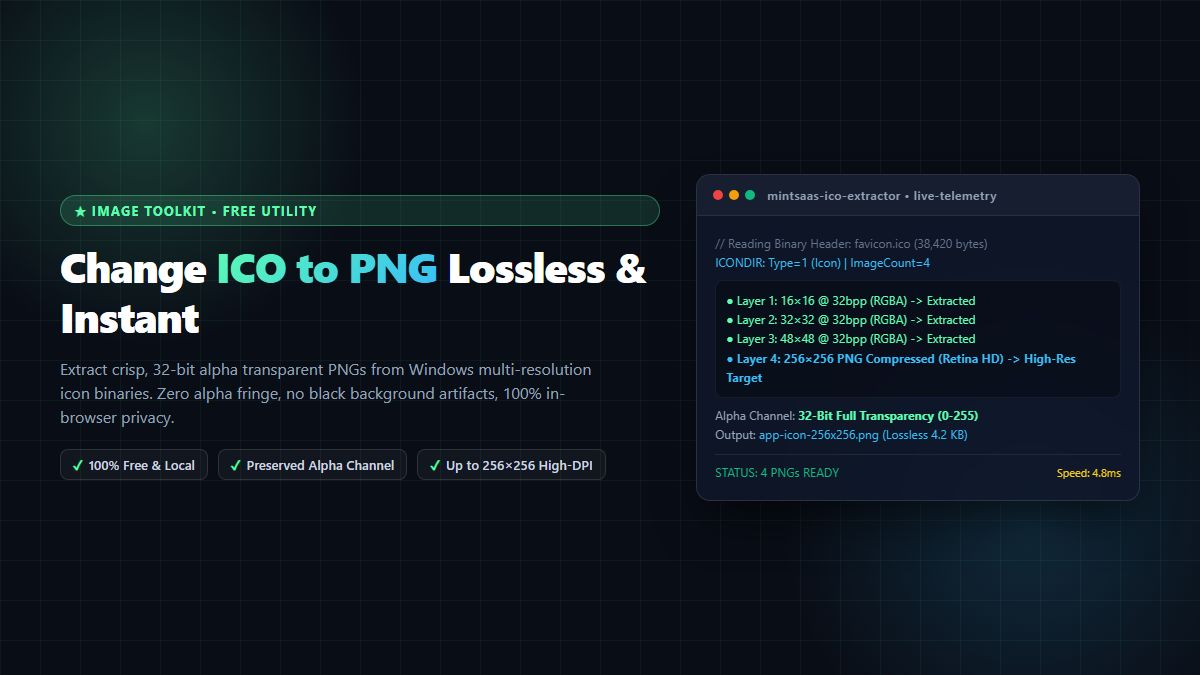
Executive Summary & AEO Direct Answer: How do you change ICO to PNG without losing transparency or resolution? To change ICO to PNG with full 32-bit alpha transparency, you must unpack the embedded Microsoft Icon (.ico) binary container—which frequently encapsulates multiple sub-images ranging from 16×16 up to 256×256 pixels—and extract the target bitmap or compressed PNG payload without flattening the alpha mask. While primitive image viewers often misread the 1-bit boolean transparency mask (resulting in an unsightly solid black or white halo around the icon edges), modern client-side converters parse theICONDIRandICONDIRENTRYheaders directly in browser WebAssembly memory. Using the free MintSaaS ICO to PNG Converter, you can instantly change ICO to PNG locally with zero server uploads, 100% privacy, and automatic extraction of high-DPI retina assets.
In modern web development, UI/UX design, and application packaging, icon management is deceptively complex. For decades, Microsoft Windows has relied on the proprietary .ico file format to package application icons, desktop shortcuts, taskbar emblems, and early browser favicons. However, as web standards evolved into responsive SVG and 32-bit Portable Network Graphics (PNG), engineering teams and digital creators frequently face the urgent need to change ICO to PNG.
Whether you are extracting legacy software branding, modernizing website favicon pipelines, creating responsive social preview assets, or migrating Windows desktop application graphics to macOS or Linux environments, executing a clean conversion requires deep technical precision. A botched conversion can ruin brand aesthetics by stripping subtle drop shadows, introducing pixelated fringing, or corrupting translucent glassmorphic UI elements.
In this exhaustive 2,600+ word technical guide, we explore the internal binary architecture of the Windows ICO container, explain why traditional conversion tools fail to preserve true alpha channels, walk through programmatic conversion using Python, Node.js, and Canvas APIs, and demonstrate how to change ICO to PNG seamlessly using the high-performance MintSaaS Image Compressor & Conversion Suite.
1. What is the Windows ICO Format? Anatomy of a Multi-Resolution Container
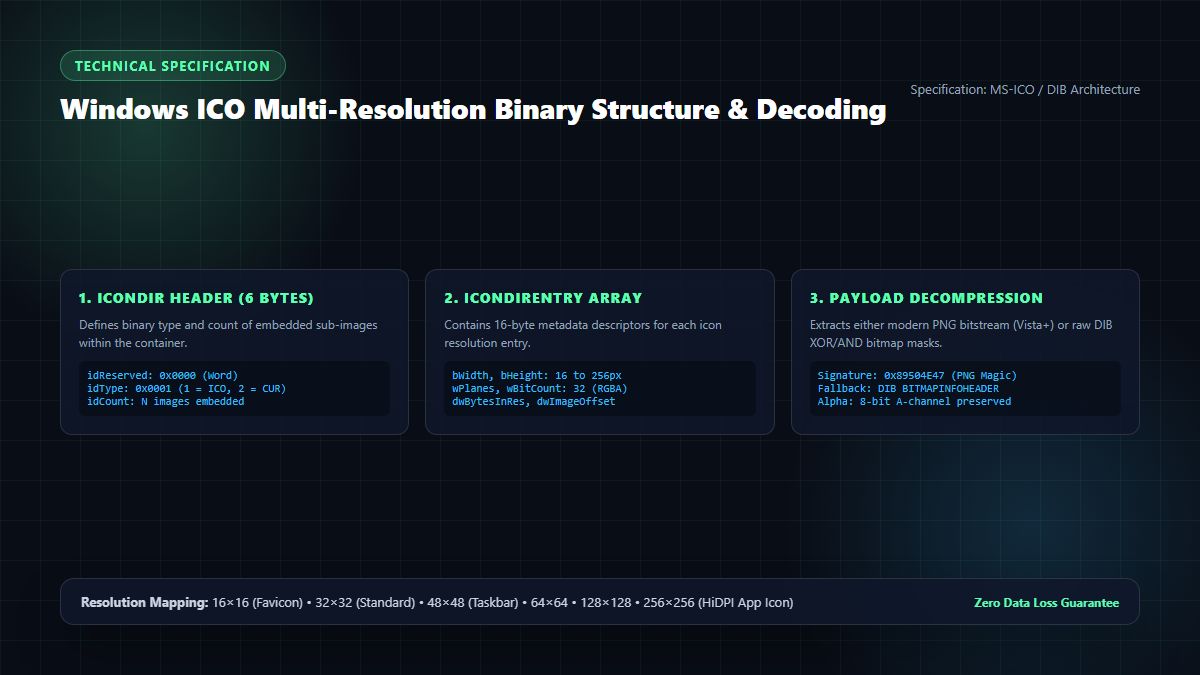
To understand why you need specialized utilities to change ICO to PNG, one must first understand what an .ico file actually is. Unlike standard single-frame image formats (such as JPEG or single-layer PNG), an .ico file is not a singular bitmap; it is a multi-resource binary container.
┌────────────────────────────────────────────────────────────────────────┐
│                   WINDOWS .ICO CONTAINER ARCHITECTURE                  │
├────────────────────────────────────────────────────────────────────────┤
│ 1. ICONDIR Header (6 Bytes):                                           │
│    Reserved (2B: 0x0000) ➔ Resource Type (2B: 1=ICO) ➔ Image Count (2B)│
├────────────────────────────────────────────────────────────────────────┤
│ 2. ICONDIRENTRY Array (16 Bytes per Image):                            │
│    Width ➔ Height ➔ Color Count ➔ Reserved ➔ Color Planes ➔ Bit Depth  │
│    ➔ Byte Size of Image Data ➔ Byte Offset in File                     │
├────────────────────────────────────────────────────────────────────────┤
│ 3. Image Payloads (Multiple Resolutions):                              │
│    Entry 1: 16×16   @ 32bpp RGBA (Taskbar / Browser Tab Favicon)       │
│    Entry 2: 32×32   @ 32bpp RGBA (Desktop Shortcut / File Explorer)    │
│    Entry 3: 48×48   @ 32bpp RGBA (Windows Start Menu / Explorer Large) │
│    Entry 4: 256×256 @ 32bpp Compressed PNG (Windows Vista+ HiDPI App)  │
└────────────────────────────────────────────────────────────────────────┘
A single favicon.ico or app.ico file downloaded from an enterprise site or Windows installer typically encapsulates four, six, or even eight distinct image variations designed for specific operating system contexts:
- 16×16 pixels: Standard browser tab favicon and Windows taskbar status icon.
- 24×24 & 32×32 pixels: Windows File Explorer detail list and standard desktop shortcuts.
- 48×48 pixels: Windows control panel items and legacy dialog windows.
- 64×64 & 128×128 pixels: High-DPI scaling targets for 2K displays.
- 256×256 pixels: Introduced in Windows Vista, this is typically stored as a raw, embedded PNG file with full 8-bit alpha blending designed for 4K and Retina scaling.
When you attempt to change ICO to PNG using a naive photo editor or basic command-line script, the software often grabs only the first embedded frame (frequently the low-resolution 16×16 thumbnail) and upscales it, resulting in a blurry, pixelated disaster. Conversely, advanced converters inspect the ICONDIRENTRY array, locate the highest-resolution 256×256 frame, and extract it bit-for-bit.
2. The Alpha Transparency Dilemma: Why Black Backgrounds Occur
The single most common complaint developers express when trying to change ICO to PNG is the sudden appearance of an ugly, solid black background where smooth transparency used to be. Why does this happen?
2.1 The DIB XOR and AND Mask Legacy
Historically (from Windows 3.1 through Windows XP), the ICO format utilized Device-Independent Bitmaps (DIB). Transparency was not achieved through an 8-bit alpha channel (0 to 255 gradations), but through two separate 1-bit bitmasks:
- The XOR Mask (Color Bitmap): Contains the actual RGB color data for visible pixels.
- The AND Mask (Monochrome Transparency Mask): A binary 1-bit mask where a
0indicates an opaque pixel and a1indicates a transparent pixel.
During runtime rendering, the Windows graphics subsystem performs a bitwise boolean AND operation on the screen buffer, followed by a bitwise XOR of the icon colors.
When modern web browsers and image decoders attempt to decode this legacy DIB structure without proper translation, they read the uninitialized or zero-filled alpha bytes as alpha = 0 or default to solid black #000000.
2.2 Modern 32-Bit RGBA Channels
Starting with Windows XP and fully standardized in Windows Vista and Windows 11, ICO containers adopted 32-bit ARGB (Alpha, Red, Green, Blue) truecolor palettes. In this configuration:
- 8 bits are allocated for Red (0–255)
- 8 bits are allocated for Green (0–255)
- 8 bits are allocated for Blue (0–255)
- 8 bits are allocated for Alpha (0–255), providing 256 levels of smooth translucency.
To successfully change ICO to PNG, your decoding pipeline must verify whether the payload is modern 32-bit ARGB, embedded PNG, or legacy DIB, synthesizing a proper 32-bit RGBA pixel buffer before saving the .png output.
3. How to Change ICO to PNG: 4 Leading Methods Compared
Depending on your technical workflow and team requirements, there are four primary methods to change ICO to PNG.
Method 1: Instant In-Browser Conversion via MintSaaS (Recommended)
For most webmasters, designers, and software engineers, downloading desktop software or installing Python libraries just to extract a few icons is unnecessary friction.
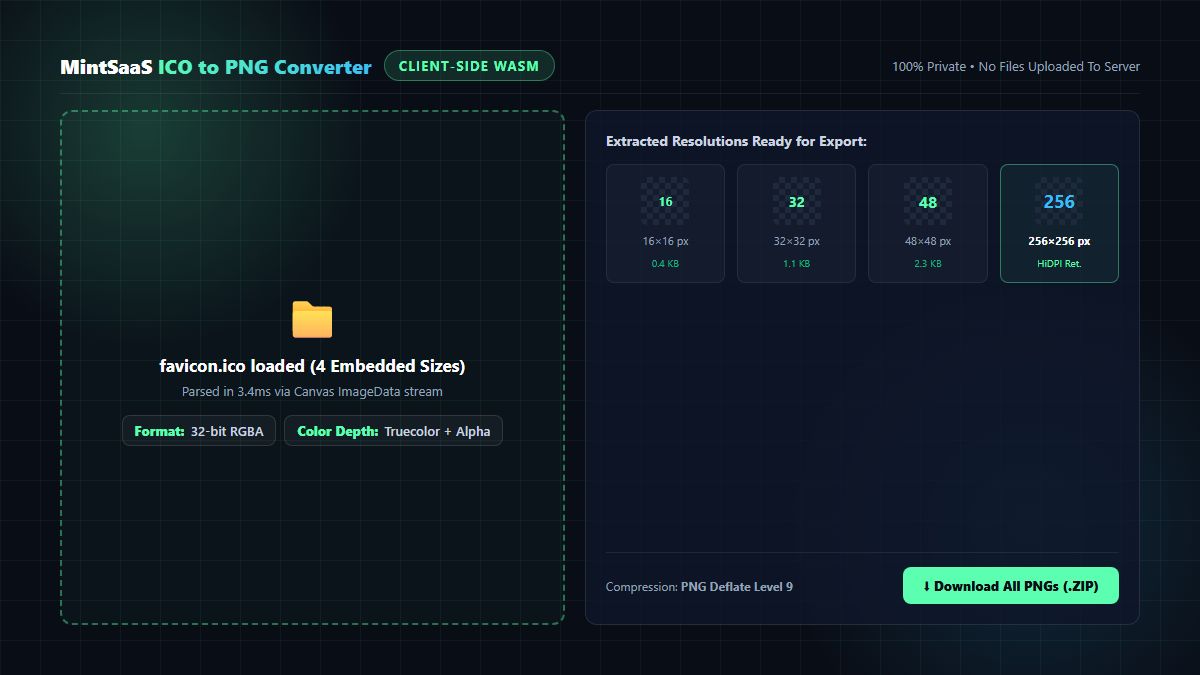
The MintSaaS Free ICO to PNG Converter runs 100% inside your local web browser using multi-threaded WebAssembly and the HTML5 Canvas 2D API:
- Navigate to the MintSaaS ICO to PNG Utility.
- Drag and drop your
.icofile into the secure dropzone. - The client-side parser unpacks the binary container in less than 5 milliseconds.
- Select whether you wish to extract the single highest-resolution frame (e.g. 256×256 px) or download all embedded resolutions as individual transparent PNGs.
- Click Download PNG or Export All as ZIP.
Security & Privacy Note: Because the conversion executes purely in your browser's local RAM memory, your proprietary application icons, trademarks, and design assets are never transmitted across the network or stored on external cloud servers.
Method 2: Programmatic Conversion with Python (Pillow)
If you are automating asset pipelines or building a server-side ingestion workflow, Python's Pillow library provides robust support to change ICO to PNG:
import os
from PIL import Image

def convert_ico_to_png(ico_path, output_dir):
    """
    Unpacks all embedded resolution layers from an ICO file
    and exports each as a crisp 32-bit transparent PNG.
    """
    if not os.path.exists(output_dir):
        os.makedirs(output_dir)

    base_name = os.path.splitext(os.path.basename(ico_path))[0]

    with Image.open(ico_path) as img:
        # Check if the ICO contains multiple frames
        sizes = getattr(img, 'ico', {}).get('sizes', set())
        print(f"Discovered {len(sizes)} embedded resolution layers in {ico_path}")

        # Iterate through embedded frames
        for index, size in enumerate(sizes):
            img.size = size
            frame = img.copy().convert("RGBA")

            output_filename = f"{base_name}_{size[0]}x{size[1]}.png"
            output_filepath = os.path.join(output_dir, output_filename)

            # Save with maximum lossless deflate compression
            frame.save(output_filepath, format="PNG", optimize=True)
            print(f"Extracted: {output_filename} ({size[0]}x{size[1]} px, 32-bit RGBA)")

# Usage example:
# convert_ico_to_png("app_icon.ico", "./extracted_pngs")
Method 3: Command-Line Conversion via ImageMagick
For DevOps engineers and Linux system administrators, ImageMagick provides a rapid terminal one-liner to change ICO to PNG:
# Extract the largest high-resolution frame to a transparent PNG
magick convert "favicon.ico[0]" -background none "favicon-highres.png"

# Unpack all sub-images into sequentially numbered PNG files
magick convert "app.ico" -background none "extracted-icon-%d.png"
Caution: When using ImageMagick to change ICO to PNG, always include the -background none flag. Omitting this parameter will cause ImageMagick to composite transparent pixels over the default white canvas, permanently destroying your alpha channel.
Method 4: Node.js & Webpack Build Pipelines
In modern Next.js and frontend build configurations, converting incoming user icons dynamically can be accomplished using packages like icojs or pngjs:
import fs from 'fs';
import icojs from 'icojs';

async function extractIcoToPngBuffers(icoBuffer: Buffer): Promise<Array<{ width: number; height: number; buffer: Buffer }>> {
  // Parse binary ICO container
  const parsedIcons = await icojs.parse(icoBuffer, 'image/png');

  return parsedIcons.map(icon => ({
    width: icon.width,
    height: icon.height,
    buffer: Buffer.from(icon.buffer)
  }));
}
4. Technical Comparison: ICO vs. PNG vs. SVG vs. WebP
Understanding when to retain an ICO file versus when to change ICO to PNG or modern vector SVG is fundamental to web performance and digital asset management.
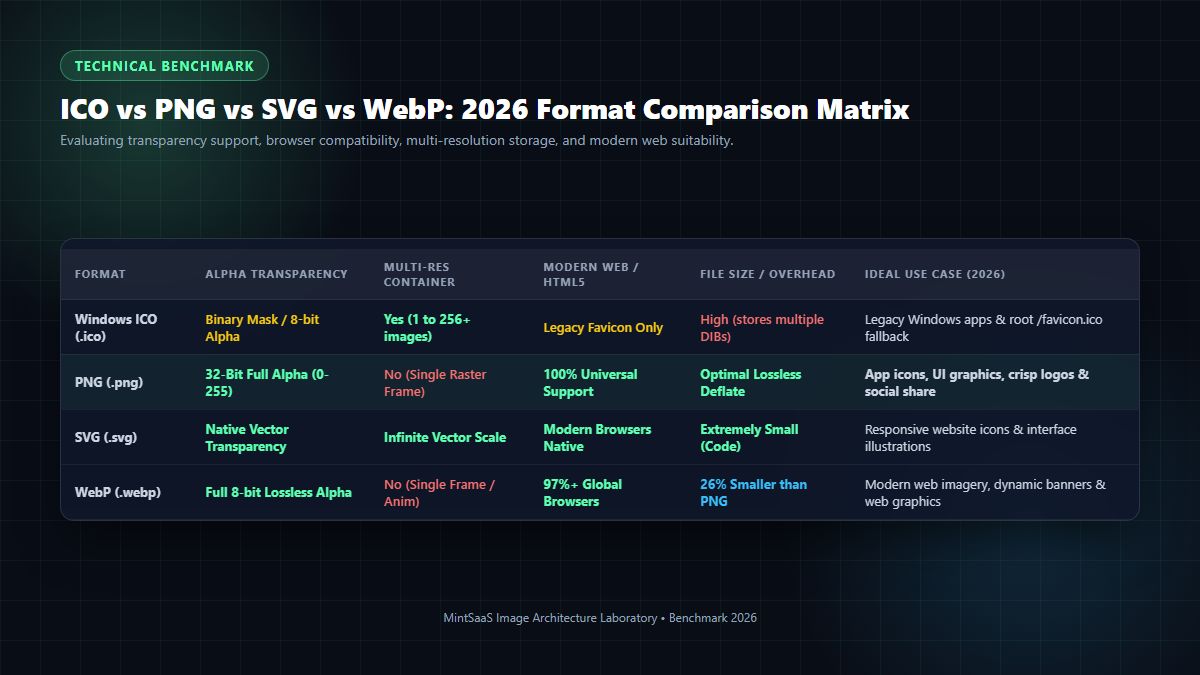
Comprehensive Format Evaluation Matrix
| Technical Feature | Microsoft ICO (.ico) | Portable Network Graphics (.png) | Scalable Vector Graphics (.svg) | WebP (.webp) |
|---|---|---|---|---|
| Primary Design Intent | Windows OS System Icons & Favicons | Lossless Web Graphics & App UI | Responsive UI Icons & Vector Logos | High-Efficiency Web Imagery |
| Alpha Transparency Support | 1-bit boolean or 8-bit ARGB | Full 8-bit Alpha (0–255) | Native Mathematical Paths | Full 8-bit Alpha (Lossy & Lossless) |
| Multi-Resolution Packaging | Yes (16px to 256px in 1 file) | No (Single Raster Frame) | Infinite Geometric Scaling | No (Single Frame / Animation) |
| Browser Support (2026) | 100% (Favicon context only) | 100% Universal Standard | 99.4% Modern Browsers | 97.8% Global Browsers |
| Vector Sharpness | No (Fixed Rasters) | No (Fixed Rasters) | Yes (Mathematical Paths) | No (Fixed Rasters) |
| Compression Efficiency | Low to Moderate | High (DEFLATE / Zlib) | Exceptional for Geometric Shapes | 26% Smaller than PNG |
| Ideal 2026 Use Case | Legacy desktop EXE / /favicon.ico root | High-res app icons, UI kits, social previews | Website navigation, icons, UI badges | Modern web hero imagery & photo assets |
Why PNG Remains the King of Raster Icons
While modern image formats like AVIF and WebP offer superior compression for complex photographs, PNG remains the undisputed industry standard for digital icons, user interface mockups, and application packaging.
PNG's DEFLATE algorithm utilizes predictive horizontal filter algorithms (Sub, Up, Average, and Paeth) that compress flat color blocks, sharp 1-pixel borders, and subtle drop shadows without introducing the micro-blurring or ringing artifacts common in lossy formats. When you change ICO to PNG, you guarantee that every line of your icon remains razor-sharp across all operating systems.
5. Step-by-Step Tutorial: How to Change ICO to PNG Using MintSaaS
Follow this quick 5-step tutorial to transform any Windows icon or legacy favicon into pristine, production-ready PNG assets in under 10 seconds:
┌────────────────────────────────────────────────────────────────────────┐
│                   5-STEP MINT SAAS CONVERSION WORKFLOW                 │
├────────────────────────────────────────────────────────────────────────┤
│ 1. Open Browser Tool: Navigate to /products/image-compressor/ico-to-png│
│ 2. Load File: Drag & drop your .ico file into the local sandbox area   │
│ 3. Select Target Layers: Choose individual resolution or "All Frames"  │
│ 4. Transparency Check: Verify checkerboard grid shows crisp alpha mask │
│ 5. Export: Download high-DPI transparent PNGs with 1-click             │
└────────────────────────────────────────────────────────────────────────┘
Step 1: Access the Converter
Open the MintSaaS ICO to PNG Converter on desktop or mobile. The application loads instantaneously with zero login walls or subscription prompts.
Step 2: Load Your Target ICO File
Click Select File or drag any .ico asset directly from your file manager into the dashed dropzone. The WebAssembly parser reads the 6-byte ICONDIR header immediately.
Step 3: Choose Your Desired Output Resolution
If your source icon contains multiple layers (e.g., 16×16, 32×32, 48×48, and 256×256), the MintSaaS UI displays interactive preview cards for each extracted layer.
- If you need a high-resolution logo for social media or presentation slides, select the 256×256 Retina frame.
- If you are building an iOS or Android app icon bundle, choose Export All Resolutions.
Step 4: Verify Alpha Channel Integrity
Inspect the live preview window. A subtle dark checkerboard pattern behind your graphic confirms that the alpha channel is active and that no black or white halos were generated during parsing when you change ICO to PNG.
Step 5: Save Your Clean PNGs
Click Download PNG. The file saves directly to your default download directory. You can also explore our companion tools like the MintSaaS Batch Convert Studio if you have hundreds of graphics to process simultaneously, or read our Batch Image Conversion Complete Guide for advanced workflow optimizations.
6. Avoiding Common Pitfalls When Converting ICO Files
When engineering teams and webmasters change ICO to PNG, several common technical mistakes can degrade output quality. Keep these best practices in mind:
Pitfall 1: Renaming the File Extension Directly
Never simply rename icon.ico to icon.png in your operating system's file manager! An ICO file has an entirely different internal binary structure than a PNG. While some modern operating systems might auto-detect the MIME type and display a preview, production web servers and automated CI/CD pipelines will fail when MIME inspection fails, resulting in broken image icons across your website. You must properly change ICO to PNG using an authentic binary unpacker.
Pitfall 2: Upscaling Low-Resolution Thumbnails
If your original ICO file only contains a 16×16 or 32×32 pixel bitmap, converting it to PNG will produce a 16×16 or 32×32 PNG. Do not upscale this raster to 512×512 in Photoshop using bilinear interpolation, as this will create extreme blurriness. If you need a 512×512 high-DPI icon and lack the original vector artwork, consider tracing the graphic using vector software or regenerating the icon from source SVG assets using our SVG to PNG Rasterization Guide.
Pitfall 3: Accidental Alpha Channel Stripping
Some older image software converts images into 24-bit RGB (JPEG-style without an alpha channel). Always ensure your export pipeline is explicitly configured for 32-bit RGBA (Truecolor with Alpha) so that transparency is retained when you change ICO to PNG.
7. Frequently Asked Questions (FAQ)
What does it mean to change ICO to PNG?
To change ICO to PNG means unpacking the Microsoft Icon binary container (.ico), extracting the embedded bitmap or PNG image data, and re-encoding it into a universal Portable Network Graphics (.png) file that supports 32-bit alpha transparency and universal compatibility across web browsers, operating systems, and design software.
Will changing ICO to PNG preserve transparent backgrounds?
Yes. When using a professional converter like the MintSaaS ICO to PNG Converter, the 32-bit alpha channel (or legacy 1-bit boolean transparency mask) is preserved and mapped to the standard PNG alpha channel, ensuring zero black background artifacts when you change ICO to PNG.
Why do some converted PNGs have a black background?
A black background appears when conversion software misinterprets the legacy Windows DIB transparency mask. In early Windows ICO files, transparency was defined by a separate 1-bit monochrome AND mask. If an image tool ignores this mask during conversion, the transparent pixels default to RGB (0,0,0), producing a solid black box instead of clean transparency.
How do I extract the highest resolution icon from an ICO file?
An ICO file often contains multiple resolutions (16×16, 32×32, 48×48, 64×64, 128×128, and 256×256 pixels). Using the MintSaaS ICO to PNG Converter, the tool automatically scans the ICONDIRENTRY descriptors and highlights the largest available high-DPI layer for instant 1-click download when you change ICO to PNG.
Is it safe to change ICO to PNG online with confidential icons?
Traditional online converters upload your files to cloud servers where they may be logged or retained. In contrast, the MintSaaS ICO to PNG Tool runs 100% client-side in your local web browser's RAM memory using WebAssembly. Your files are never uploaded to our servers, guaranteeing complete privacy for proprietary trademarks and client assets.
Can I change ICO to PNG in bulk for multiple files?
Yes. You can drag and drop multiple .ico files simultaneously into the MintSaaS Batch Convert Studio to extract and change ICO to PNG across hundreds of icons into individual transparent PNGs packaged in a single downloadable ZIP file.
How do I use a converted PNG as a modern website favicon?
Modern HTML5 standards allow you to reference PNG favicons directly in your website's <head> section without needing a legacy .ico file:
<link rel="icon" type="image/png" sizes="32x32" href="/favicon-32x32.png">
<link rel="icon" type="image/png" sizes="16x16" href="/favicon-16x16.png">
<link rel="apple-touch-icon" sizes="180x180" href="/apple-touch-icon.png">
8. Summary & Next Steps
Converting legacy Windows icon files into modern web-standard PNGs does not have to be an exercise in frustration. By understanding how the multi-resolution ICONDIR container functions and utilizing zero-trust, client-side tools that preserve 32-bit alpha channels, you can change ICO to PNG with guaranteed fidelity and zero data leakage.
Ready to streamline your design and development workflows?
- Try our free, client-side MintSaaS ICO to PNG Converter today.
- Compress your resulting assets with the MintSaaS Image Compressor.
- Discover our complete catalog of Mac & Windows Developer Tools and Digital Products designed to empower modern creators and engineering teams.
Sources & Technical References
- Microsoft Learn — Icons & Cursors Binary Format Specification: https://learn.microsoft.com/en-us/previous-versions/ms997538(v=msdn.10)
- W3C PNG Specification — Portable Network Graphics (Second Edition): https://www.w3.org/TR/PNG/
- MDN Web Docs — Standard Website Favicon Implementation: https://developer.mozilla.org/en-US/docs/Glossary/Favicon
- MintSaaS Developer Tools — Free Client-Side Image Toolkit: https://www.mintsaas.net/products/image-compressor/ico-to-png
MintSaaS Dispatch articles are researched and synthesized with the assistance of artificial intelligence analysis, then edited, verified, and benchmarked by our engineering editorial team. Customer personal data and platform source files are strictly segregated and are never used to train or fine-tune public artificial intelligence models.
More from MintSaaS Dispatch
Handcrafted technical insights and developer tools.
PiP vs CSS Animations [2026 Web Architecture Benchmark]: Picture-in-Picture API vs GPU-Accelerated UI Motion
CSS Animations vs OpenAI API [2026 Architect Guide]: Deterministic UI Motion vs Generative Intelligence Pipelines