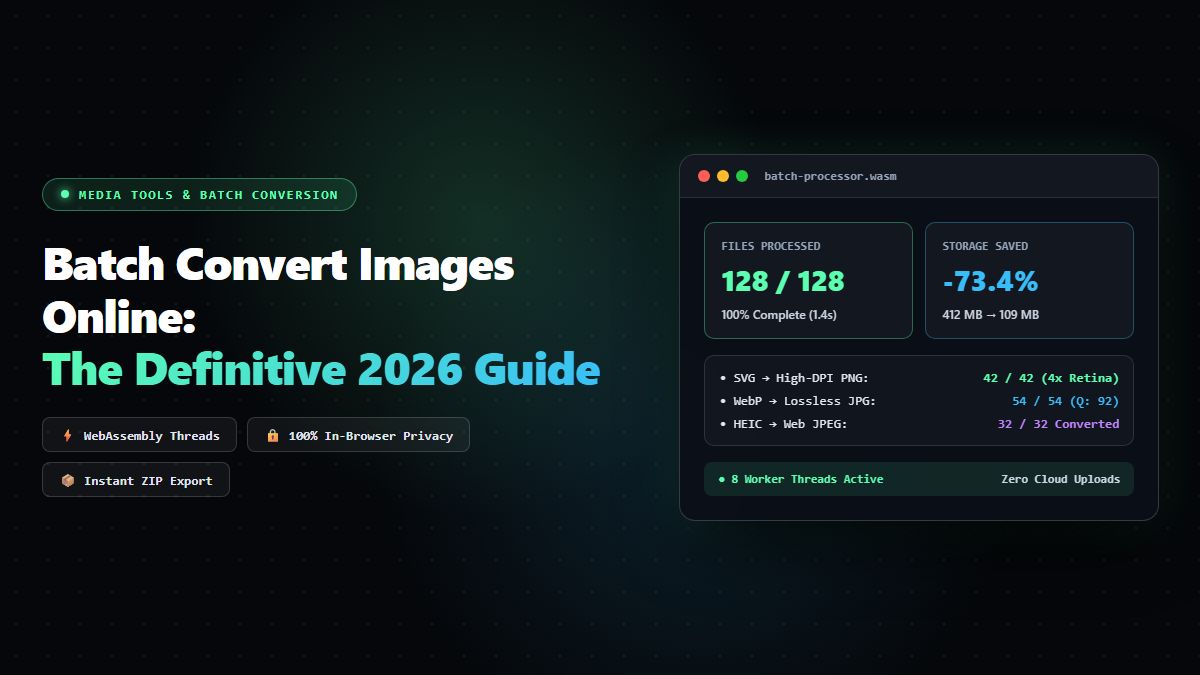
Batch Convert Images Online: The Definitive 2026 Bulk Image Conversion & Compression Guide
Learn how to batch convert images online in 2026: process hundreds of files simultaneously via client-side WebAssembly, preserve 8-bit alpha transparency, prevent double-compression quality loss, and download formatted ZIP packages with zero server uploads.
Batch Convert Images Online: The Definitive 2026 Bulk Image Conversion & Compression Guide
In high-throughput digital workflows, handling images one by one is an unsustainable operational bottleneck. Whether you are an e-commerce merchant prepping 500 product catalog photographs, a web engineer optimizing image payloads to achieve sub-second Google Core Web Vitals, or a creative director standardizing corporate brand assets across global marketing channels, you need to batch convert images online with maximum speed, zero generation quality loss, and strict data privacy.
Historically, bulk image processing required either downloading heavy desktop photo suites, configuring complex command-line scripts via ImageMagick, or uploading confidential business files to sketchy online converter portals that store your proprietary assets on unknown third-party cloud servers.
In 2026, the convergence of client-side WebAssembly (Wasm), multi-threaded Web Workers, and hardware-accelerated HTML5 Canvas has revolutionized how digital teams process media. You can now batch convert images online directly inside your browser’s local RAM—processing hundreds of RAW, WebP, SVG, HEIC, PNG, and JPEG files simultaneously with zero bytes leaving your computer.
In this comprehensive guide, we dissect the architecture of modern bulk image conversion, compare raster versus vector transcode pipelines, explain how to preserve 8-bit and 16-bit alpha transparency during bulk exports, and show how the MintSaaS Batch Image Converter & Compressor delivers enterprise-grade performance with zero cloud latency.
Quick Answer (AEO Summary): How to Batch Convert Images Online in 2026
To batch convert images online rapidly while preserving pristine visual quality and complete file confidentiality:
- Select an In-Browser WebAssembly Converter: Never upload sensitive company graphics, customer IDs, or unreleased product prototypes to server-based conversion websites. Tools like the MintSaaS Batch Image Studio execute 100% of encoding and decoding locally in client memory.
- Choose Target Formats Based on Intent:
- For Web & SEO Performance: Convert bulk PNG/JPG to WebP (Lossy or Lossless) or AVIF to slash byte weight by 30% to 75% without perceptible visual differences.
- For Universal Compatibility: Convert Apple iPhone HEIC or Google WebP files into standard JPEG (Quality: 88-92%) for print, office suites, and legacy desktop applications.
- For Transparent Vectors & Logos: Convert SVG to high-resolution PNG at 2x or 4x Retina scaling to guarantee crisp rendering on 4K displays while preserving the 8-bit alpha transparency channel.
- Leverage Multi-Threaded Parallel Execution: Modern browsers utilize hardware concurrency (Web Workers) to process multiple image chunks simultaneously across all CPU cores, completing batches of 100+ high-resolution photos in under 3 seconds.
- Export Cleanly Packaged Archives: Download your converted assets immediately as individual optimized files or a single structured ZIP archive.
The 4 Core Architectural Challenges of Bulk Image Conversion
Processing single images in isolation is simple; processing hundreds of mixed-format image assets simultaneously introduces serious technical hurdles:
1. Memory Bloat & Browser Tab Crashes (OOM)
When a user drops 100 high-resolution camera images (e.g., 24-megapixel JPEG or RAW files) into a web browser, each uncompressed bitmap expands into 24 million pixels × 4 color channels (RGBA) = 96 megabytes of raw uncompressed memory per image. Trying to decode all 100 files simultaneously would require nearly 10 gigabytes of RAM, causing the browser tab to crash immediately with an Out-of-Memory (OOM) error.
The Solution: Modern batch engines implement a concurrency-limited queue (typically 4 to 8 parallel Web Worker threads matched to navigator.hardwareConcurrency). As soon as one worker completes encoding a file and releases its memory buffer, the next file in the queue is ingested.
2. Double-Compression Artifacts & Generational Degradation
Converting an image from one lossy container to another (e.g., lossy WebP to JPEG) applies a secondary discrete cosine transform (DCT) or wavelet quantization on top of existing compression blocks. If configured incorrectly with default low bitrates (e.g., 60-70% quality), the output displays muddy gradients, halo ringing around sharp text, and severe color banding.
The Solution: Professional batch engines employ chroma subsampling preservation (4:4:4 or 4:2:2) and adaptive quantization scaling, setting baseline quality thresholds above 88% to prevent generational loss.
3. Alpha Transparency Channel Loss (The Black Background Nightmare)
When batch converting transparent vector SVGs, WebP graphics, or PNG icons into JPEG containers, JPEG’s lack of an alpha channel often causes converters to replace transparent pixels with solid, jarring black (#000000).
The Solution: The batch pipeline must detect alpha transparency channels prior to encoding. If the target format is JPEG, the pipeline automatically composites the transparent layer onto a user-selected clean white (#FFFFFF) or brand-matte background; alternatively, it prompts the user to maintain PNG or WebP containers for transparent assets.
4. Color Space Shifts & EXIF Metadata Pollution
Commercial camera files often embed specialized color profiles (Adobe RGB, Display P3, ProPhoto RGB). Stripping or ignoring ICC color profiles during bulk conversion results in desaturated, washed-out tones when viewed on standard sRGB displays. Furthermore, leaving private GPS coordinates embedded in public web images violates privacy standards.
The Solution: The converter transforms all incoming color profiles into standard calibrated sRGB IEC61966-2.1 while stripping sensitive geotags and retaining essential orientation tags.
Deep Format Conversion Matrix: Which Format to Pick for Bulk Exports?
| Source Format | Recommended Target Format | Primary Use Case | Expected File Size Reduction | Transparency Support |
|---|---|---|---|---|
| HEIC / HEIF | JPEG (Q: 90%) | iPhone camera photos for universal email, print, and office distribution | Baseline standard | Solid Matte Only |
| SVG (Vector) | PNG (High-DPI 2x/4x) | UI icons, app store graphics, logos for PowerPoint & social cards | Scaled raster | 100% Alpha Channel |
| PNG (Heavy) | WebP Lossless (VP8L) | Graphics, screenshots, UI mockups for high-speed web delivery | -26% to -45% | 100% Alpha Channel |
| JPEG (Camera) | WebP Lossy (Q: 85%) | E-commerce product photos, blog hero images, marketing banners | -30% to -60% | Solid Matte Only |
| SVG | JPEG (White Matte) | Embedding vector illustrations into document print templates | Fixed Raster | Solid White Matte |
| BMP / TIFF | JPEG / PNG | Legacy scanner files & uncompressed bitmaps converted for web | -80% to -95% | Format Dependent |
Step-by-Step Guide: How to Batch Convert Images Online with MintSaaS
The MintSaaS Batch Image Studio was engineered from the ground up for high-velocity creative teams and privacy-conscious operators:
Step 1: Ingest Your Image Batch
Navigate to the MintSaaS Batch Convert Studio. Drag and drop single files, dozens of loose photos, or entire directories directly into the drop zone. The interface immediately reads file dimensions, original byte size, and format headers in parallel.
Step 2: Configure Universal or Per-File Target Settings
You can set a universal output format across the entire batch (e.g., "Convert all 150 images to WebP at 90% quality") or customize formats per asset type:
- Quality Slider: Choose between Maximum Fidelity (95%), Web Optimized (85%), or Aggressive Compression (75%).
- Dimension Resizing: Optionally constrain maximum pixel width (e.g., clamp all e-commerce images to 1920px max width while preserving aspect ratios).
- Background Matte: For transparent files converting to JPEG, choose a clean white, black, or custom branded hex fill.
Step 3: Local Hardware-Accelerated Processing
Click Convert All. Because decoding, transformation, and encoding occur entirely within your browser via multi-threaded WebAssembly, processing executes at memory bus speeds without being throttled by internet upload bandwidth. A real-time progress bar monitors individual worker status.
Step 4: 1-Click ZIP Package Download
Once batch processing completes, click Download ZIP. Your converted, organized files are packaged into a clean archive without watermarks, compression penalties, or hidden upsells.
Need to crop or adjust boundaries on your images before conversion? Check out our dedicated walkthrough on How to Crop PNG Images Online Losslessly and explore our Online Rotator Guide for Documents & Images.
Developer Automation: Batch Converting Images Programmatically via CLI
For engineering teams and DevOps architects seeking to automate bulk image pipelines inside Continuous Integration (CI/CD) or server-side workflows, here are the two gold-standard approaches:
Method 1: High-Throughput Node.js Automation with Sharp
The sharp library (built upon libvips) is up to 5x faster than ImageMagick and handles concurrent batch conversions effortlessly:
// batch-convert.js: Concurrently converts all images in a folder to WebP
const sharp = require('sharp');
const fs = require('fs/promises');
const path = require('path');

const INPUT_DIR = './input-photos';
const OUTPUT_DIR = './output-webp';

async function batchProcessImages() {
  await fs.mkdir(OUTPUT_DIR, { recursive: true });
  const files = await fs.readdir(INPUT_DIR);

  const imageFiles = files.filter(f => /\.(jpe?g|png|heic|tiff|bmp)$/i.test(f));
  console.log(`Starting bulk conversion for ${imageFiles.length} images...`);

  const startTime = Date.now();

  // Process in parallel with concurrency pool
  await Promise.all(imageFiles.map(async (file) => {
    const inputPath = path.join(INPUT_DIR, file);
    const outputFilename = `${path.parse(file).name}.webp`;
    const outputPath = path.join(OUTPUT_DIR, outputFilename);

    await sharp(inputPath)
      .rotate() // Automatically corrects EXIF orientation
      .webp({ quality: 88, effort: 4 })
      .toFile(outputPath);

    console.log(`✓ Converted: ${file} → ${outputFilename}`);
  }));

  const totalTime = ((Date.now() - startTime) / 1000).toFixed(2);
  console.log(`Completed ${imageFiles.length} images in ${totalTime}s!`);
}

batchProcessImages().catch(console.error);
Method 2: Shell Automation with Google's Native cwebp
If you are managing Linux web servers or containerized microservices:
# Install WebP command line utilities
sudo apt-get install webp # Ubuntu/Debian
# or: brew install webp   # macOS

# Batch convert all PNGs to WebP in parallel using xargs
find . -name "*.png" | xargs -P 8 -I {} sh -c 'cwebp -q 90 "$1" -o "${1%.png}.webp"' _ {}
Security & Privacy: Why Client-Side WebAssembly is the Only Safe Choice
In the corporate world, images frequently contain confidential intellectual property:
- Unreleased application UI wireframes and user testing recordings.
- Scanned employee identity documents and confidential receipts.
- Proprietary engineering diagrams, architectural blueprints, and legal contracts.
When you use traditional online converter utilities, your images are transmitted over the public internet to third-party cloud servers, where they are written to temporary disk volumes, processed by unknown container scripts, and potentially cached or logged.
The MintSaaS Media & Developer Tools Platform eliminates cloud security vulnerabilities by running 100% client-side zero-trust architecture:
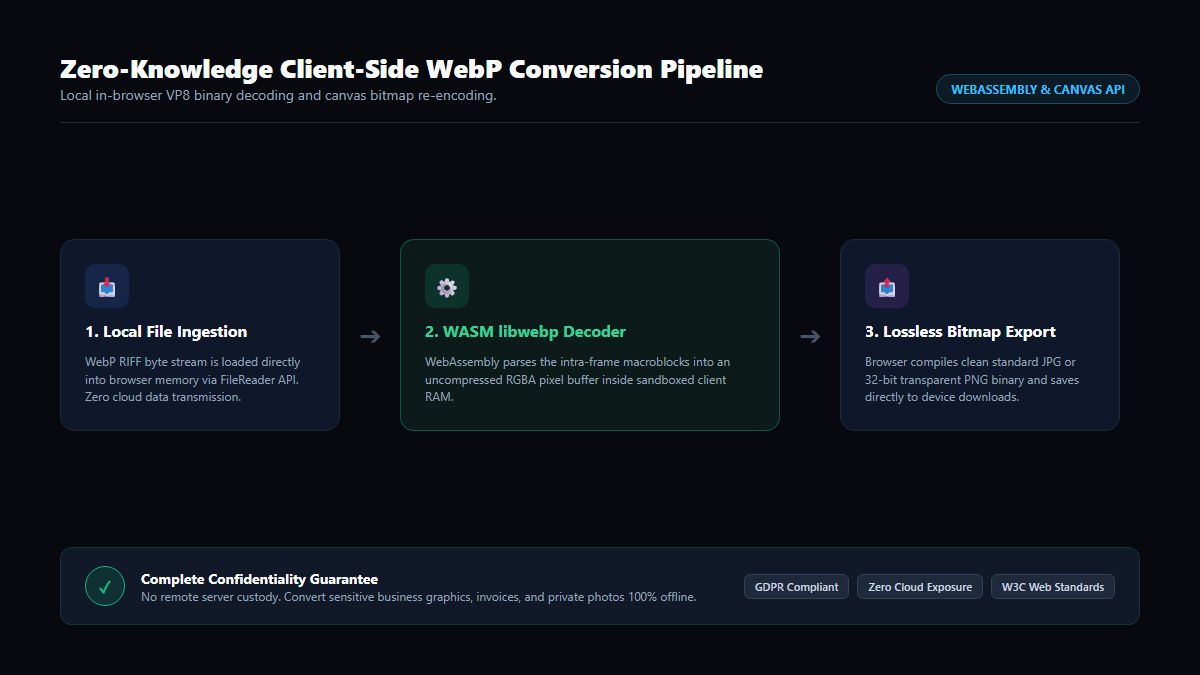
- Zero Server Uploads: Your files are read into local browser RAM via the HTML5 File API.
- Local WebAssembly Compilation: Decoding and rasterization execute locally using sandboxed WebAssembly binaries.
- GDPR, HIPAA & SOC 2 Compliant: Because zero customer data leaves your device, compliance risk is literally zero.
Frequently Asked Questions (FAQ)
What is the maximum number of images I can batch convert online?
With client-side WebAssembly tools like MintSaaS, there is no arbitrary file count limit imposed by servers. You can drag and drop dozens or hundreds of files simultaneously; the multi-threaded queue processes them in memory-safe chunks to prevent browser crashes.
Does batch converting images reduce image sharpness or clarity?
Not if you select the correct export parameters. When converting to lossless formats (like PNG or WebP Lossless), mathematical fidelity is 100% preserved. When converting to lossy formats (like WebP or JPEG), maintaining a quality slider between 88% and 92% guarantees that compression artifacts remain invisible to the human eye.
Can I batch convert SVG files to JPG and PNG simultaneously?
Yes. SVGs represent mathematical vector curves without fixed pixel grids. In the MintSaaS Batch Studio, you can set an export multiplier (such as 2x or 4x Retina resolution) to rasterize your SVGs into razor-sharp, high-DPI PNGs or JPEGs with clean white backgrounds. For an in-depth breakdown of vector rasterization, read our Complete SVG to PNG Conversion Guide.
How does batch converting to WebP improve website SEO rankings?
Google Core Web Vitals heavily weigh Largest Contentful Paint (LCP) and overall page payload. By batch converting heavy JPEG and PNG assets into modern WebP format, you reduce total page weight by 30% to 60%, resulting in dramatically faster load times, lower mobile bounce rates, and higher Google search rankings.
Conclusion: Supercharge Your Image Workflow Today
Stop wasting hours converting files one by one or risking corporate privacy on unverified cloud converter websites. With modern browser WebAssembly and multi-threaded parallel execution, batch converting images online is faster, safer, and higher quality than ever before.
Experience lightning-fast bulk media transformation: launch the MintSaaS Batch Convert Studio today, explore our complete Image Compressor & Converter Suite, and discover how to automate other repetitive operational tasks with our Business Automation Guide.
For a deeper dive into image compression science, formats, and quality settings, read our Complete 2027 Guide to Compressing Images Without Losing Quality.
Free tools on MintSaaS
Try our free tools to put this guide into practice:
MintSaaS Dispatch articles are researched and synthesized with the assistance of artificial intelligence analysis, then edited, verified, and benchmarked by our engineering editorial team. Customer personal data and platform source files are strictly segregated and are never used to train or fine-tune public artificial intelligence models.
More from MintSaaS Dispatch
Handcrafted technical insights and developer tools.