How to Compress Images Without Losing Quality: The Complete 2027 Guide
Compress images by 60-95% without visible quality loss: resize first, use WebP or AVIF at quality 75-85, strip metadata, and serve with proper caching. Complete 2027 guide with tools and benchmarks.
How to Compress Images Without Losing Quality: The Complete 2027 Guide
Quick answer: To compress images without visible quality loss, resize to your maximum display dimension first, then re-encode at quality 75–85 in WebP or AVIF format, and strip unnecessary metadata. For photographs, WebP at quality 80 typically reduces file size by 60–75% with no perceptible difference at normal viewing distance. For graphics and screenshots, use lossless WebP or PNG. Always serve the right format for each browser using the HTML <picture> element.[1][3]
Every website owner, content creator, and developer faces the same problem: high-quality images look great but load slowly. A single unoptimized photograph can weigh 4–8 MB, and a page with several such images can take 10+ seconds to load on a mobile connection. Google's Core Web Vitals penalize slow pages, and users abandon sites that take more than 3 seconds to load.[4]
The good news is that modern image formats and compression techniques can reduce file sizes by 60–95% without any visible quality loss. This guide walks you through the science, the formats, the tools, and the workflow for compressing images professionally in 2027.
Understanding lossy vs. lossless compression
Image compression falls into two categories, and choosing the right one depends on the image type.
Lossless compression reduces file size without changing a single pixel. It works by finding patterns and redundancies in the image data and encoding them more efficiently. PNG, GIF, and lossless WebP use this approach. The file size reduction is modest — typically 10–30% — but the image remains mathematically identical to the original.[1]
Lossy compression discards information the human eye is unlikely to notice. JPEG, lossy WebP, and AVIF use this approach. The file size reduction is dramatic — often 60–90% — but the image is permanently altered. At high quality settings (75+), the changes are invisible to most viewers. Below quality 60, artifacts become noticeable: blocky gradients, halo effects around sharp edges, and color banding in skies.[3]
The practical rule is simple: use lossy compression for photographs (continuous tones, complex textures) and lossless compression for graphics (sharp edges, text, flat colors, logos).[1]
The 2027 image format landscape
Four formats dominate web image delivery in 2027. Each has distinct strengths.
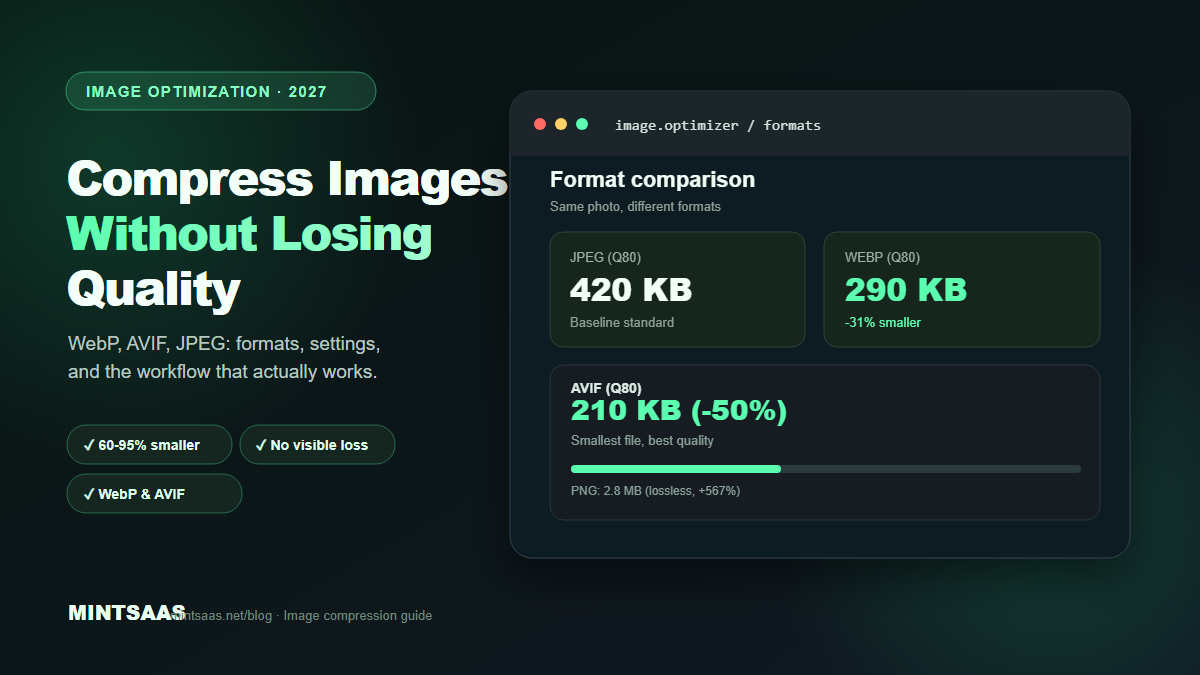
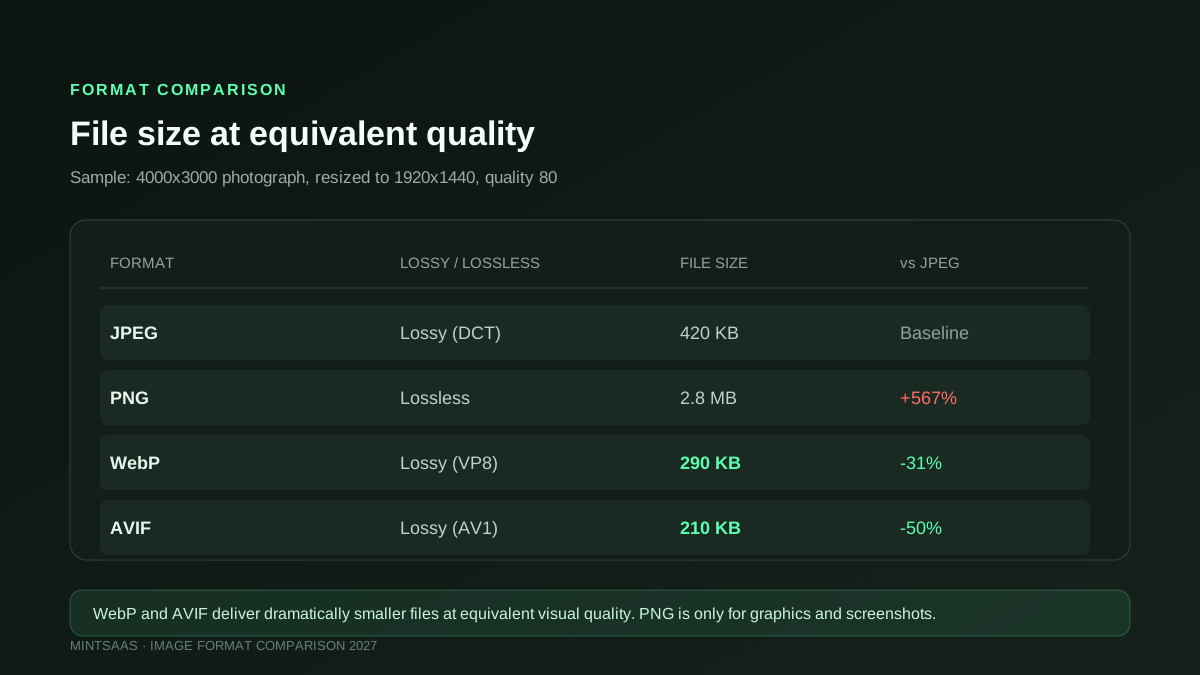
JPEG remains the universal fallback. It uses lossy compression based on the discrete cosine transform (DCT). Every browser supports it, every tool can read it, and it handles photographs well. At quality 75–85, a JPEG is typically 3–10× smaller than the uncompressed original with no visible quality loss. MozJPEG, a production encoder from Mozilla, produces 5–10% smaller files than standard libjpeg at the same quality.[3]
PNG is lossless and supports transparency. It excels for screenshots, diagrams, logos, and any image with sharp edges or text. PNG files are larger than JPEG for photographs but can be optimized 10–30% through better compression algorithms like oxipng or pngcrush without changing a single pixel.[3]
WebP is Google's format and the current default for web images. It supports both lossy (VP8-based) and lossless compression, plus transparency in both modes. Lossy WebP is 25–35% smaller than JPEG at equivalent quality. Lossless WebP is 20–26% smaller than PNG. Browser support is approximately 97% as of 2026, making it safe for production use in most contexts.[1][3]
AVIF is the newest standard, based on the AV1 video codec. It offers 40–50% smaller files than JPEG and 20–35% smaller than WebP at equivalent quality. The trade-off is encoding speed — AVIF is significantly slower to encode, making it less practical for on-the-fly processing but excellent for static assets. Browser support is approximately 90% as of 2026.[3]
The recommended serving strategy in 2027 is: AVIF first (for static hero images), WebP second (for all other images), JPEG as fallback (for older browsers). Use the HTML <picture> element to let the browser choose the best supported format.[1]
The compression workflow that actually works
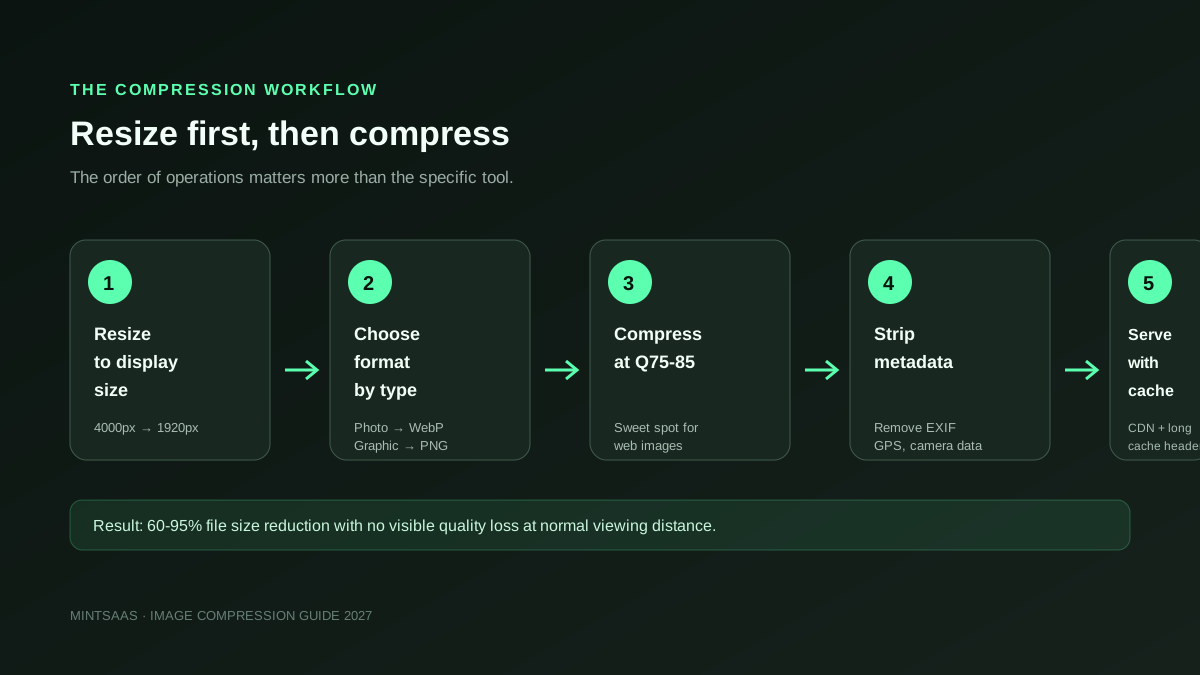
The order of operations matters more than the specific tool. Follow this sequence for every image:
Step 1: Resize to maximum display dimension. This is the single biggest optimization. A 4000×3000 photograph displayed at 800×600 pixels wastes 96% of its data. Resize to the largest size the image will ever be displayed (typically 1920px for full-width hero images, 800px for content images).[3]
Step 2: Choose the right format. Photographs → WebP lossy (quality 80) or JPEG (quality 82–85). Graphics, screenshots, logos → WebP lossless or PNG. Icons and logos → SVG.[1]
Step 3: Compress at the right quality. Quality 75–85 is the sweet spot for lossy formats. Below 75, artifacts become visible. Above 90, file sizes grow disproportionately with minimal visual improvement.[3]
Step 4: Strip unnecessary metadata. Camera EXIF data (GPS coordinates, camera model, settings) can add 10–50 KB per image. Unless you need this data (e.g., for photography portfolios), strip it. Keep orientation tags to prevent rotation issues.[3]
Step 5: Serve with proper caching. Set long cache headers (1 year) for versioned image URLs. Use a CDN to serve images from edge locations close to your users. Enable Brotli or gzip compression on your server.[4]
Quality settings: the numbers that matter
Not all quality settings are equal. Here's what the research says:
| Quality | File size | Best for |
|---|---|---|
| 90–95 | Large | High-quality archives, print |
| 82–88 | Medium | Web use (recommended) |
| 75–82 | Small | Blog images, product photos |
| 60–75 | Very small | Thumbnails, where speed matters more |
| Below 60 | Tiny | Noticeable artifacts, avoid |
Quality 75–80 is the practical sweet spot for most web images. At this level, a typical photograph is 60–70% smaller than the original with no visible difference at normal viewing distance.[3]
For WebP specifically, quality 80 produces files that are visually indistinguishable from quality 95 but 40–50% smaller. The diminishing returns curve is steep: going from quality 80 to 95 increases file size by 2–3× for minimal visual improvement.[1]
Tools for image compression in 2027
Different workflows require different tools. Here are the most effective options:
For browser-based compression: The MintSaaS Image Compressor processes images 100% client-side using WebAssembly. No files are uploaded to any server, making it ideal for sensitive images like ID documents, medical records, or unreleased product photos. It supports batch processing, format conversion, and quality adjustment.
For command-line automation: Sharp (Node.js) is the industry standard. Built on libvips, it's 4–5× faster than ImageMagick and handles concurrent batch conversions effortlessly. For AVIF encoding, use sharp().avif({ quality: 50, effort: 4 }). For WebP, use sharp().webp({ quality: 80 }).[3]
For build-time optimization: Next.js Image Optimization automatically serves the right format and size for each device. It generates WebP/AVIF variants at build time and serves them via the /_next/image endpoint. Configure formats: ['image/avif', 'image/webp'] in next.config.js.[4]
For manual optimization: Squoosh.app (by Google) provides a visual comparison tool that shows the original and compressed image side by side. It's useful for finding the optimal quality setting for a specific image. TinyPNG and TinyJPG offer simple drag-and-drop compression for quick optimization.[1]
Common mistakes that waste bandwidth
Compressing before resizing. Compressing a 4000×3000 image to WebP quality 80 produces a smaller file than JPEG, but it's still 10× larger than it needs to be. Always resize first.[3]
Using PNG for photographs. PNG is lossless, so a photograph saved as PNG is 5–10× larger than the same image as JPEG or WebP. Use PNG only for graphics, screenshots, and images with transparency.[1]
Ignoring responsive images. Serving a 1920px image to a 375px mobile screen wastes 80% of the bandwidth. Use srcset and sizes attributes to serve appropriately sized images for each viewport.[4]
Not stripping metadata. Camera EXIF data can include GPS coordinates, camera model, lens settings, and timestamps. For a public website, this data is unnecessary and can be a privacy risk. Strip it during compression.[3]
Using quality 100. Quality 100 in JPEG doesn't mean "no compression" — it means "minimal compression." The file is still compressed, but the quality setting is so high that the file size is 3–5× larger than quality 85 with no visible difference.[3]
Measuring the impact
After optimizing your images, measure the results:
- Largest Contentful Paint (LCP): Google's Core Web Vital for loading performance. Target under 2.5 seconds. Image optimization is the single biggest lever for improving LCP.[4]
- Total page weight: Use Chrome DevTools Network tab to see the total bytes transferred. A well-optimized page should be under 1–2 MB total.
- Image-specific metrics: Lighthouse provides per-image optimization recommendations, including format suggestions, resize suggestions, and lazy-loading opportunities.[4]
Frequently Asked Questions (FAQ)
What is the best image format for websites in 2027?
WebP is the best default format for 2027. It offers 25–35% smaller files than JPEG at equivalent quality, supports transparency, and has 97%+ browser support. For static hero images, AVIF provides even better compression. Always include a JPEG fallback for older browsers using the <picture> element.[1][3]
How much can I compress an image without losing quality?
For photographs, you can typically reduce file size by 60–75% by resizing to display dimensions and compressing at quality 75–85 in WebP format, with no visible quality loss at normal viewing distance. For graphics and screenshots, lossless compression (WebP lossless or PNG) reduces size by 10–30% without changing any pixels.[3]
Does image compression affect SEO?
Yes. Google uses Core Web Vitals (including LCP) as a ranking factor. Faster-loading pages with optimized images rank higher. Additionally, smaller images improve mobile experience, reduce bounce rates, and increase time on site — all signals that search engines consider.[4]
Should I use AVIF or WebP?
Use both. Serve AVIF first (smaller files, better quality), WebP second (wider browser support), and JPEG as fallback. Use the <picture> element with <source> tags for each format. AVIF is slower to encode, so it's best for static assets; WebP is faster and suitable for on-the-fly processing.[3]
How do I compress images for email?
Email clients have limited format support. Use JPEG at quality 75–80 for photographs and PNG for graphics. Keep total email size under 100 KB if possible. Many email clients block external images by default, so include alt text and consider embedding small images as base64.[3]
What is the difference between resizing and compressing?
Resizing changes the pixel dimensions (e.g., 4000×3000 → 800×600). Compressing reduces the file size without changing dimensions (e.g., 4 MB → 400 KB at the same 800×600 size). Both are necessary for optimal web images: resize first, then compress.[3]
Can I compress images on my phone?
Yes. Modern smartphones can compress images using browser-based tools like the MintSaaS Image Compressor, which processes files 100% client-side. No app installation required. For batch processing, use the MintSaaS Batch Image Converter.[5]
How do I check if my images are optimized?
Use Google Lighthouse (built into Chrome DevTools) to audit your page. It provides per-image recommendations including format suggestions, resize suggestions, and lazy-loading opportunities. Also check the Network tab in DevTools to see actual file sizes and load times.[4]
Related reading on MintSaaS
- Batch Convert Images Online: The Definitive 2026 Bulk Image Conversion & Compression Guide
- SVG to PNG: The Complete Guide to High-Resolution Vector Rasterization, Transparency & Sharp Exports in 2026
- Convert WebP File: The Definitive Guide to Converting WebP Images to JPG & PNG Online in 2026
- Crop PNG Image Online: The Complete Guide to Lossless, Transparent Cropping in 2026
- PDF Security: How to Protect Sensitive Documents Online in 2027
- How to Grow on Instagram in 2027: A Practical Growth Guide
- How to Convert Images Between Formats: The Complete Guide to WebP, AVIF, JPEG, and PNG in 2027
- WebP vs AVIF: Which Image Format Wins in 2027?
- How to Optimize Images for SEO: Complete Guide to Faster Loading and Higher Rankings
- Best Image Compression Tools for Web Developers in 2027
- How to Batch Compress Images Online: Bulk Workflow Guide for 2027
- Image Optimization for E-Commerce: Product Photos That Convert in 2027
- How to Resize Images for Social Media: Platform-Specific Guide for 2027
- SVG Optimization: How to Reduce Vector File Size for Web in 2027
- How to Optimize Images for Mobile: Responsive Image Guide for 2027
- Lossless vs Lossy Compression: When to Use Each for Images in 2027
- Image CDN vs Self-Hosted: Which Is Better for Performance in 2027?
- How to Use the HTML Picture Element for Responsive Images in 2027
- Image Lazy Loading: Implementation Guide for Web Performance in 2027
Sources
[1] MDN Web Docs — Image file type and format guide: https://developer.mozilla.org/en-US/docs/Web/Media/Guides/Formats/Image_types
[2] Squoosh.app — Google's image compression tool: https://squoosh.app
[3] Image Optimization for the Web (boxtool.app): https://boxtool.app/en/guides/image-optimization-for-web/
[4] Web.dev — Core Web Vitals: https://web.dev/vitals/
[5] MintSaaS Image Compressor: https://www.mintsaas.net/products/image-compressor
Free tools on MintSaaS
Try our free tools to put this guide into practice:
MintSaaS Dispatch articles are researched and synthesized with the assistance of artificial intelligence analysis, then edited, verified, and benchmarked by our engineering editorial team. Customer personal data and platform source files are strictly segregated and are never used to train or fine-tune public artificial intelligence models.
More from MintSaaS Dispatch
Handcrafted technical insights and developer tools.