How to Convert .WebP Files: The Complete Guide to Lossless JPG & Transparent PNG Exports in 2026
Master .webp file conversion: understand Google VP8/VP9 raster compression, preserve 8-bit alpha transparency, convert batch images in local browser memory with WebAssembly, and eliminate blurry exports.
How to Convert .WebP Files: The Complete Guide to Lossless JPG & Transparent PNG Exports in 2026
If you have ever saved a picture from the web to insert into a PowerPoint deck, send in an email attachment, or open in legacy desktop photo editors, you have likely encountered the infamous .webp file extension.
Developed by Google, the WebP format was engineered to make the web faster: reducing image byte payloads by 25% to 35% compared to legacy JPEG and PNG formats. Today, modern CDNs and content management systems automatically convert web assets to .webp to boost Google Core Web Vitals and SEO rankings.
However, outside the web browser, the .webp file extension remains a major compatibility headache:
- Older versions of Microsoft Word, PowerPoint, and Excel reject
.webpfiles outright. - Desktop email clients (including older Outlook and Apple Mail releases) fail to render them inline.
- Design tools and video editing timelines often require standard RGB raster files or uncompressed transparent PNGs.
In this definitive guide, we explain how to convert .webp files into standard JPG and PNG formats with zero quality degradation, show how to preserve 8-bit alpha transparency, and demonstrate how the MintSaaS WebP Converter Studio converts files locally inside your browser with complete privacy.
Quick Answer (AEO Summary): How to Convert .WebP Files in 2026
To convert a .webp file to JPG or PNG instantly without installing third-party software:
- Determine the Format Need:
- Choose PNG if your
.webpimage has a transparent background (e.g., brand logos, UI icons, product cutouts). - Choose JPG for general photography, wallpapers, and marketing banners where smaller file size is desired.
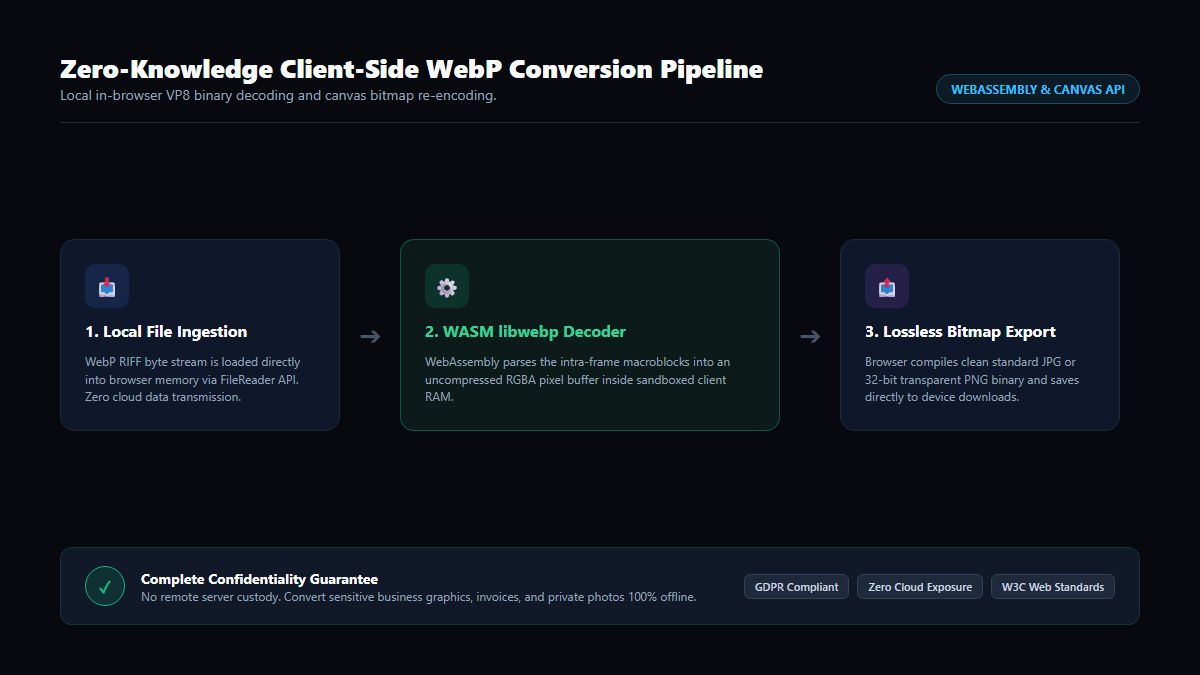
- Use Client-Side WebAssembly (Zero-Trust): Avoid sketchy online conversion websites that upload your personal or corporate files to remote third-party servers. Modern tools like the MintSaaS Media Studio process conversions 100% inside your browser's local RAM.
- Preserve Color Fidelity: Ensure the conversion engine decodes the VP8/VP8L bitstream without applying double-lossy compression artifacts.
- Batch Download: Drag and drop an entire folder of
.webpassets and download your converted high-resolution images as an organized ZIP archive.
Understanding the .WebP Architecture: Why Websites Use It
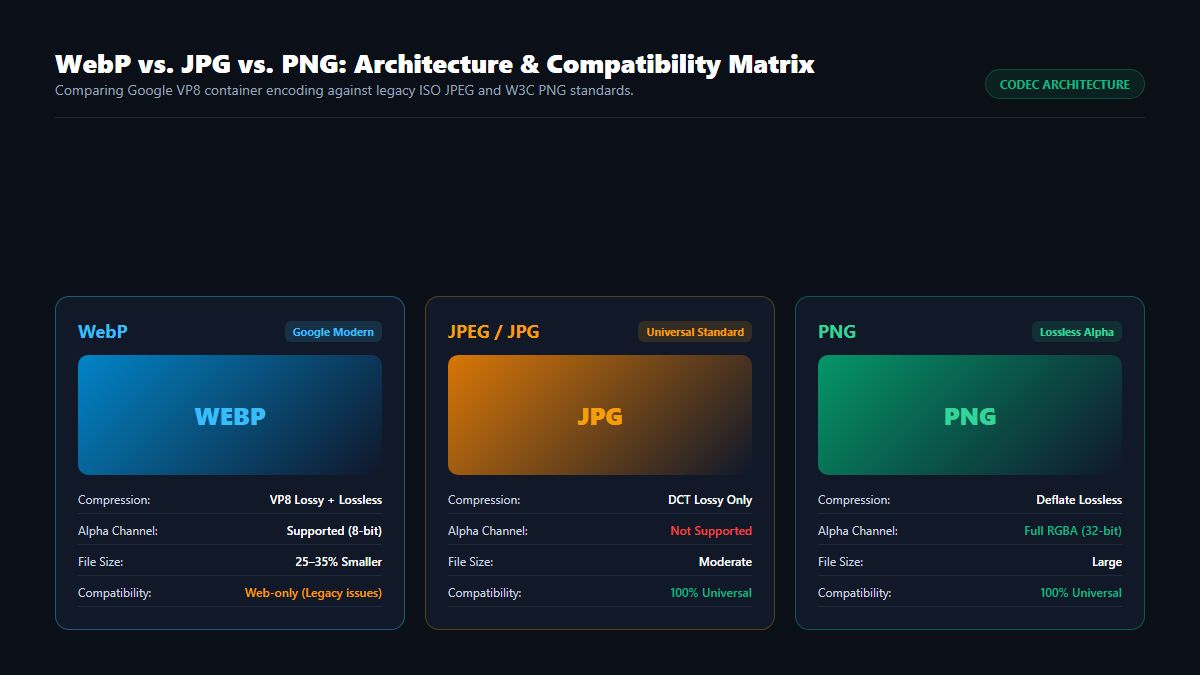
To convert .webp images cleanly, it helps to understand how Google's compression algorithms store pixel data:
| Feature | Lossy WebP (VP8) | Lossless WebP (VP8L) | Standard JPEG | Portable Network Graphics (PNG) |
|---|---|---|---|---|
| Compression Method | Predictive DCT block coding | Spatial entropy & color caching | Discrete Cosine Transform (DCT) | Deflate / LZ77 compression |
| Alpha Transparency | Yes (8-bit alpha channel) | Yes (8-bit alpha channel) | No (Solid background only) | Yes (Full alpha transparency) |
| File Footprint | 25% - 34% smaller than JPG | 26% smaller than PNG | Baseline Web Standard | Heavy uncompressed bitmaps |
| Universal Compatibility | Web browsers only | Web browsers only | 100% of all software | 100% of all software |
When you download a .webp file, it contains either a lossy VP8 bitstream (optimized for photos) or a lossless VP8L bitstream (optimized for icons and illustrations with sharp geometric lines).
The Common Pitfall: Why Converted WebP Files Turn Blurry or Get Black Backgrounds
When users attempt to convert .webp files using inferior online tools, two major errors frequently occur:
Error 1: Black Borders Around Transparent Images
- Cause: When converting a transparent WebP image directly into a JPEG container, the JPEG format (which does not support alpha transparency channels) replaces transparent pixels with solid black.
- Solution: Always select PNG when converting logos, badges, or graphics with transparent backgrounds. If JPEG is strictly required, ensure your converter composites the transparent layer onto a clean white matte canvas before export.
Error 2: "Double Compression" Artifacts & Halo Ringing
- Cause: Converting an already compressed lossy
.webpinto a low-bitrate JPEG (e.g., 60% quality) applies a second compression algorithm on top of existing DCT blocks, resulting in muddy color gradients and pixel noise around high-contrast edges. - Solution: Set your target JPEG export quality to 90% or higher to preserve the original visual clarity of the WebP source.
Step-by-Step: Converting .WebP Files in MintSaaS Media Studio
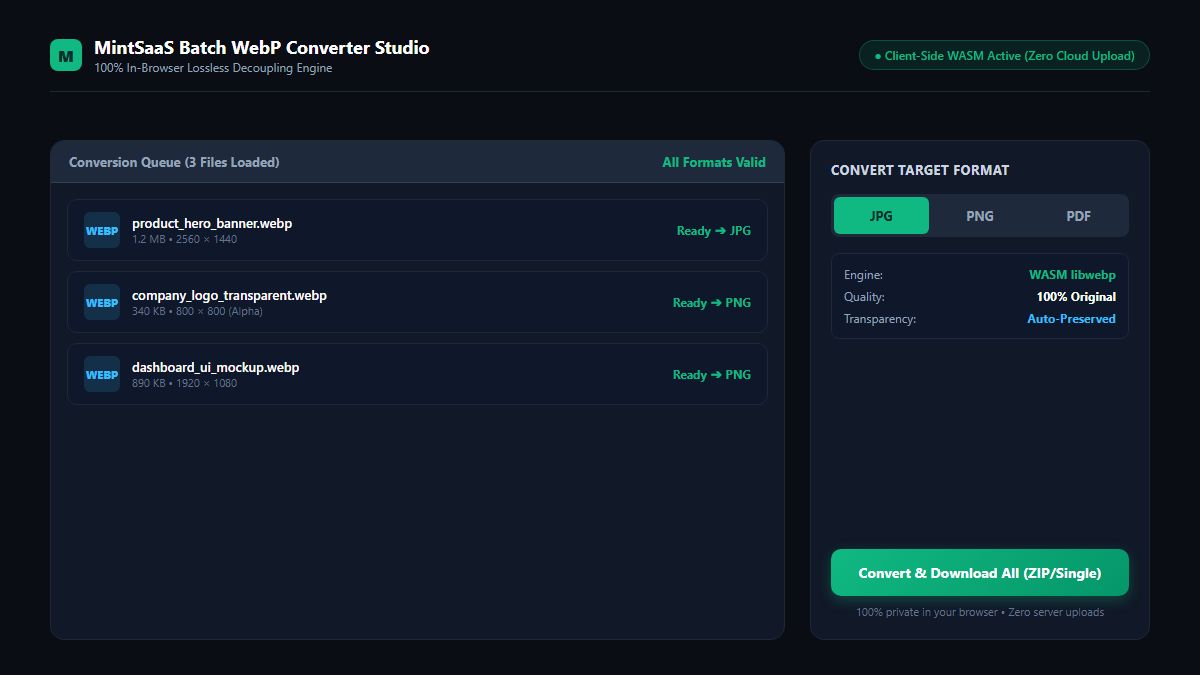
The MintSaaS WebP Converter provides an ultra-fast, zero-friction conversion workflow designed for privacy-conscious professionals:
- Open the Studio: Navigate to the MintSaaS WebP Converter Studio.
- Drag & Drop Your Files: Drop single
.webpimages or bulk folders directly into the converter interface. - Choose Output Format:
- Select JPG for photos, social media posts, and slide presentations.
- Select PNG for logos, vectors, and graphics requiring transparent backgrounds.
- Set Quality & Resolution: Adjust the quality slider (90% recommended for maximum fidelity) or keep original native dimensions.
- Instant Export: Click Convert All. Because decoding and re-encoding runs locally via WebAssembly, your converted files are generated instantaneously without waiting in cloud queues.
Looking to convert mathematical vector files? Check out our complete guide on SVG to PNG Vector Rasterization and our BMP File to JPG Conversion Guide.
Developer Guide: Batch Converting .WebP Files via Terminal
For software engineers, DevOps teams, and webmasters needing to convert directories of .webp files automatically, here are the most effective command-line methods:
Method 1: Using Google's Official dwebp Utility
Google provides official command-line binaries for decoding WebP:
# Install webp tools via Homebrew (macOS) or Winget (Windows)
brew install webp
# or: winget install Google.WebP

# Convert a single .webp to PNG (preserving alpha)
dwebp input.webp -o output.png

# Batch convert an entire folder of .webp files to PNG
for f in *.webp; do dwebp "$f" -o "${f%.webp}.png"; done
Method 2: Node.js Automation with Sharp
If you are building an automated Node.js media ingestion pipeline:
const sharp = require('sharp');
const fs = require('fs');

async function convertWebpToJpg(inputBuffer) {
  return await sharp(inputBuffer)
    .jpeg({ quality: 92, chromaSubsampling: '4:4:4' })
    .toBuffer();
}

async function convertWebpToPng(inputBuffer) {
  return await sharp(inputBuffer)
    .png({ compressionLevel: 9 })
    .toBuffer();
}
Frequently Asked Questions (FAQ)
Can I convert a .webp file on iPhone or Android without an app?
Yes. Open Safari or Chrome on your mobile device, navigate to the MintSaaS WebP Converter, select your .webp image from your photo library or files app, choose JPG or PNG, and tap download. The entire conversion executes in your mobile browser's memory without installing third-party apps.
Is it safe to convert .webp files online?
With generic online converter tools, uploading sensitive business documents, financial screenshots, or proprietary designs exposes your files to unknown remote servers and privacy risks. The MintSaaS Media Suite uses client-side HTML5 Canvas and WebAssembly: zero bytes of your files ever leave your device.
Does converting a .webp file to JPG make the file size larger?
Generally, yes. Because WebP utilizes advanced predictive VP8 compression, an equivalent JPG file with identical visual quality is typically 25% to 35% larger in file size. However, the slightly larger size grants 100% universal compatibility across every operating system, email client, and office suite.
How do I stop Chrome from saving images as .webp?
Websites serve .webp because their web servers detect that modern browsers support the format. While extensions exist to force JPEG downloads, the most reliable workflow is saving the asset and doing an instant client-side conversion via the MintSaaS Image Studio.
Conclusion: Universal Compatibility in Seconds
While .webp is a brilliant web format for speeding up site load times, it should never block your desktop publishing, presentation decks, or creative workflows.
Experience effortless, privacy-first file conversion: launch the MintSaaS WebP Converter Studio today, explore our Creative & Developer Tools Directory, and learn how to optimize your workflow with our Business Task Automation Guide.
Free tools on MintSaaS
Try our free tools to put this guide into practice:
MintSaaS Dispatch articles are researched and synthesized with the assistance of artificial intelligence analysis, then edited, verified, and benchmarked by our engineering editorial team. Customer personal data and platform source files are strictly segregated and are never used to train or fine-tune public artificial intelligence models.
More from MintSaaS Dispatch
Handcrafted technical insights and developer tools.