Convert WebP File: The Definitive Guide to Converting WebP Images to JPG & PNG Online in 2026
Learn how to convert WebP file images to JPG and transparent PNG online for free. Batch conversion, zero server uploads, and 100% lossless privacy on MintSaaS.
Convert WebP File: The Definitive Guide to Converting WebP Images to JPG & PNG Online in 2026
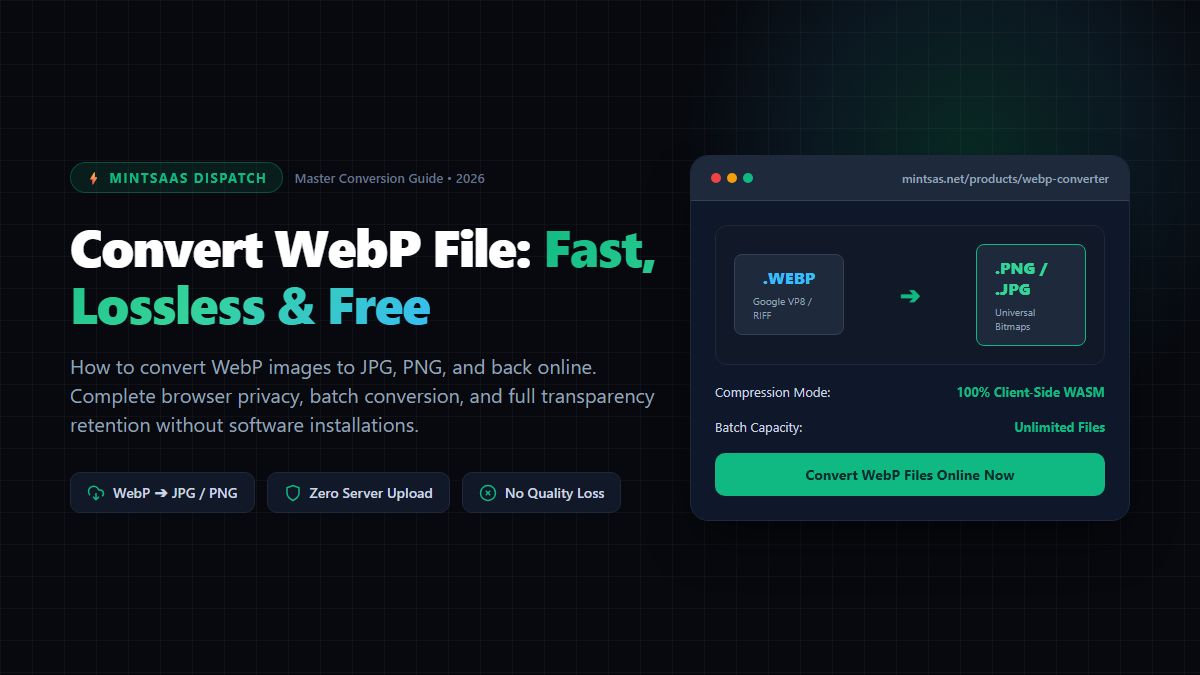
Quick Answer (AEO Direct Answer): To convert webp file images to universal JPG or transparent PNG formats for free, use a secure in-browser utility like MintSaaS WebP Converter. Because WebP uses Google’s VP8/VP8L video compression inside a RIFF container, older desktop applications (like Photoshop, legacy Windows Photo Viewer, or Microsoft Office) often refuse to open or import .webp files. MintSaaS decodes the WebP binary stream 100% client-side inside your browser’s WebAssembly memory sandbox, allowing you to instantly convert webp to high-quality JPG or alpha-transparent PNG in batch without uploading a single byte to remote servers.
Have you ever right-clicked to save an image from Google Chrome or an e-commerce website, expecting a standard JPEG or PNG, only to discover a .webp file saved to your desktop? And when you tried to drag that image into Adobe Photoshop, attach it to an email newsletter, insert it into a PowerPoint deck, or send it to a client, your computer threw an infuriating error: "File format not supported"?
You are far from alone. Millions of users search daily for terms like convert webp file, convert webp image, and converter webp to solve this exact software incompatibility friction.
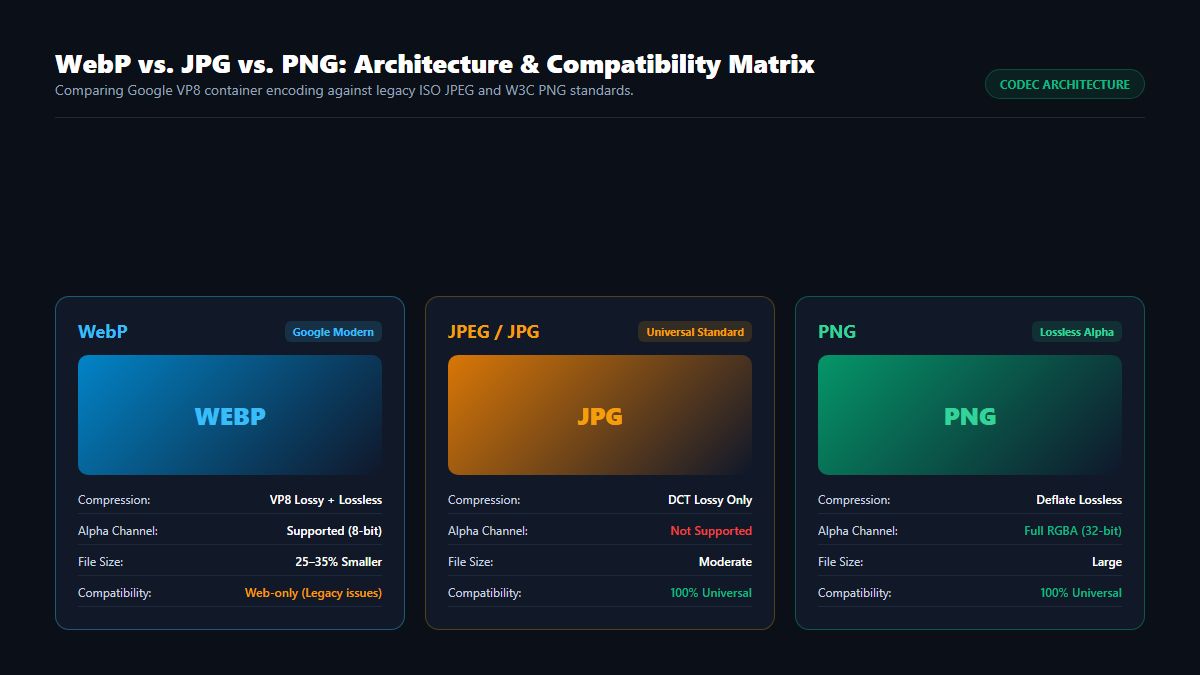
Developed by Google in 2010 to make the web faster, WebP has become the dominant image format across modern web browsers. By utilizing predictive macroblock encoding derived from the VP8 video codec, WebP slashes image file sizes by 25% to 35% compared to JPEG while preserving visual fidelity.
However, outside the web browser, native operating system support remains fractured. Print shops, legacy photo editors, enterprise ERPs, and desktop publication software still demand standard, universal bitmaps.
In this comprehensive technical guide, we break down why WebP files behave differently, explain the inner mechanics of the Google RIFF/VP8 container, analyze when to convert to JPG versus PNG, and show you how to perform instant, batch webp conversion online with 100% data privacy.
1. What is a WebP File and Why Do You Need to Convert WebP File Images?
To understand why you frequently need to convert webp file assets, it helps to explore how the format was engineered and why it disrupted legacy image standards.
The Origins of WebP: Google's Quest for a Faster Web
In 2010, Google engineers set out to solve a massive internet bottleneck: page load times. Nearly 65% of the payload on a typical web page consists of images. While JPEG had served as the global standard for photographs since 1992, its discrete cosine transform (DCT) compression produced noticeable macroblock noise at high compression ratios. Meanwhile, W3C PNGs provided pristine lossless quality and alpha transparency, but at the cost of enormous file sizes.
Google answered by taking the keyframe compression technology from the open-source VP8 video codec and wrapping it in a lightweight Resource Interchange File Format (RIFF) container.
WebP introduced two revolutionary modes:
- Lossy WebP: Uses predictive block-based spatial encoding to anticipate pixel values based on adjacent blocks, achieving 25% to 34% smaller file sizes than equivalent-quality JPEGs.
- Lossless WebP (VP8L): Uses advanced entropy coding, color transform matrices, and spatial prediction to deliver 26% smaller file sizes than traditional PNGs while preserving 100% mathematical pixel fidelity and full 8-bit alpha channel transparency.
The Desktop Incompatibility Friction
Because modern content delivery networks (CDNs) and platforms like WordPress, Shopify, and Cloudflare automatically serve WebP images to speed up page load scores, your browser automatically downloads WebP files.
However, when you attempt to use those files offline, legacy compatibility roadblocks emerge:
- Desktop Software Rejection: Older versions of Adobe Photoshop (CS6 through early CC), CorelDRAW, and AutoCAD cannot natively open
.webpfiles without third-party plugins. - Office & Productivity Suites: Legacy versions of Microsoft Word, PowerPoint, and Keynote often display broken image placeholders when inserting raw WebP graphics.
- Commercial Print Pre-Press: Professional offset and digital print drivers operate on CMYK postscript standards and reject RGB WebP bitstreams outright.
- Social Media & CMS Upload Limits: Many niche community forums, classified portals, and legacy content management systems restrict upload file extensions strictly to
.jpgand.png.
These friction points make a dependable utility to convert webp file images an indispensable everyday productivity asset whenever you need to convert webp file downloads on desktop.
2. Under the Hood: How an Online WebP Converter Works
When you decide to convert webp online, how does the conversion engine translate Google's video-derived stream into a standard bitmap?
The Deconstruction of the RIFF Container
Every valid WebP file begins with a standardized 12-byte binary header:
00000000: 52 49 46 46  xx xx xx xx  57 45 42 50  RIFF....WEBP
0000000c: 56 50 38 20  ...                       VP8  (Lossy)
-- OR --
0000000c: 56 50 38 4c  ...                       VP8L (Lossless)
-- OR --
0000000c: 56 50 38 58  ...                       VP8X (Extended/Alpha)
To execute a clean webp conversion, the converter must:
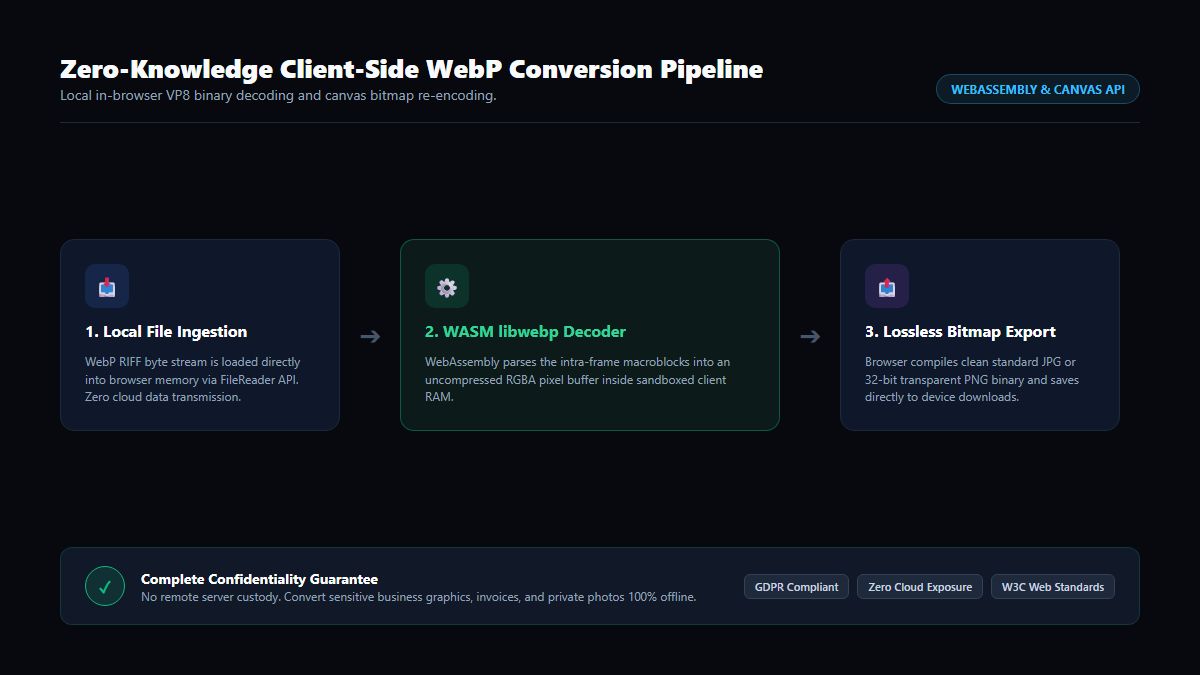
- Parse the RIFF container and determine whether the stream is lossy (
VP8), lossless (VP8L), or extended (VP8Xwith alpha transparency). - Decompress the predictive spatial macroblocks into an uncompressed 32-bit RGBA pixel array in memory.
- Re-encode the raw RGBA pixel array into the target format:
- If converting to JPEG: Discards the alpha channel (or blends transparency with a solid matte background) and applies Discrete Cosine Transform (DCT) quantization.
- If converting to PNG: Retains all 4 channels (Red, Green, Blue, Alpha) and compresses the scanlines using the Deflate/zlib lossless filter algorithm.
Why Client-Side WebAssembly is Superior to Remote Cloud Converters
Most legacy online converters upload your private WebP images to remote third-party web servers running headless ImageMagick or Python scripts.
In contrast, the MintSaaS WebP Converter utilizes Client-Side WebAssembly (WASM). By compiling the official C-based libwebp library directly into high-performance WASM binaries, your browser decodes and converts the WebP image directly within your local computer’s CPU sandbox.
Zero bytes of your files are ever transmitted across the internet. Whether you need to convert webp image batches of sensitive company invoices, personal family photos, or confidential design mockups, your data remains 100% private and protected.
3. WebP to JPG vs. WebP to PNG: Which Target Format Should You Choose?
When using a converter webp tool, one of the most critical decisions is selecting the appropriate destination format. Choosing incorrectly can result in bloated file sizes or the accidental destruction of transparent backgrounds.
| Target Format | Best Use Cases | Transparency Support | File Size Characteristics | Compatibility |
|---|---|---|---|---|
| Convert WebP to JPG | Photography, digital paintings, real-estate listings, e-commerce product photos | No (Fills transparent areas with solid white) | Small to Medium (Adjustable quality slider) | 100% Universal across all software and devices |
| Convert WebP to PNG | Logos, UI icons, graphic badges, digital stickers, screenshots with text | Yes (Preserves full 8-bit alpha channel) | Medium to Large (Lossless compression) | 100% Universal across all software and devices |
| Convert WebP to PDF | Scanned multi-page documents, business contracts, receipts | N/A (Encapsulated in document stream) | Standard Document Size | Universal for archiving and formal sharing |
Rule of Thumb:
- If the original WebP graphic has a transparent background (like a company logo or cutout), always convert webp file to PNG to preserve transparency.
- If the original WebP graphic is a full-frame photograph or background wallpaper without transparency, convert webp to JPG for the optimal balance of quality and file size.
If you subsequently need to refine the composition or crop transparent padding from your converted assets, use our companion Crop PNG Image Online Guide or Crop Image Tool.
4. How to Convert WebP Files Online with MintSaaS: Step-by-Step
MintSaaS provides a dedicated, lightning-fast in-browser workspace designed for single files and high-volume batch jobs. Here is how to convert webp file assets in seconds:
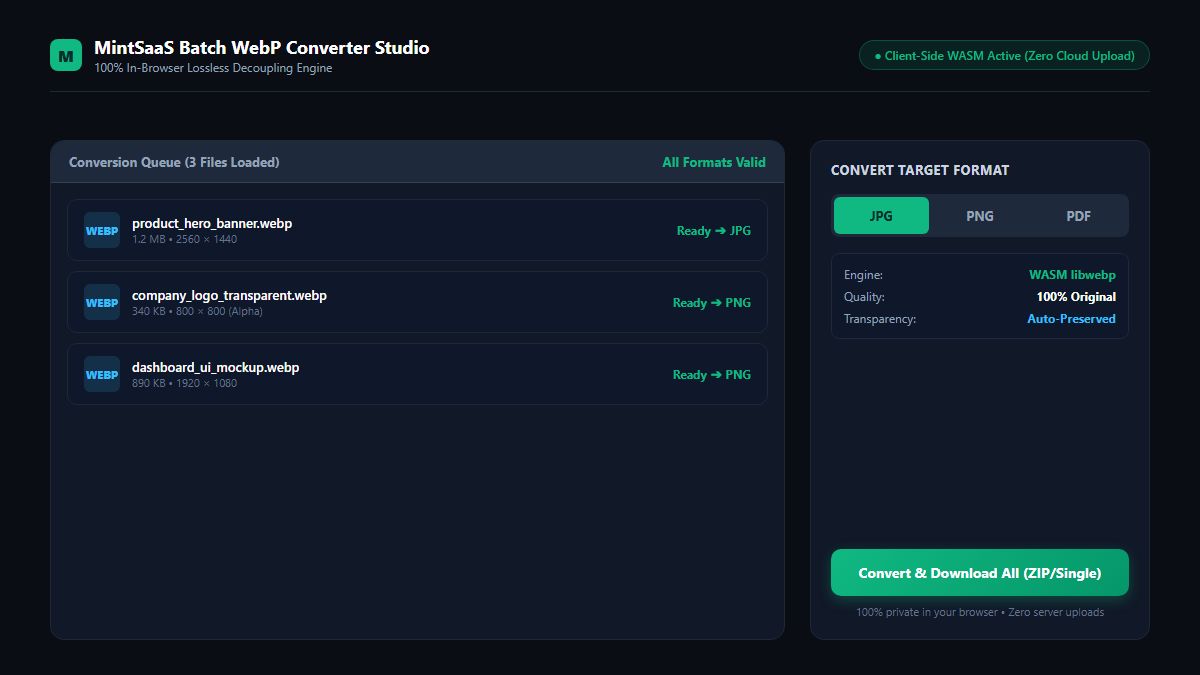
Step 1: Open the Tool to Convert WebP File Formats
Navigate to the MintSaaS WebP Converter in any modern desktop or mobile browser (Chrome, Edge, Safari, Firefox, Opera).
Step 2: Ingest the Assets You Need to Convert WebP File Online
Drag and drop your .webp files into the designated dropzone, or click to browse your folders. Because processing occurs client-side via WebAssembly, you can drop dozens of images simultaneously without waiting for tedious network upload progress bars.
Step 3: Choose Your Output Format & Settings
- Select your desired target: JPG, PNG, or PDF.
- If converting to JPG, adjust the quality slider (we recommend 85% to 90% for visually lossless output with minimal file size).
- If converting to PNG, transparency is preserved automatically.
Step 4: Convert WebP File Assets and Download Instantly
Click Convert All. The WebAssembly engine decodes each image in milliseconds. You can download each file individually or click Download All as ZIP to save your entire converted library in a single click.
Need to optimize or sanitize other assets? Pair this with our Blur Image Online Studio, Online Rotator, or explore our Photobucket Blur Guide.
5. Security & Compliance: Why Traditional Cloud Converters Are Dangerous
When people need a quick webp conversion, they frequently click the top sponsored ad on Google search results. However, free ad-supported online converters hide significant enterprise cybersecurity risks:
1. Data Harvesting on Unsecured Storage Buckets
Traditional cloud conversion services upload your files to shared multi-tenant cloud storage (such as Amazon S3 or Google Cloud Storage). Many of these buckets have relaxed access controls, meaning automated web scrapers can guess URL hashes and access confidential corporate documents, invoices, or customer photos.
2. GDPR and HIPAA Non-Compliance
Under GDPR Article 25 and HIPAA regulations, transmitting personally identifiable information (PII) or protected health information (PHI) to unauthorized third-party servers constitutes an illegal cross-border data transfer. If an employee uploads a client agreement or medical chart to a random cloud converter to convert webp file, your organization could face severe regulatory fines.
3. Generative AI Model Scraping
Several free file conversion services monetize by collecting uploaded user imagery to train proprietary machine learning and generative vision models without compensation or opt-out rights.
The MintSaaS Privacy Advantage
With MintSaaS, your confidential files never leave your device:
- Zero Cloud Footprint: Files are processed exclusively in your browser’s volatile memory sandbox.
- Offline Verification: You can load the MintSaaS WebP Converter, disconnect your Wi-Fi or Ethernet cable, and convert hundreds of WebP files completely offline.
- No Telemetry on File Contents: We do not log, inspect, or retain your creative or business assets.
6. How to Automate Repetitive Image Conversions in Modern Workflows
If your digital marketing agency, e-commerce business, or design firm handles thousands of incoming media assets weekly, converting files one by one by hand is an enormous drain on productivity.
To build an efficient media pipeline:
- Standardize Naming & Format Conventions: Enforce incoming asset guidelines so team members upload WebP for web delivery and preserve PNG/JPG masters for print and creative archives.
- Batch Processing Over Manual Conversion: Always leverage client-side batch converters that handle multi-file queues simultaneously rather than converting single images one by one.
- Automate Document Workflows: For teams looking to eliminate manual digital busywork across documents, media, and marketing pipelines, read our in-depth framework on how to automate repetitive tasks in business.
7. Common Pitfalls to Avoid During WebP Conversion
To ensure maximum visual quality and avoid corrupted assets when you convert webp file media, keep these best practices in mind:
- Converting Lossy WebP to JPG at Low Bitrates: Converting a compressed WebP to a 60% quality JPEG causes "double compression" artifacts, producing muddy gradients and halo ringing around text. Always set JPEG quality to 85% or higher.
- Discarding Alpha Transparency by Defaulting to JPG: If your WebP image is a brand logo or transparent icon, converting to JPG replaces the transparent background with solid white. Always select PNG for transparent graphics.
- Overwriting Master High-Resolution Originals: WebP images downloaded from websites are often downsampled web assets. Never delete your original high-resolution PSD, AI, or RAW master files in favor of converted web downloads.
- Using Untrusted Executables: Beware of downloading sketchy
.exeor desktop converter utilities from unverified forums; many bundle adware or cryptominers. Modern in-browser WebAssembly tools provide native desktop speed without installing dangerous software.
8. Frequently Asked Questions (FAQ)
How do I convert webp file to JPG for free?
You can convert webp file to JPG for free using the MintSaaS WebP Converter. Simply drag and drop your .webp files into the tool, select JPG as your target format, and click Download. The conversion happens instantly in your browser without watermarks or file size caps.
Can I convert webp image files to PNG with a transparent background?
Yes. If your original WebP file contains transparency (alpha channel), converting to PNG via MintSaaS automatically preserves 100% of the transparent and semi-translucent pixels without adding black or white borders.
Why do images save as .webp instead of .jpg on modern websites?
Modern websites serve WebP images because Google’s VP8 compression reduces image file sizes by 25% to 35% compared to JPEG, resulting in faster page loads, higher Google SEO scores, and lower bandwidth costs. When you save an image from Chrome or Safari, the browser downloads the format served by the web server.
Is it safe to convert webp online on MintSaaS?
Yes, 100% safe. MintSaaS uses client-side WebAssembly to decode and re-encode your images entirely within your browser’s local memory. Zero bytes of your files are ever uploaded to external servers, ensuring complete privacy and compliance with GDPR and corporate security protocols.
What is the difference between WebP lossy and WebP lossless?
- WebP Lossy: Uses block prediction derived from the VP8 video codec to discard imperceptible color data, producing dramatically smaller file sizes ideal for web photography.
- WebP Lossless (VP8L): Compresses image data mathematically without discarding a single pixel, making it roughly 26% smaller than PNG while maintaining perfect fidelity and alpha transparency.
Can I convert multiple WebP files at once?
Yes. MintSaaS supports unlimited batch webp conversion. You can drag and drop dozens of WebP files into the studio and convert them simultaneously, downloading the entire batch as a single organized ZIP archive.
Does converting WebP to JPG reduce image quality?
If you select a high-quality export setting (85% to 95%), the visual difference between the original WebP and the converted JPG is virtually imperceptible to the human eye. However, because JPEG is a lossy format, select PNG if you require 100% mathematical lossless reproduction.
Conclusion: Take Command of Your Image Compatibility Today
WebP is undoubtedly the future of web performance, but it should never hinder your offline productivity, desktop publishing, or commercial creative workflows. By understanding the container architecture and leveraging modern, privacy-first conversion tools, you can easily bridge the gap between high-speed web delivery and universal desktop compatibility.
Experience the freedom of lightning-fast, zero-upload file conversion. Visit the MintSaaS WebP Converter Studio today, or explore our full suite of free digital utilities in the Productivity Category to streamline your modern workflow.
More from MintSaaS Dispatch
Handcrafted technical insights and developer tools.
Convert HEIC to JPG: The Ultimate Guide to Converting iPhone Photos Online in 2026
Crop PNG Image Online: The Complete Guide to Lossless, Transparent Cropping in 2026