How to Merge PDF Files Online: Complete Guide for 2027
Merge PDF files online: upload, reorder, and combine into a single PDF. Security considerations, tool comparison, and best practices.
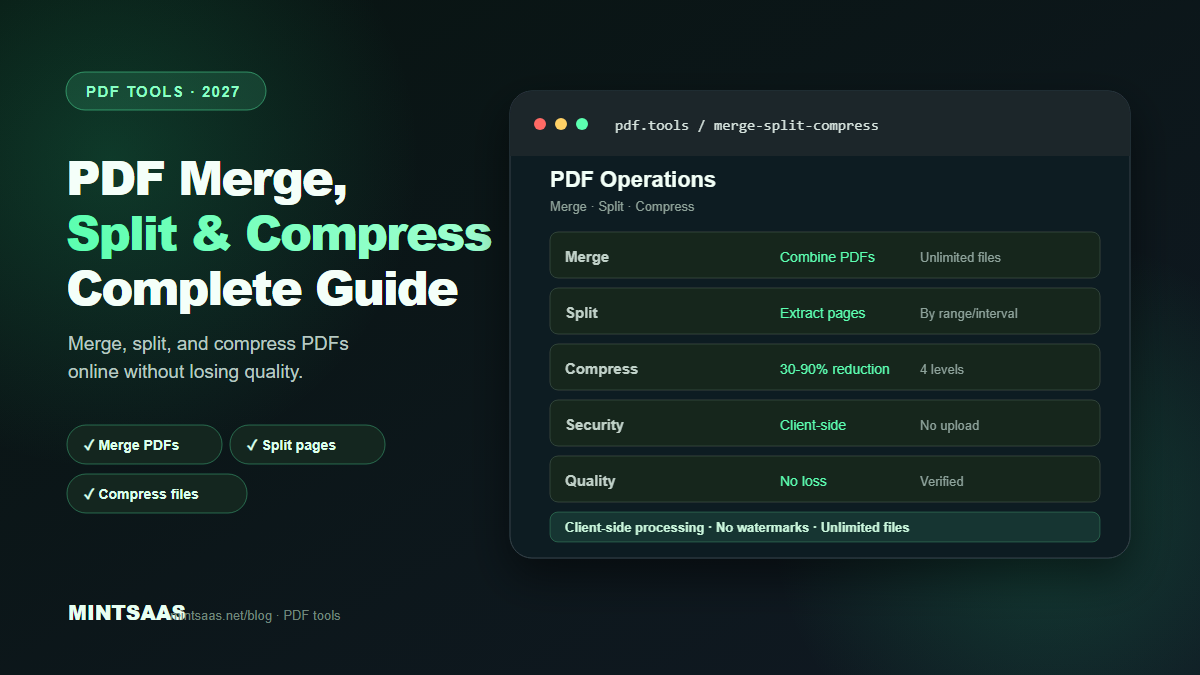
How to Merge PDF Files Online: Complete Guide for 2027
Quick answer: To merge PDF files online, upload your PDFs to a tool like MintSaaS PDF Merger, arrange them in the desired order, and click merge. The tool combines them into a single PDF while preserving quality. No software installation required. For sensitive documents, use tools with client-side processing (files never leave your browser). Merged PDFs maintain original quality and can be reordered before finalizing.[1][3][5]
Merging PDF files is one of the most common document tasks in business and personal workflows. Whether you're combining quarterly reports, assembling a portfolio, or consolidating invoices, a reliable PDF merger saves hours of manual work.
This guide covers everything you need to know: how PDF merging works, best practices, security considerations, and the tools that do it best.
Why merge PDF files?
Common use cases for PDF merging:
- Business reports: Combine monthly reports into a single quarterly document
- Portfolios: Assemble work samples, certificates, and references into one file
- Invoices: Consolidate multiple invoices into a single billing document
- Legal documents: Combine contracts, amendments, and exhibits
- Academic: Merge research papers, appendices, and bibliographies
- Personal: Combine scanned documents, receipts, and forms[3][5]
How PDF merging works
When you merge PDFs, the tool takes multiple input files and combines them into a single output file. The process involves:
- Reading each PDF: The tool parses the structure of each input file
- Extracting pages: Individual pages are extracted from each document
- Reordering (optional): Pages can be rearranged before merging
- Combining: Pages are assembled into a new PDF in the specified order
- Optimizing: The output PDF may be compressed to reduce file size
- Saving: The merged PDF is saved and made available for download[1][3]
Best practices for merging PDFs
1. Organize before merging
Before uploading, rename your files with a numbering prefix:
01_cover.pdf
02_executive_summary.pdf
03_financial_report.pdf
04_appendix.pdf
This ensures files appear in the correct order when uploaded. Most tools sort files alphabetically by default.[3]
2. Check page orientation
Ensure all PDFs have consistent page orientation (portrait or landscape). Mixed orientations can cause layout issues in the merged document. Use a rotation tool first if needed.[3]
3. Verify page sizes
Different page sizes (Letter, A4, Legal) can be merged but may look inconsistent. Standardize page sizes before merging for a professional result.[3]
4. Remove unnecessary pages
Before merging, remove blank pages, duplicate pages, or irrelevant content from each PDF. This keeps the final document clean and reduces file size.[3]
5. Add bookmarks
For long merged documents, add bookmarks (table of contents) to help readers navigate. Some tools automatically create bookmarks from source file names.[3]
Security considerations
Client-side vs server-side processing
Client-side (browser-based): Files are processed in your browser. They never leave your device. This is the most secure option for sensitive documents.[1][5]
Server-side: Files are uploaded to a server for processing. The server may retain copies. Check the tool's privacy policy and data retention policy.[5]
What to look for in a secure PDF merger
- ✅ Client-side processing (files stay in browser)
- ✅ HTTPS encryption for any server communication
- ✅ No account required (reduces data collection)
- ✅ Automatic file deletion after processing
- ✅ No watermarks added to output
- ✅ GDPR/CCPA compliance[1][5]
Documents that should never be uploaded to unknown servers
- Tax returns and financial statements
- Medical records (HIPAA-protected)
- Legal contracts with confidential terms
- Identity documents (passports, IDs)
- Passwords or credentials[5]
For these, use a client-side tool like MintSaaS PDF Merger.
Comparing PDF merger tools
| Tool | Processing | Free limit | Watermark | Account required |
|---|---|---|---|---|
| MintSaaS PDF Merger | Client-side | Unlimited | No | No |
| Adobe Acrobat Online | Server-side | 2 files | No (with account) | Yes |
| Smallpdf | Server-side | 2 tasks/day | No (with account) | Yes |
| ILovePDF | Server-side | 10 MB/file | No | No |
| PDF24 | Server-side | Unlimited | No | No |
| Sejda | Server-side | 3 tasks/hour | No | No |
Recommendation: For sensitive documents, use client-side tools. For large batches, use tools with high file size limits.[3][5]
Step-by-step: merging PDFs with MintSaaS
- Open MintSaaS PDF Merger
- Upload your PDF files (drag and drop or click to browse)
- Reorder files by dragging them into the desired sequence
- Preview each file to verify content
- Click "Merge" to combine files
- Download the merged PDF
The entire process takes seconds for typical documents (under 50 pages total).[5]
Advanced merging techniques
Merge specific pages only
Instead of merging entire documents, extract specific pages from each PDF and merge only those. This is useful when you need sections from multiple large documents.[3]
Merge with different page sizes
Some tools automatically standardize page sizes during merging. Others preserve original sizes. Check your tool's behavior before merging documents with mixed sizes.[3]
Merge encrypted PDFs
If a PDF is password-protected, you'll need to enter the password before it can be merged. Some tools can't process encrypted PDFs at all.[3]
Add a cover page
Create a cover page PDF and merge it as the first file. This gives your merged document a professional title page.[3]
Troubleshooting common issues
"File too large" error
- Compress individual PDFs before merging
- Use a tool with higher file size limits
- Split large PDFs into smaller chunks
"Corrupted PDF" error
- The PDF may be damaged. Try opening it in a PDF viewer first
- Re-save the PDF from a different application
- Use a PDF repair tool
Merged PDF is larger than expected
- Remove unnecessary pages before merging
- Compress the merged PDF after merging
- Check if the tool added embedded fonts or metadata
Pages appear in wrong order
- Rename files with numerical prefixes before uploading
- Use the tool's drag-and-drop reordering feature
- Verify the order in the preview before merging[3][5]
Frequently Asked Questions (FAQ)
Is it safe to merge PDFs online?
Yes, if you use a reputable tool. For sensitive documents, use client-side tools (like MintSaaS) where files are processed in your browser and never uploaded to a server. Always check the tool's privacy policy.[1][5]
Can I merge PDFs without losing quality?
Yes. PDF merging is a lossless operation — the content of each page is preserved exactly. The merged PDF may be slightly larger due to combined metadata, but page quality is unchanged.[3]
How many PDFs can I merge at once?
Most tools support 10–50 files per merge. MintSaaS supports unlimited files. For very large batches, consider merging in groups and then merging the groups.[5]
Can I merge PDFs on my phone?
Yes. Browser-based PDF mergers work on mobile devices. Upload files from your phone's storage or cloud drive. The process is the same as on desktop.[5]
Does merging PDFs add watermarks?
Reputable tools (MintSaaS, PDF24, Sejda) don't add watermarks. Some free tiers of commercial tools may add watermarks. Check before using.[3][5]
Can I merge password-protected PDFs?
Yes, if you know the password. Enter it when prompted. The merged PDF may or may not retain password protection depending on the tool.[3]
How do I merge PDFs in a specific order?
Most tools allow drag-and-drop reordering before merging. Alternatively, rename files with numerical prefixes (01_, 02_, etc.) so they sort correctly when uploaded.[3]
What's the maximum file size for PDF merging?
Limits vary by tool: 10 MB (ILovePDF), 25 MB (Smallpdf), 100 MB+ (MintSaaS, PDF24). For files larger than the limit, compress them first or use a desktop tool like Adobe Acrobat.[3][5]
Related reading on MintSaaS
- PDF Security: How to Protect Sensitive Documents Online in 2027
- How to Compress Images Without Losing Quality: The Complete 2027 Guide
- How to Optimize Images for SEO: Complete Guide to Faster Loading and Higher Rankings
Sources
[1] MDN Web Docs — PDF: https://developer.mozilla.org/en-US/docs/Web/Media/Guides/Formats/PDF
[2] Adobe — PDF specifications: https://www.adobe.com/devnet/pdf/pdf_reference.html
[3] MintSaaS PDF Merger: https://www.mintsaas.net/products/pdf-merger
[4] Web.dev — Core Web Vitals: https://web.dev/vitals/
[5] MintSaaS Image Compressor: https://www.mintsaas.net/products/image-compressor
Free tools on MintSaaS
Try our free tools to put this guide into practice:
MintSaaS Dispatch articles are researched and synthesized with the assistance of artificial intelligence analysis, then edited, verified, and benchmarked by our engineering editorial team. Customer personal data and platform source files are strictly segregated and are never used to train or fine-tune public artificial intelligence models.
More from MintSaaS Dispatch
Handcrafted technical insights and developer tools.
