PDF Security: How to Protect Sensitive Documents Online in 2027
Protect sensitive PDFs with AES-256 encryption, true redaction, sanitization, and secure sharing. Complete 2027 guide covering classification, client-side processing, and enterprise policies.
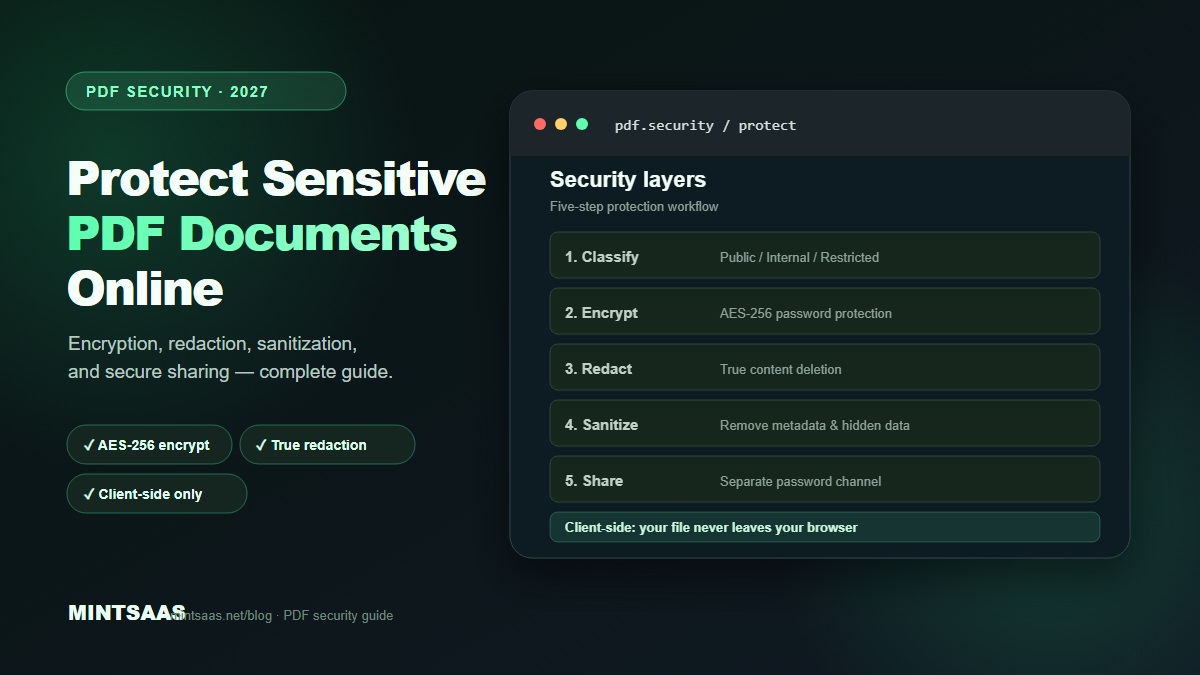
PDF Security: How to Protect Sensitive Documents Online in 2027
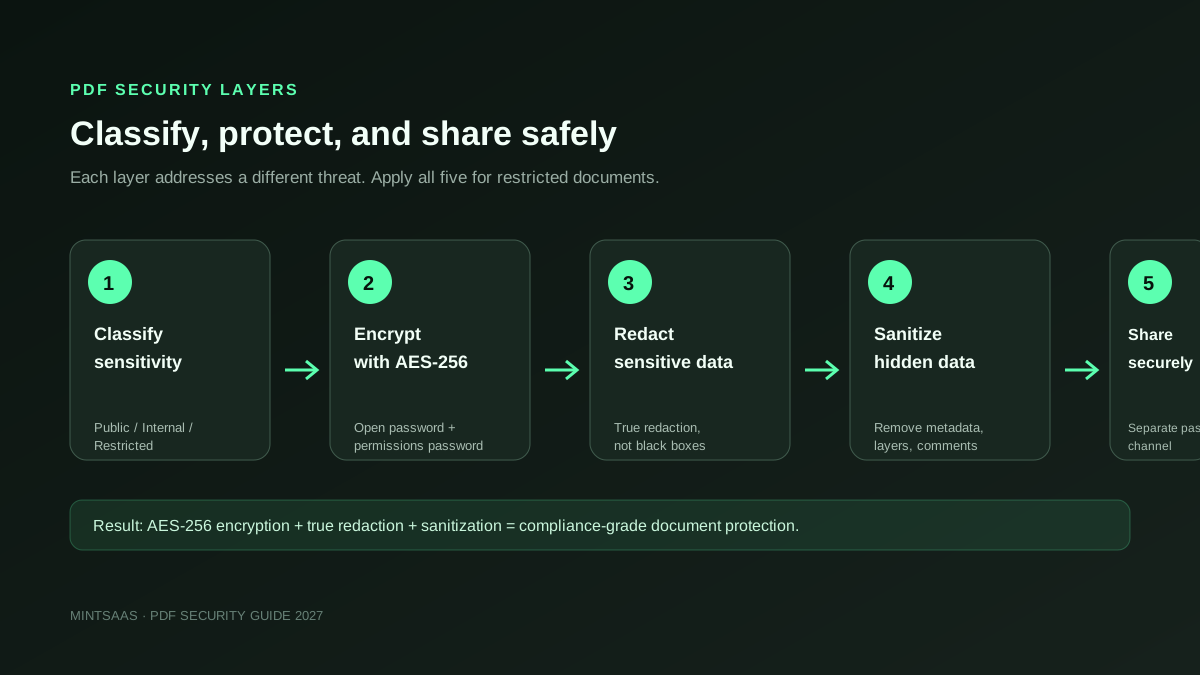
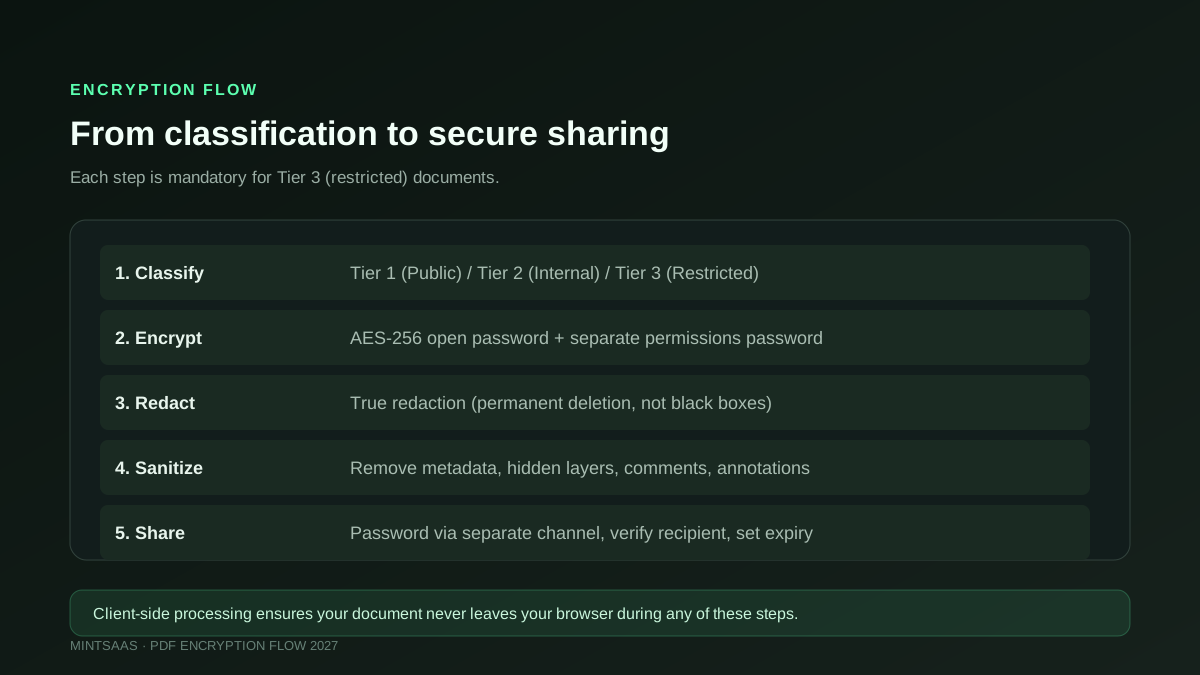
Quick answer: To protect sensitive PDFs online, classify the document's sensitivity level, encrypt with a strong open password (AES-256), remove metadata and hidden data, redact unnecessary information, send the password through a separate channel, and use a client-side tool that processes files without uploading them to a server. Never share passwords in the same email as the document.[1][2]
Every day, millions of sensitive documents travel across the internet as PDF files: contracts, medical records, financial statements, legal filings, identity documents, and confidential business reports. A single leaked PDF can expose personal data, violate regulations, and destroy trust. In 2027, with remote work, cloud collaboration, and AI-powered document processing becoming standard, PDF security is not optional — it is essential.
This guide covers the complete PDF security workflow: from classifying document sensitivity to encrypting, redacting, sharing, and monitoring your files. Whether you are a freelancer sending a contract, a healthcare provider sharing patient records, or an enterprise managing thousands of documents, the principles here apply.
Why PDF security matters more than ever
PDFs are the most common document format for sharing information, but they carry hidden risks that most users never consider:
- Metadata exposure: PDFs can contain author names, creation dates, software versions, GPS coordinates, and revision history. This metadata is invisible in the document viewer but easily extracted by anyone who receives the file.[2]
- Hidden layers and annotations: Comments, highlights, form data, and embedded files may remain in the PDF even after you think you have removed them.
- Password reuse: Many users protect PDFs with the same password they use for email or banking, creating a single point of failure.
- Cloud processing risks: When you upload a PDF to an online converter or editor, the file exists on a third-party server. If that server is compromised, your document is exposed.[1]
- Phishing via PDF: Malicious PDFs can contain embedded JavaScript, links to phishing sites, or exploits targeting PDF readers. Always verify the source before opening an unknown PDF.[1]
Classify before you protect
Not every PDF needs the same level of security. A public marketing brochure requires no protection. A signed contract requires strong encryption. A medical record requires compliance-grade controls.
Use a three-tier classification system:
Tier 1 — Public: Information that can be shared broadly without restriction. Marketing materials, public reports, blog posts. No encryption needed.
Tier 2 — Internal: Business-sensitive data that should not be public but is not regulated. Internal memos, draft proposals, meeting notes. Use basic password protection and share only with authenticated recipients.
Tier 3 — Restricted: Personal data, financial details, legal contracts, medical records, credentials. Use strong encryption (AES-256), redaction, access controls, and audit logging. Comply with GDPR, HIPAA, or your industry's regulations.[2]
The classification determines everything that follows: which tools you use, which encryption you apply, and how you share the file.
Encryption: the foundation of PDF security
Password protection is the most common PDF security measure, but not all encryption is equal. Understanding the difference between the two password types is critical.
Document Open Password (user password): Required to open and view the PDF. Without this password, the file cannot be read. This is the primary protection layer. Use AES-256 encryption — the strongest standard available in PDF. AES-128 is acceptable but weaker. Avoid 40-bit RC4 encryption, which is trivially broken.[2]
Permissions Password (owner password): Required to change security settings, print, copy, or edit the document. This password does not prevent someone from opening the file — it only restricts what they can do with it. The permissions password is separate from the open password, and you should use a different password for each.[1]
Best practices for PDF passwords:
- Use at least 12 characters with a mix of uppercase, lowercase, numbers, and symbols.
- Never reuse passwords across documents or accounts.
- Use a password manager to generate and store unique passwords.
- Send the password through a different channel than the document. If you email the PDF, send the password via text message, phone call, or a separate encrypted message.[1]
- Set password expiry dates for time-sensitive documents.
For enterprise environments, certificate-based encryption provides stronger security than passwords. Digital certificates encrypt the document for specific recipients, provide unique access rights per user, and can generate notifications when the document is opened.[2]
Redaction: remove what should not be seen
Encryption protects the document from unauthorized access. Redaction protects the content from authorized viewers who should not see specific information. These are different threats requiring different solutions.
Visual redaction (drawing black boxes over text) is not real redaction. The underlying text remains in the PDF and can be extracted by anyone who knows how. This is one of the most common and dangerous PDF security mistakes.[2]
True redaction permanently removes the selected content from the document structure. The redacted text is gone — not hidden, not covered, but deleted from the file. Adobe Acrobat, PDF-XChange, and several online tools support true redaction.[2]
Redaction workflow:
- Identify all sensitive information: names, account numbers, SSNs, addresses, medical details.
- Use a true redaction tool (not just a black rectangle).
- Redact in multiple passes — search for patterns (email addresses, phone numbers, credit card numbers) and redact them systematically.
- Verify the redaction by trying to select, copy, or search for the redacted text.
- Save the redacted document as a new file (never overwrite the original).
Redaction is irreversible. Always keep an unredacted original in a secure location.
Sanitization: clean hidden data
Even after redaction, PDFs contain hidden data that can leak information:
- Metadata: Author, title, subject, keywords, creation date, modification date, application name.
- Hidden layers: Invisible text, form fields, JavaScript, embedded files.
- Revision history: Previous versions of the document may be embedded.
- Comments and annotations: Notes, highlights, and markup that you thought were removed.
Sanitization removes all of this hidden data. In Adobe Acrobat, use "Remove Hidden Information" under the Protect menu. In online tools, look for a "clean" or "sanitize" option. The MintSaaS PDF Toolkit processes files client-side, meaning your document never leaves your browser.[1]
Sanitization should be the last step before sharing, after all editing, redaction, and encryption are complete.
Sharing securely: the human element
Technical controls fail when humans make mistakes. The most common PDF security failure is not a broken encryption algorithm — it is a password sent in the same email as the document, or a file shared with the wrong recipient.
Send passwords separately. If you email the PDF, send the password via SMS, phone call, or a different messaging app. Never include the password in the same message, email thread, or document.[1]
Verify recipients. Double-check email addresses before sending. Use "reply all" carefully. For highly sensitive documents, use authenticated sharing (e.g., a secure portal that requires login) instead of email attachments.
Set expiry dates. If your document contains time-sensitive information, set an expiry date on the password or access. Some tools allow you to set automatic deletion after a certain date.
Use secure transfer for recurring needs. For ongoing business relationships, use a secure file transfer protocol (SFTP, HTTPS portal) instead of email attachments. This provides audit logs, access controls, and encryption in transit.[1]
Watermark sensitive documents. Add a visible watermark with the recipient's name, date, and "Confidential" label. Watermarks deter unauthorized sharing and help identify the source if a leak occurs.[2]
Client-side processing: the privacy advantage
When you upload a PDF to a traditional online tool, the file is transmitted to a third-party server, processed, and returned. During that time, the file exists on someone else's infrastructure. For sensitive documents, this is unacceptable.
Client-side processing eliminates this risk entirely. The tool runs in your browser using WebAssembly or JavaScript. The file is read into local memory, processed, and delivered back to you without ever leaving your device. No network upload, no server storage, no third-party access.[1]
This is not just a privacy preference — it is a compliance requirement for many industries. Healthcare providers handling PHI (Protected Health Information) under HIPAA, financial institutions under GLBA, and European organizations under GDPR all benefit from client-side processing because the data never leaves the user's device.[2]
The MintSaaS PDF Toolkit processes all files client-side. Your documents never touch a server. For organizations that need to process sensitive documents without compliance risk, this architecture is the safest option available.
Enterprise PDF security: policies and monitoring
Individual document protection is necessary but not sufficient for organizations. Enterprise PDF security requires policies, monitoring, and governance.
Create reusable security policies. Define standard encryption settings, redaction rules, and sharing protocols for each document type. Apply these policies consistently across all documents. Adobe Acrobat and most enterprise PDF tools support reusable security policies.[2]
Implement digital rights management (DRM). DRM allows you to control who can access, edit, print, or copy a document, even after it has been shared. You can revoke access remotely, set expiry dates, and track document usage. This is essential for highly confidential documents that must remain controlled after distribution.[2]
Monitor and audit. Track who accessed which document and when. Audit logs provide accountability and help identify unauthorized access. For regulated industries, audit trails are often a legal requirement.[2]
Train your team. The most sophisticated encryption is useless if an employee emails a password in the same thread as the document. Regular training on secure document handling is the single most effective security measure.[1]
Frequently Asked Questions (FAQ)
How do I password-protect a PDF online?
Upload your PDF to a client-side tool like the MintSaaS PDF Toolkit, set an open password (AES-256 recommended), and download the encrypted file. The file is processed entirely in your browser — no upload to any server. Send the password through a separate channel (SMS, phone call) for maximum security.[1]
What is the difference between password protection and encryption?
Password protection is a user-facing feature that restricts access. Encryption is the underlying cryptographic process that scrambles the data. In PDF, password protection uses encryption (typically AES-256) to make the file unreadable without the correct password. The two terms are often used interchangeably in practice.[2]
Can I remove a password from a PDF?
Yes, if you know the password. Open the PDF with the password, then use a tool to remove the security settings and save a new unprotected copy. If you don't know the password, you cannot remove it without specialized (and often illegal) password-cracking tools.[2]
Is visual redaction (black boxes) secure?
No. Drawing black rectangles over text in a PDF does not remove the underlying data. Anyone can select, copy, or extract the text behind the black box. Use a true redaction tool that permanently deletes the content from the document structure.[2]
How do I remove metadata from a PDF?
Use a sanitization tool that strips all hidden data: author name, creation date, software version, GPS coordinates, comments, and annotations. In Adobe Acrobat, use "Remove Hidden Information." In client-side tools, look for a "clean" or "sanitize" option. Always sanitize before sharing sensitive documents.[2]
What is AES-256 encryption?
AES-256 (Advanced Encryption Standard with 256-bit key) is the strongest encryption standard available for PDF documents. It is used by governments and military organizations. A 256-bit key has 2^256 possible combinations, making brute-force attacks computationally infeasible with current technology.[2]
Should I use client-side or server-side PDF tools?
For sensitive documents, always use client-side tools. Server-side tools upload your file to a third-party server, where it exists outside your control. Client-side tools process files in your browser — no upload, no server storage, no third-party access. For non-sensitive documents, either option works.[1]
How do I securely share a large PDF file?
For large files, use a secure file transfer service (not email, which has size limits). Encrypt the PDF first, then upload to a secure portal or transfer service. Send the password separately. Set an expiry date if the tool supports it. For recurring sharing, use an authenticated portal with access controls and audit logs.[1]
Related reading on MintSaaS
- How to Professionally Rotate PDF Documents for Business: The 2026 Guide
- Online Rotator: The Definitive Guide to Rotating PDFs and Images Online in 2026
- How to Compress Images Without Losing Quality: The Complete 2027 Guide
- Batch Convert Images Online: The Definitive 2026 Bulk Image Conversion & Compression Guide
- How to Convert Images Between Formats: The Complete Guide to WebP, AVIF, JPEG, and PNG in 2027
- How to Grow on Instagram in 2027: A Practical Growth Guide
- WebP vs AVIF: Which Image Format Wins in 2027?
- How to Optimize Images for SEO: Complete Guide to Faster Loading and Higher Rankings
- Best Image Compression Tools for Web Developers in 2027
- How to Batch Compress Images Online: Bulk Workflow Guide for 2027
- Image Optimization for E-Commerce: Product Photos That Convert in 2027
- How to Resize Images for Social Media: Platform-Specific Guide for 2027
- SVG Optimization: How to Reduce Vector File Size for Web in 2027
- How to Optimize Images for Mobile: Responsive Image Guide for 2027
- Lossless vs Lossy Compression: When to Use Each for Images in 2027
- Image CDN vs Self-Hosted: Which Is Better for Performance in 2027?
- How to Use the HTML Picture Element for Responsive Images in 2027
- Image Lazy Loading: Implementation Guide for Web Performance in 2027
Sources
[1] SwifDoo — Document Security Tips for Sharing Sensitive PDFs Online: https://www.swifdoo.com/news/security-tips-how-to-stay-safe-with-shared-pdfs
[2] Adobe — PDF Security: Protect Your Sensitive Content and Information: https://www.adobe.com/au/acrobat/roc/blog/pdf-security-protect-sensitive-content-and-information.html
[3] DocHub — Data Privacy in Online Editors: A 2026 Guide: https://www.dochub.com/blog/data-privacy-in-online-editors/
[4] Adobe Acrobat — PDF Security Options: https://helpx.adobe.com/acrobat/desktop/protect-documents/protect-with-passwords/security-options.html
Free tools on MintSaaS
Try our free tools to put this guide into practice:
MintSaaS Dispatch articles are researched and synthesized with the assistance of artificial intelligence analysis, then edited, verified, and benchmarked by our engineering editorial team. Customer personal data and platform source files are strictly segregated and are never used to train or fine-tune public artificial intelligence models.
More from MintSaaS Dispatch
Handcrafted technical insights and developer tools.
