How to Optimize Third-Party Scripts and Analytics for Web Performance in 2027
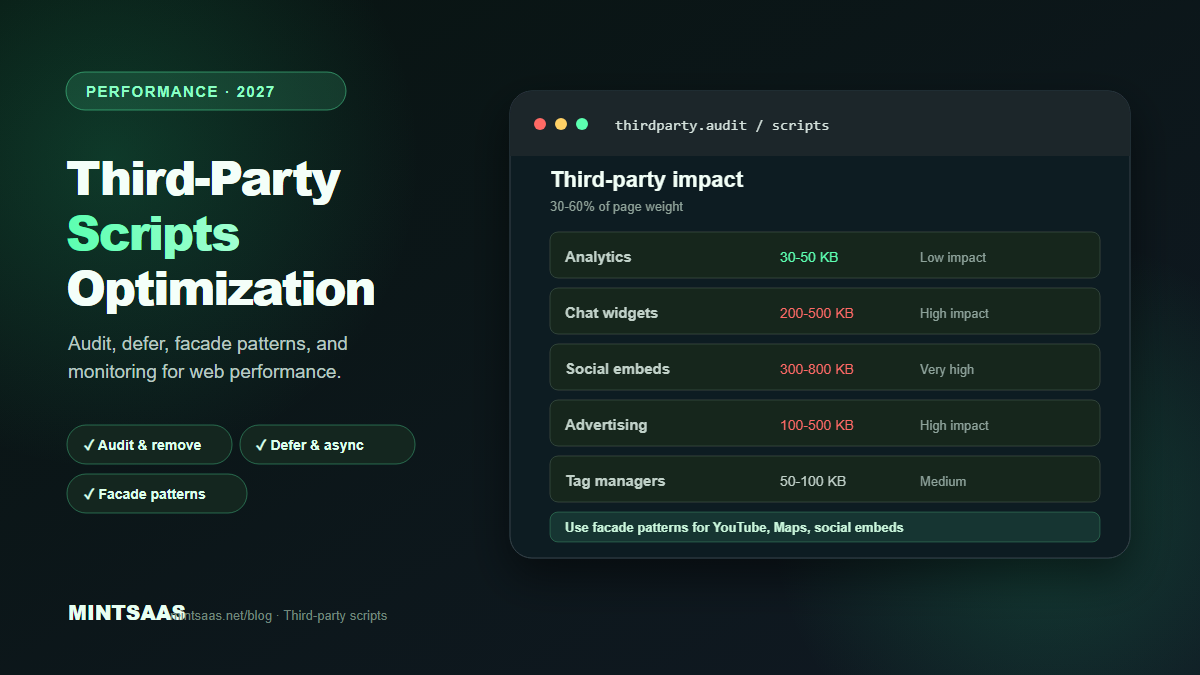
Audit, defer, facade patterns, and monitoring for third-party scripts. Third-party scripts account for 30-60% of page weight on many sites.
How to Optimize Third-Party Scripts and Analytics for Web Performance in 2027
Quick answer: To optimize third-party scripts, audit all third-party resources (analytics, ads, chat widgets, social embeds), remove unused ones, load non-critical scripts withasyncordefer, userel="preconnect"for critical third-party origins, implement facade patterns for heavy embeds (YouTube, maps), use a tag manager with consent mode, and monitor third-party impact with Lighthouse and WebPageTest. Third-party scripts are responsible for 30–60% of page weight on many sites.[1][3][4]
Third-party scripts are the silent performance killers of the web. Analytics, advertising, chat widgets, social media embeds, and marketing tools add JavaScript that blocks rendering, consumes bandwidth, and degrades user experience. On many sites, third-party scripts account for 30–60% of total page weight and are the primary cause of poor Core Web Vitals scores.
This guide covers the complete third-party optimization workflow: from auditing to removal, deferral, facade patterns, and ongoing monitoring.
The third-party problem
Third-party scripts cause performance issues in several ways:
- Render blocking: Synchronous scripts in the
<head>block HTML parsing and rendering. The browser must download, parse, and execute the script before continuing. - Network contention: Third-party scripts compete with first-party resources for bandwidth. A chat widget that loads 500 KB of JavaScript delays the loading of your hero image.
- Main thread blocking: Heavy JavaScript execution (parsing, compiling, running) blocks the main thread, delaying user interactions (INP).
- Layout shift: Third-party ads and embeds often inject content dynamically, causing CLS.
- Privacy concerns: Third-party scripts may collect user data, requiring consent management and GDPR compliance.[3][4]
Step 1: Audit your third-party scripts
Start by identifying all third-party resources on your site.
Chrome DevTools
- Open DevTools → Network tab
- Filter by "Third-party" (or look for domains that aren't yours)
- Note the number of requests, total size, and load time
- Check the "Initiator" column to see which script loaded each resource[4]
Lighthouse
Run Lighthouse → check "Reduce the impact of third-party code" in the Opportunities section. It lists each third-party domain with its total size and blocking time.[4]
WebPageTest
WebPageTest provides a "Third Parties" tab showing all third-party resources with their impact on load time. Use the "Opportunities & Experiments" section for recommendations.[4]
Common third-party scripts
| Category | Examples | Typical size | Impact |
|---|---|---|---|
| Analytics | Google Analytics, Mixpanel | 30–50 KB | Low (async) |
| Advertising | Google AdSense, Facebook Pixel | 100–500 KB | High |
| Chat widgets | Intercom, Zendesk, Drift | 200–500 KB | High |
| Social embeds | Twitter, Instagram, YouTube | 300–800 KB | Very high |
| Tag managers | Google Tag Manager | 50–100 KB | Medium |
| A/B testing | Optimizely, VWO | 100–300 KB | High |
| Consent management | Cookiebot, OneTrust | 50–150 KB | Medium |
Step 2: Remove unused scripts
The simplest optimization is removal. Audit each third-party script:
- Is it still used? Many sites have analytics scripts for tools they no longer use.
- Is it necessary? Can the functionality be achieved with a lighter alternative?
- Is it duplicated? Multiple analytics tools measuring the same thing.
Common removals:
- Old analytics scripts (migrated to GA4 but old UA still loading)
- Unused social media widgets
- A/B testing scripts (when not running tests)
- Marketing pixels for inactive campaigns[3][4]
Step 3: Defer non-critical scripts
For scripts that must remain, defer their loading.
async attribute
Downloads the script in parallel with HTML parsing and executes it as soon as it's downloaded. Use for independent scripts (analytics, ads):
<script async src="https://analytics.example.com/script.js"></script>Pros: Doesn't block HTML parsing. Script executes as soon as downloaded.
Cons: Execution order not guaranteed. Can still block rendering if executed during critical rendering path.[3]
defer attribute
Downloads the script in parallel with HTML parsing but executes it after HTML parsing is complete. Use for scripts that depend on the DOM:
<script defer src="https://widget.example.com/script.js"></script>Pros: Doesn't block HTML parsing. Executes in order. Runs after DOM is ready.
Cons: Slightly later execution than async.[3]
Dynamic import (JavaScript)
Load scripts only when needed:
// Load chat widget only when user clicks "Chat"
document.getElementById('chat-button').addEventListener('click', async () => {
  const { initChat } = await import('./chat-widget.js');
  initChat();
});
requestIdleCallback
Load scripts during browser idle time:
requestIdleCallback(() => {
  const script = document.createElement('script');
  script.src = 'https://analytics.example.com/script.js';
  document.head.appendChild(script);
}, { timeout: 2000 });
Step 4: Preconnect to third-party origins
For critical third-party resources, add preconnect hints to establish connections early:
<link rel="preconnect" href="https://analytics.example.com">
<link rel="preconnect" href="https://fonts.googleapis.com">
This performs DNS lookup, TCP handshake, and TLS negotiation in advance, saving 100–300ms per origin.[3][4]
Use preconnect for:
- Analytics (if loaded early)
- Font providers (Google Fonts, Adobe Fonts)
- Critical API endpoints
- CDN origins
Don't preconnect to:
- Non-critical third parties (ads, social embeds)
- Origins that are only used after user interaction
Step 5: Implement facade patterns
For heavy third-party embeds (YouTube videos, Google Maps, social media posts), use a facade: a lightweight placeholder that looks like the real embed but doesn't load the heavy third-party code until the user interacts.
YouTube facade
<div class="youtube-facade" data-video-id="dQw4w9WgXcQ">
  <img src="https://img.youtube.com/vi/dQw4w9WgXcQ/hqdefault.jpg" alt="Video thumbnail" loading="lazy">
  <button class="play-button" aria-label="Play video">▶</button>
</div>

<script>
document.querySelectorAll('.youtube-facade').forEach(facade => {
  facade.addEventListener('click', () => {
    const videoId = facade.dataset.videoId;
    facade.innerHTML = `<iframe src="https://www.youtube.com/embed/${videoId}?autoplay=1" frameborder="0" allow="autoplay; encrypted-media" allowfullscreen></iframe>`;
  });
});
</script>
Impact: YouTube embed is 500+ KB. Facade is 20 KB (thumbnail image). Savings: 480 KB until user clicks.[3]
Google Maps facade
<div class="maps-facade" data-lat="40.7128" data-lng="-74.006">
  <img src="map-thumbnail.jpg" alt="Map location" loading="lazy">
  <button>View Interactive Map</button>
</div>
Load the actual Google Maps iframe only when the user clicks.
Social media facade
For Twitter/Instagram embeds, show a screenshot or text preview. Load the actual embed only on click or scroll.
Step 6: Use a tag manager with consent mode
Google Tag Manager (GTM) allows you to manage all third-party scripts from one place. Use consent mode to load scripts only after user consent:
// GTM consent mode
gtag('consent', 'default', {
  'analytics_storage': 'denied',
  'ad_storage': 'denied'
});

// Update consent when user accepts
function onConsentGranted() {
  gtag('consent', 'update', {
    'analytics_storage': 'granted',
    'ad_storage': 'granted'
  });
}
This ensures third-party scripts only load for users who have consented, reducing initial page weight for users who decline.[3][4]
Step 7: Monitor third-party impact
Lighthouse CI
Run Lighthouse in your CI/CD pipeline to catch third-party regressions:
# GitHub Actions
- name: Lighthouse CI
  uses: treosh/lighthouse-ci-action@v9
  with:
    urls: https://example.com
    budgetPath: ./lighthouse-budget.json
WebPageTest
Use WebPageTest's "Third Parties" tab to track third-party impact over time. Set up automated tests to alert on regressions.[4]
Real User Monitoring (RUM)
Use RUM tools (SpeedCurve, Calibre, Datadog) to track third-party impact on real users. Monitor:
- Third-party request count and size
- Third-party blocking time
- Core Web Vitals impact[4]
Performance budget for third parties
Set a performance budget for third-party scripts:
| Metric | Budget | Why |
|---|---|---|
| Total third-party size | < 200 KB | Prevents excessive page weight |
| Third-party request count | < 10 | Reduces network overhead |
| Third-party blocking time | < 100ms | Prevents render blocking |
| Third-party scripts on load | < 3 | Limits initial impact |
Enforce these budgets in your CI/CD pipeline. Fail the build if exceeded.[4]
Common mistakes
Loading scripts synchronously. <script src="..."> without async or defer blocks rendering. Always use async or defer.[3]
Not using preconnect. Critical third-party origins should be preconnected. This saves 100–300ms per origin.[3]
Embedding heavy widgets directly. YouTube, Maps, and social embeds should use facade patterns. Direct embedding loads 500+ KB of third-party code on page load.[3]
Not auditing regularly. Third-party scripts accumulate over time. Audit quarterly and remove unused ones.[4]
Ignoring consent mode. Loading analytics and ads before consent violates GDPR and adds unnecessary weight for users who decline.[4]
Frequently Asked Questions (FAQ)
What are third-party scripts?
Third-party scripts are JavaScript files loaded from external domains (not your own server). Examples: Google Analytics, Facebook Pixel, chat widgets (Intercom, Zendesk), advertising (AdSense), social media embeds (YouTube, Twitter). They are added via <script> tags or tag managers.[3]
How do third-party scripts affect performance?
Third-party scripts can block rendering (if synchronous), consume bandwidth (100–500 KB+), block the main thread (delaying interactions), and cause layout shift (ads, embeds). They are responsible for 30–60% of page weight on many sites.[3][4]
Should I use async or defer for third-party scripts?
Use async for independent scripts (analytics, ads) that don't depend on the DOM. Use defer for scripts that need the DOM ready. For scripts that are not critical, load them dynamically after page load.[3]
What is a facade pattern?
A facade is a lightweight placeholder that looks like a heavy third-party embed (YouTube video, Google Map) but doesn't load the actual third-party code until the user interacts. This saves 200–500 KB on initial page load.[3]
How do I measure third-party impact?
Use Lighthouse (Opportunities → "Reduce the impact of third-party code"), WebPageTest (Third Parties tab), and Chrome DevTools Network tab (filter by third-party domains). Monitor blocking time, total size, and request count.[4]
What is Google Tag Manager consent mode?
Consent mode allows you to load third-party scripts only after user consent. Scripts are loaded in "denied" mode by default (no data collection) and switch to "granted" mode when the user accepts. This complies with GDPR and reduces initial page weight.[3][4]
How often should I audit third-party scripts?
Audit quarterly. Remove unused scripts, defer non-critical ones, and verify that remaining scripts are still necessary. Third-party scripts accumulate over time and can significantly degrade performance if left unchecked.[4]
Can third-party scripts affect SEO?
Yes. Third-party scripts impact Core Web Vitals (LCP, CLS, INP), which Google uses as ranking factors. Slow-loading pages with heavy third-party scripts rank lower. Additionally, third-party scripts can cause CLS (ads, embeds) and increase INP (main thread blocking).[4]
Related reading on MintSaaS
- How to Optimize Images for SEO: Complete Guide to Faster Loading and Higher Rankings
- Core Web Vitals and Image Optimization: LCP, CLS, INP Guide for 2027
- Image Lazy Loading: Implementation Guide for Web Performance in 2027
- How to Optimize Images for Mobile: Responsive Image Guide for 2027
Sources
[1] MDN Web Docs — Third-party resources: https://developer.mozilla.org/en-US/docs/Web/Performance/Third_party_resources
[2] Web.dev — Third-party JavaScript: https://web.dev/articles/third-party-javascript
[3] Image Optimization for the Web (boxtool.app): https://boxtool.app/en/guides/image-optimization-for-web/
[4] Web.dev — Core Web Vitals: https://web.dev/vitals/
[5] MintSaaS Image Compressor: https://www.mintsaas.net/products/image-compressor
Free tools on MintSaaS
Try our free tools to put this guide into practice:
MintSaaS Dispatch articles are researched and synthesized with the assistance of artificial intelligence analysis, then edited, verified, and benchmarked by our engineering editorial team. Customer personal data and platform source files are strictly segregated and are never used to train or fine-tune public artificial intelligence models.
More from MintSaaS Dispatch
Handcrafted technical insights and developer tools.