Lossless vs Lossy Compression: When to Use Each for Images in 2027
Lossless vs lossy compression: when to use each, quality settings, decision matrix, and common mistakes. Complete guide for image optimization in 2027.
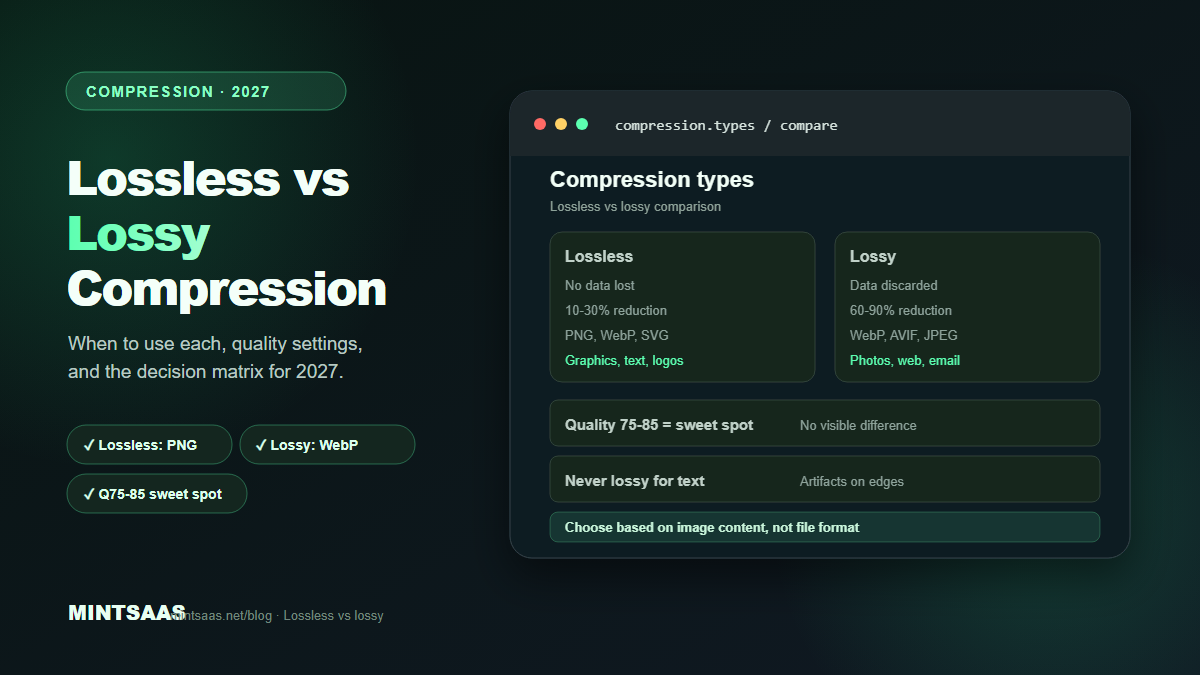
Lossless vs Lossy Compression: When to Use Each for Images in 2027
Quick answer: Use lossy compression (JPEG, WebP lossy, AVIF) for photographs and complex images where 60–90% size reduction is possible with no visible quality loss at quality 75+. Use lossless compression (PNG, WebP lossless, GIF) for graphics, screenshots, logos, and text where every pixel must be preserved. Never use lossless for photographs (5–10× larger than necessary) or lossy for graphics with text (visible artifacts around sharp edges). The choice depends on the image content, not the file format.[1][3]
Image compression is not a one-size-fits-all operation. The right compression method depends on what the image contains, how it will be used, and what quality standard is required. Using the wrong method either wastes bandwidth (lossless for photos) or degrades quality (lossy for graphics with text).
This guide explains the science behind lossy and lossless compression, when to use each, and how to choose the right method for every image type.
How lossless compression works
Lossless compression reduces file size without changing a single pixel. The original image can be perfectly reconstructed from the compressed file. No information is lost.
How it works: Lossless algorithms find patterns and redundancies in the image data and encode them more efficiently. Common techniques include:
- Run-length encoding (RLE): Repeated values are stored as "value × count" instead of listing each value individually. Effective for images with large areas of the same color.
- Dictionary coding (LZ77/LZ78): Repeated sequences are replaced with references to a dictionary of previously seen sequences.
- Huffman coding: Frequently occurring values are assigned shorter codes, and rare values get longer codes.
- DEFLATE: Combines LZ77 and Huffman coding. Used by PNG and ZIP.
Formats that use lossless compression:
- PNG (DEFLATE-based)
- WebP lossless (VP8L, based on LZ77 + Huffman + color cache)
- GIF (LZW-based, limited to 256 colors)
- TIFF (LZW or ZIP-based)
- BMP (RLE, though often uncompressed)
Typical size reduction: 10–30% for photographs, 30–70% for graphics with flat colors and repeated patterns.[1][3]
How lossy compression works
Lossy compression permanently discards information that the human eye is unlikely to notice. The original image cannot be perfectly reconstructed. The changes are irreversible.
How it works: Lossy algorithms exploit the limitations of human visual perception. The human eye is less sensitive to:
- High-frequency detail (fine textures, sharp edges)
- Color variations in certain ranges (especially blue-yellow)
- Small differences in brightness
Common techniques include:
- Discrete Cosine Transform (DCT): Used by JPEG. Converts spatial data to frequency data, then discards high-frequency components.
- Quantization: Reduces the precision of color values. Higher quantization = more data discarded = smaller file.
- Chroma subsampling: Reduces color resolution while preserving brightness resolution. The eye is more sensitive to brightness than color.
- Transform coding: Used by WebP (VP8) and AVIF (AV1). Similar to DCT but more efficient.
Formats that use lossy compression:
- JPEG (DCT-based)
- WebP lossy (VP8-based)
- AVIF (AV1-based)
- HEIC (HEVC-based)
Typical size reduction: 60–90% for photographs, with minimal visible quality loss at quality 75+.[1][3]
The decision matrix
| Image type | Compression | Format | Quality | Why |
|---|---|---|---|---|
| Photographs | Lossy | WebP/AVIF/JPEG | 75–85 | Continuous tones, complex textures |
| Screenshots | Lossless | PNG/WebP lossless | N/A | Sharp edges, text, UI elements |
| Logos | Lossless | SVG/PNG | N/A | Sharp edges, flat colors, scalability |
| Icons | Lossless | SVG/PNG | N/A | Small size, sharp edges |
| Diagrams | Lossless | SVG/PNG | N/A | Lines, text, precise shapes |
| Illustrations | Lossy or Lossless | WebP (lossy Q85) or SVG | 85 | Depends on complexity |
| Product photos | Lossy | WebP/AVIF | 80 | Photographs with fine detail |
| Medical images | Lossless | PNG/TIFF | N/A | Every pixel matters |
| Satellite imagery | Lossless | TIFF/PNG | N/A | Scientific accuracy required |
| Social media | Lossy | JPEG/WebP | 80–85 | Platform re-compresses anyway |
When to use lossless compression
Use lossless when:
- The image contains text. Lossy compression creates visible artifacts around sharp edges (text, UI elements, diagrams). Lossless preserves every character perfectly.[1][3]
- The image has flat colors and sharp edges. Graphics, logos, icons, and illustrations with flat colors compress well with lossless algorithms (30–70% reduction) without any quality loss.[3]
- Every pixel matters. Medical images, satellite imagery, scientific data, and legal documents require pixel-perfect reproduction. Lossy compression could alter critical details.[1]
- The image will be edited further. Lossy compression is irreversible. If you plan to edit the image again, keep a lossless master. Each lossy save degrades quality further.[3]
- The image has transparency. While WebP and AVIF support lossy transparency, PNG is the safest choice for graphics with transparency where quality is critical.[1]
Formats to use: PNG (universal), WebP lossless (20–26% smaller than PNG), SVG (for vector graphics).
When to use lossy compression
Use lossy when:
- The image is a photograph. Photographs have continuous tones and complex textures that the human eye can't fully resolve. Lossy compression discards imperceptible details, reducing file size by 60–90%.[1][3]
- File size matters more than perfect quality. Web pages, email attachments, and social media posts need small files. Lossy compression is the only way to achieve 60–90% size reduction.[3]
- The image will be viewed at normal distance. At normal viewing distance (arm's length for a phone, 2–3 feet for a monitor), quality differences between 75 and 95 are imperceptible. Quality 75–85 is the sweet spot.[3]
- Bandwidth is limited. Mobile users on slow connections benefit from smaller files. A 100 KB image loads 10× faster than a 1 MB image on a 3G connection.[4]
- The image is for web display only. If the image will never be printed or used for professional purposes, lossy compression at quality 80 is more than sufficient.[3]
Formats to use: WebP lossy (best balance), AVIF (maximum compression), JPEG (universal fallback).
The quality setting sweet spot
For lossy compression, the quality setting determines how much data is discarded. Higher quality = larger file, less data lost. Lower quality = smaller file, more data lost.
| Quality | File size | Visual difference | Best for |
|---|---|---|---|
| 95–100 | Very large | None (imperceptible) | Print, archival |
| 85–95 | Large | None at normal distance | High-quality web |
| 75–85 | Medium | None at normal distance | Web (recommended) |
| 60–75 | Small | Minor (visible on close inspection) | Thumbnails, previews |
| Below 60 | Very small | Noticeable artifacts | Avoid (unless desperate) |
The diminishing returns curve: Going from quality 95 to 85 reduces file size by 40–50% with no visible difference. Going from 85 to 75 reduces by another 30–40% with no visible difference. Going from 75 to 65 reduces by 20–30% but introduces visible artifacts. The sweet spot is 75–85.[3]
Common mistakes
Using PNG for photographs. A photograph saved as PNG is 5–10× larger than the same image as JPEG or WebP. Use PNG only for graphics, screenshots, and images with transparency.[1][3]
Using JPEG for graphics with text. JPEG's DCT compression creates visible artifacts around sharp edges (text, lines, UI elements). Use PNG or WebP lossless for graphics with text.[1][3]
Re-compressing lossy images. Each lossy compression permanently discards data. Converting JPEG → WebP → AVIF compounds the quality loss. Always convert from the original lossless source.[3]
Using quality 100. Quality 100 in JPEG doesn't mean "no compression" — it means "minimal compression." The file is still compressed, but the quality setting is so high that the file size is 3–5× larger than quality 85 with no visible difference.[3]
Using lossless for web photographs. A 4 MB PNG photograph can be a 400 KB WebP with no visible difference. Using lossless for web photographs wastes 90% of bandwidth.[3]
Frequently Asked Questions (FAQ)
What is the difference between lossless and lossy compression?
Lossless compression reduces file size without changing any pixels. The original can be perfectly reconstructed. Lossy compression permanently discards some data to achieve much smaller file sizes. The changes are irreversible but imperceptible at high quality settings.[1][3]
When should I use lossless compression?
Use lossless for graphics, screenshots, logos, icons, diagrams, and any image with text or sharp edges. Also use it for medical images, scientific data, and any image where every pixel matters. Formats: PNG, WebP lossless, SVG.[1][3]
When should I use lossy compression?
Use lossy for photographs, product photos, lifestyle images, and any image with continuous tones and complex textures. Also use it when file size matters more than perfect quality (web pages, email, social media). Formats: WebP, AVIF, JPEG.[1][3]
Can I convert between lossy and lossless formats?
Yes, but understand the implications. Converting JPEG (lossy) to PNG (lossless) does not restore lost quality — it just stores the already-degraded image in a lossless format (with a larger file size). Converting PNG (lossless) to JPEG (lossy) permanently discards data. Always convert from the highest-quality source.[3]
Does lossless compression reduce file size significantly?
For photographs, lossless compression achieves only 10–30% reduction. For graphics with flat colors and repeated patterns, it achieves 30–70% reduction. Lossy compression achieves 60–90% reduction for photographs. The difference is substantial.[1][3]
What quality setting should I use for lossy compression?
Quality 75–85 is the sweet spot for most web images. Below 75, artifacts become visible. Above 90, file sizes grow disproportionately with minimal visual improvement. For AVIF, quality 45–55 is equivalent to WebP/JPEG 75–85.[3]
Is WebP lossless better than PNG?
Yes. WebP lossless is 20–26% smaller than PNG at equivalent quality, with faster encoding and decoding. WebP lossless also supports transparency. The only reason to use PNG is universal compatibility (all browsers support PNG; WebP has 97% support).[1][3]
How do I know if an image is lossless or lossy?
Check the file format and extension. PNG, GIF, TIFF (uncompressed/LZW), and WebP (lossless mode) are lossless. JPEG, WebP (lossy mode), AVIF, and HEIC are lossy. You can also check the file metadata or use a tool like ImageMagick's identify -verbose command.[3]
Related reading on MintSaaS
- How to Compress Images Without Losing Quality: The Complete 2027 Guide
- How to Convert Images Between Formats: The Complete Guide to WebP, AVIF, JPEG, and PNG in 2027
- WebP vs AVIF: Which Image Format Wins in 2027?
- Best Image Compression Tools for Web Developers in 2027
- SVG Optimization: How to Reduce Vector File Size for Web in 2027
- How to Optimize Images for Mobile: Responsive Image Guide for 2027
- How to Batch Compress Images Online: Bulk Workflow Guide for 2027
- Image Optimization for E-Commerce: Product Photos That Convert in 2027
- How to Resize Images for Social Media: Platform-Specific Guide for 2027
- How to Optimize Images for SEO: Complete Guide to Faster Loading and Higher Rankings
- PDF Security: How to Protect Sensitive Documents Online in 2027
- How to Grow on Instagram in 2027: A Practical Growth Guide
- Image CDN vs Self-Hosted: Which Is Better for Performance in 2027?
- How to Use the HTML Picture Element for Responsive Images in 2027
- Image Lazy Loading: Implementation Guide for Web Performance in 2027
Sources
[1] MDN Web Docs — Image file type and format guide: https://developer.mozilla.org/en-US/docs/Web/Media/Guides/Formats/Image_types
[2] Web.dev — Choose the right image format: https://web.dev/articles/choose-the-right-image-format
[3] Image Optimization for the Web (boxtool.app): https://boxtool.app/en/guides/image-optimization-for-web/
[4] Web.dev — Core Web Vitals: https://web.dev/vitals/
[5] MintSaaS Image Compressor: https://www.mintsaas.net/products/image-compressor
Free tools on MintSaaS
Try our free tools to put this guide into practice:
MintSaaS Dispatch articles are researched and synthesized with the assistance of artificial intelligence analysis, then edited, verified, and benchmarked by our engineering editorial team. Customer personal data and platform source files are strictly segregated and are never used to train or fine-tune public artificial intelligence models.
More from MintSaaS Dispatch
Handcrafted technical insights and developer tools.