How to Convert Images Between Formats: The Complete Guide to WebP, AVIF, JPEG, and PNG in 2027
Convert images between WebP, AVIF, JPEG, and PNG without quality loss. Decision matrix, quality settings, conversion workflows, and the <picture> element for serving multiple formats.
How to Convert Images Between Formats: The Complete Guide to WebP, AVIF, JPEG, and PNG in 2027
Quick answer: Convert JPEG and PNG to WebP for web delivery (25–35% smaller than JPEG), use AVIF for maximum compression on static hero images (40–50% smaller than JPEG), keep PNG for graphics with transparency, and always provide a JPEG fallback using the HTML <picture> element. Never convert a lossy format to another lossy format — that compounds quality loss. Convert from the original lossless source whenever possible.[1][3][5]
Image format conversion is one of those tasks that seems simple but has hidden pitfalls. Convert a JPEG to WebP at the wrong quality setting and you lose detail permanently. Convert a PNG to JPEG and you lose transparency. Convert a WebP to AVIF and you might actually increase file size if the settings are wrong. The format you choose affects file size, visual quality, browser compatibility, SEO performance, and accessibility.
This guide covers everything you need to know about converting images between formats in 2027: which format to use when, how to convert without quality loss, the tools that work best, and the mistakes that waste bandwidth and degrade images.
The format decision matrix
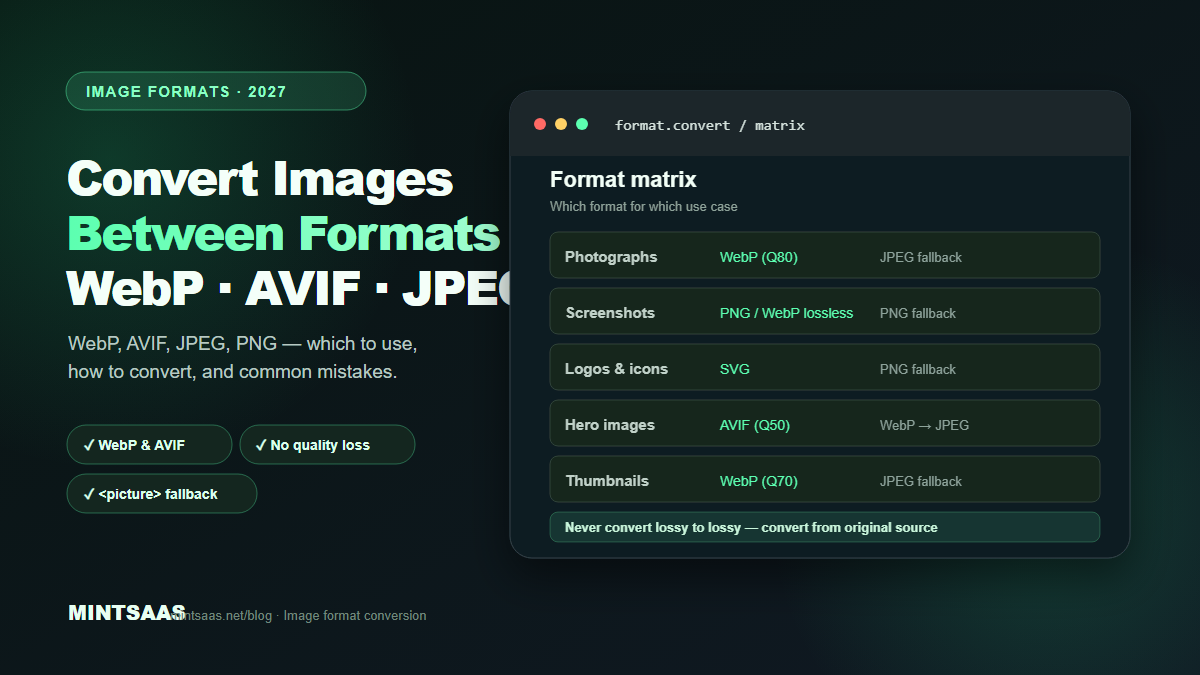
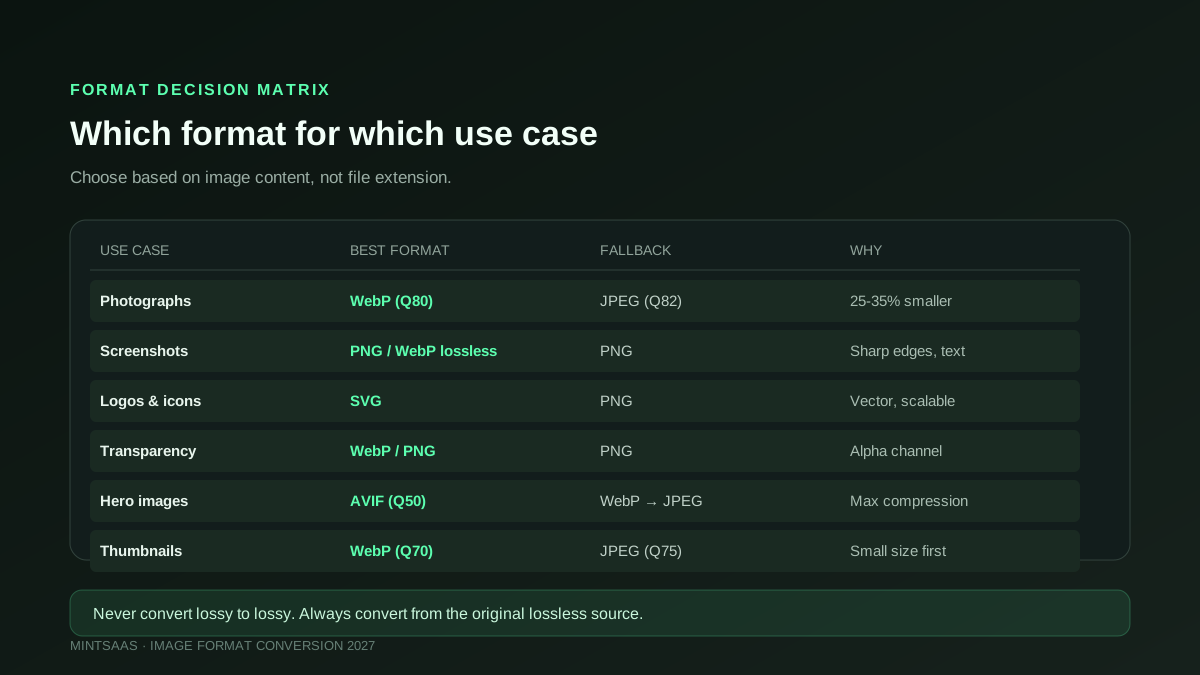
Before converting, you need to know which format is right for each use case. Here is the decision matrix based on the image type and requirements:
| Use case | Best format | Fallback | Why |
|---|---|---|---|
| Photographs (web) | WebP (Q80) or AVIF (Q50) | JPEG (Q82) | 25–50% smaller than JPEG with equivalent quality |
| Screenshots | PNG or WebP lossless | PNG | Sharp edges and text need lossless compression |
| Logos and icons | SVG | PNG | Vector format scales to any size without quality loss |
| Images with transparency | WebP or PNG | PNG | JPEG has no alpha channel |
| Hero/banner images | AVIF (Q45–55) | WebP → JPEG | Maximum compression for largest file on page |
| Thumbnails | WebP (Q70–75) | JPEG | Small size matters more than perfect quality |
| Email attachments | JPEG (Q75–80) | — | Universal email client support |
| TIFF or PNG | — | Lossless, high bit depth | |
| Social media | JPEG (Q85–90) | — | Platform re-compresses anyway |
The key insight is that format choice depends on the image content, not just the file extension. A photograph saved as PNG is wastefully large. A logo saved as JPEG has visible artifacts around sharp edges. A screenshot saved as JPEG has blurry text.[1][3]
Understanding format characteristics
Each format has distinct technical characteristics that determine when to use it.
JPEG (Joint Photographic Experts Group) uses lossy compression based on the discrete cosine transform (DCT). It divides the image into 8×8 pixel blocks and discards high-frequency information that the human eye is less sensitive to. JPEG supports 24-bit color (16.7 million colors) but has no transparency support and no animation. It is universally supported by every browser, device, and operating system.[1]
PNG (Portable Network Graphics) uses lossless compression based on the DEFLATE algorithm. It supports full transparency (alpha channel) and is ideal for images with sharp edges, text, and flat colors. PNG files are larger than JPEG for photographs but smaller for graphics and screenshots. PNG also supports 8-bit (256 colors) and 24-bit (16.7 million colors) modes.[1]
WebP is Google's format, based on VP8 (lossy) and VP8L (lossless) codecs. It supports both lossy and lossless compression, transparency in both modes, and animation. Lossy WebP is 25–35% smaller than JPEG at equivalent quality. Lossless WebP is 20–26% smaller than PNG. Browser support is approximately 97% as of 2026.[1][3]
AVIF is based on the AV1 video codec and offers the best compression ratios of any current format. It is 40–50% smaller than JPEG and 20–35% smaller than WebP at equivalent quality. AVIF supports HDR (high dynamic range), 10-bit and 12-bit color, transparency, and animation. The trade-off is encoding speed — AVIF is significantly slower to encode than WebP or JPEG. Browser support is approximately 90% as of 2026.[3][5]
SVG (Scalable Vector Graphics) is not a raster format — it stores images as XML-based vector instructions. SVG is resolution-independent, meaning it scales to any size without quality loss. It is ideal for logos, icons, illustrations, and diagrams. SVG files are typically much smaller than their raster equivalents for simple graphics.[1]
The conversion rules that prevent quality loss
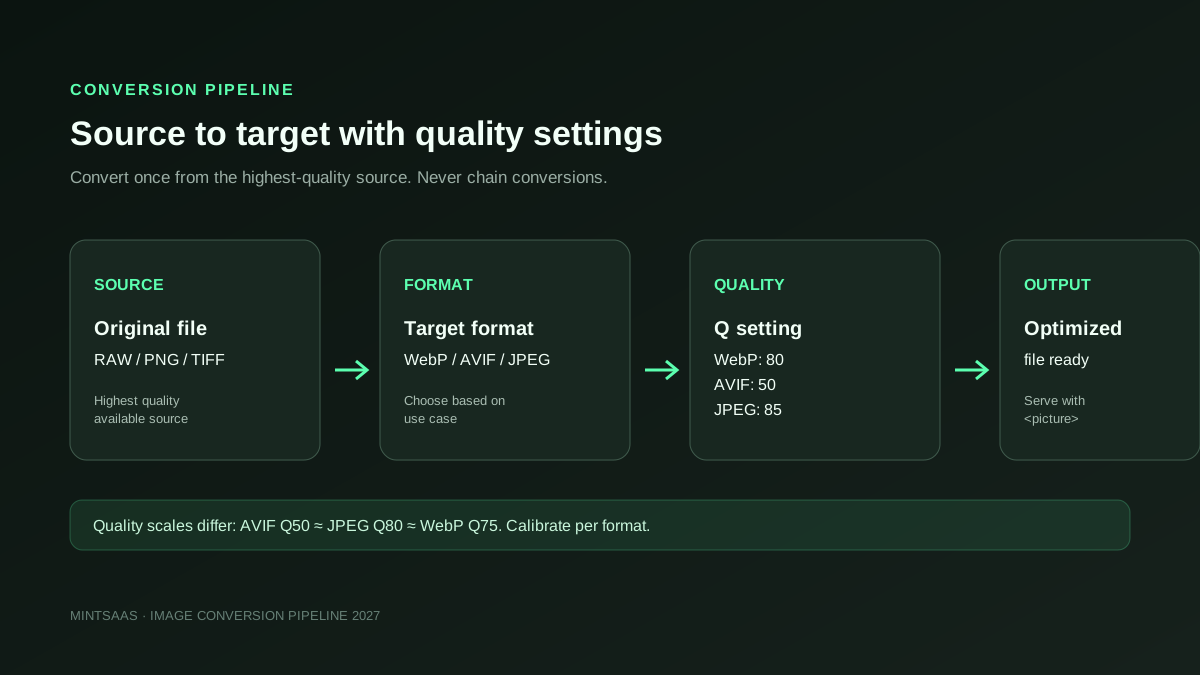
The most important rule in image format conversion is this: never convert from a lossy format to another lossy format. Each lossy conversion permanently discards information. Converting JPEG → WebP → AVIF compounds the quality loss at each step, resulting in visible artifacts even at high quality settings.[3]
The correct workflow is:
- Start from the original. Always convert from the highest-quality source available. If you have the original camera RAW or a lossless PNG, use that as the source. If you only have a JPEG, convert from that but understand the quality ceiling.[3]
- Convert once. Choose your target format and quality setting, then convert directly from the source. Do not chain conversions.
- Match quality to use case. A hero image needs higher quality than a thumbnail. A product photo needs more detail than a social media preview.
- Test visually. Always compare the converted image to the original at 100% zoom. Look for artifacts in gradients, text edges, and fine details.[5]
Conversion workflows by scenario
Scenario 1: JPEG to WebP (most common)
This is the most frequent conversion: taking existing JPEG photographs and converting them to WebP for web delivery.
Quality recommendation: WebP quality 80 produces files 25–35% smaller than JPEG with no visible difference. For thumbnails, quality 70–75 is acceptable. For hero images, quality 85–90.[3]
Command (cwebp):
cwebp -q 80 input.jpg -o output.webpCommand (Sharp/Node.js):
sharp('input.jpg').webp({ quality: 80 }).toFile('output.webp')Command (MintSaaS): Use the MintSaaS Image Compressor for browser-based conversion. Files are processed client-side — no upload to any server.[5]
Scenario 2: PNG to WebP (lossless)
For graphics, screenshots, and images with transparency, convert PNG to lossless WebP for 20–26% file size reduction with zero quality loss.
Command (cwebp):
cwebp -lossless input.png -o output.webpCommand (Sharp):
sharp('input.png').webp({ lossless: true }).toFile('output.webp')Scenario 3: JPEG to AVIF
For maximum compression on static assets, convert JPEG to AVIF. The quality setting is different from JPEG/WebP — AVIF quality 50 is roughly equivalent to JPEG quality 80.
Quality recommendation: AVIF quality 45–55 for photographs. AVIF quality 60–70 for images with fine detail. AVIF quality 80+ for archival quality.[3]
Command (avifenc):
avifenc --min 0 --max 63 -a cq-level=25 input.jpg output.avifCommand (Sharp):
sharp('input.jpg').avif({ quality: 50, effort: 4 }).toFile('output.avif')Scenario 4: Any format to JPEG (fallback)
When you need a universal fallback, convert to JPEG at quality 82–85. This is the standard fallback for all modern formats.
Command (Sharp):
sharp('input.png').jpeg({ quality: 85, mozjpeg: true }).toFile('output.jpg')Using mozjpeg: true enables MozJPEG, which produces 5–10% smaller files than standard libjpeg at the same quality.[3]
Scenario 5: SVG to PNG (rasterization)
When you need a raster version of a vector graphic (for social media, email, or platforms that don't support SVG), render SVG to PNG at 2× or 3× the display size for retina sharpness.
Command (Sharp):
sharp('input.svg').resize(1200, 800).png().toFile('output.png')Command (Inkscape):
inkscape input.svg --export-type=png --export-width=2400 --export-filename=output.pngServing multiple formats with the <picture> element
The best practice in 2027 is to serve multiple formats and let the browser choose the best one it supports. Use the HTML <picture> element:
<picture>
  <source srcset="image.avif" type="image/avif">
  <source srcset="image.webp" type="image/webp">
  <img src="image.jpg" alt="Description" width="800" height="600" loading="lazy">
</picture>
The browser evaluates the <source> elements in order and uses the first one it supports. If it supports AVIF, it downloads the AVIF. If not, it tries WebP. If neither, it falls back to JPEG.[1][5]
Always include width and height attributes on the <img> tag to prevent layout shift (CLS). Use loading="lazy" for below-the-fold images and fetchpriority="high" for the hero image.[5]
Tools for format conversion
Browser-based (client-side, no upload):
- MintSaaS Image Compressor — batch conversion, quality adjustment, format selection. Files never leave your browser.
- MintSaaS Batch Image Converter — convert multiple files at once.
- Squoosh.app — visual comparison tool for finding optimal settings.
Command-line:
cwebp— Google's WebP encoder. Fast, reliable, well-documented.avifenc— AVIF encoder from libavif. Slower but produces best results.- Sharp (Node.js) — industry standard for server-side and build-time processing. 4–5× faster than ImageMagick.[3]
Build-time (automatic):
- Next.js Image — automatically serves WebP/AVIF with fallbacks.
- Vite — image optimization plugins for build-time conversion.
- Webpack — image-webpack-loader for build-time optimization.[5]
Common conversion mistakes
Converting lossy to lossy. JPEG → WebP → AVIF compounds quality loss at each step. Always convert from the original lossless source. If you only have a JPEG, convert directly to your target format in one step.[3]
Using the wrong quality scale. Quality 80 in JPEG is not the same as quality 80 in WebP or AVIF. AVIF quality 50 ≈ JPEG quality 80 ≈ WebP quality 75. Always calibrate quality settings per format.[3]
Ignoring transparency. Converting a PNG with transparency to JPEG fills transparent areas with white (or black). If you need transparency, use WebP or PNG as the target format.[1]
Over-compressing. AVIF at quality 90 can be larger than a well-compressed JPEG. Start with recommended quality settings and increase only if artifacts are visible.[5]
Not keeping originals. Always keep the original file. Conversions are lossy (except lossless PNG→WebP). If you need to re-convert at a different quality, you need the original.[3]
Forgetting fallbacks. Serving only AVIF or WebP without a JPEG/PNG fallback breaks images for older browsers. Always include a fallback in your <picture> element.[1]
Frequently Asked Questions (FAQ)
What is the best image format for websites in 2027?
WebP is the best default format for 2027. It offers 25–35% smaller files than JPEG at equivalent quality, supports transparency, and has 97%+ browser support. For static hero images, AVIF provides even better compression (40–50% smaller than JPEG). Always include a JPEG fallback using the <picture> element.[1][3]
Can I convert JPEG to WebP without losing quality?
No conversion from JPEG to WebP is truly lossless because JPEG is already lossy. However, converting at WebP quality 80 produces files that are visually indistinguishable from the original JPEG while being 25–35% smaller. The quality loss is imperceptible at normal viewing distance.[3]
Should I use AVIF or WebP?
Use both. Serve AVIF first (smaller files), WebP second (wider browser support), and JPEG as fallback. AVIF is slower to encode, making it best for static assets. WebP is faster and suitable for on-the-fly processing. Use the <picture> element to let the browser choose.[3][5]
How do I convert images in bulk?
Use batch conversion tools. The MintSaaS Batch Image Converter processes multiple files client-side. For command-line batch processing, use Sharp with a Node.js script or ImageMagick's mogrify command. For build-time batch conversion, use Next.js Image or Vite plugins.[5]
What quality setting should I use for WebP?
Quality 80 is the recommended default for WebP. It produces files 25–35% smaller than JPEG with no visible quality loss. For thumbnails, quality 70–75 is acceptable. For hero images, quality 85–90. Never use quality 100 — the file size increase is disproportionate.[3]
Does converting image formats affect SEO?
Yes. Serving modern formats (WebP, AVIF) reduces page weight, which improves Core Web Vitals (especially LCP). Google considers page speed a ranking factor. Additionally, smaller images improve mobile experience, reduce bounce rates, and increase time on site.[5]
How do I preserve transparency when converting?
Use a format that supports alpha channels: PNG, WebP, or AVIF. JPEG does not support transparency — transparent areas will be filled with white or black. When converting PNG → WebP, use lossless WebP to preserve exact pixel values including transparency.[1]
What is the difference between lossy and lossless conversion?
Lossy conversion discards some image data to reduce file size (JPEG, lossy WebP, AVIF). The image is permanently altered but the changes are invisible at high quality settings. Lossless conversion preserves every pixel exactly (PNG, lossless WebP). The file size reduction is smaller but the image is mathematically identical to the original.[1][3]
Related reading on MintSaaS
- How to Compress Images Without Losing Quality: The Complete 2027 Guide
- Batch Convert Images Online: The Definitive 2026 Bulk Image Conversion & Compression Guide
- Convert WebP File: The Definitive Guide to Converting WebP Images to JPG & PNG Online in 2026
- SVG to PNG: The Complete Guide to High-Resolution Vector Rasterization, Transparency & Sharp Exports in 2026
- PDF Security: How to Protect Sensitive Documents Online in 2027
- How to Grow on Instagram in 2027: A Practical Growth Guide
- WebP vs AVIF: Which Image Format Wins in 2027?
- How to Optimize Images for SEO: Complete Guide to Faster Loading and Higher Rankings
- Best Image Compression Tools for Web Developers in 2027
- How to Batch Compress Images Online: Bulk Workflow Guide for 2027
- Image Optimization for E-Commerce: Product Photos That Convert in 2027
- How to Resize Images for Social Media: Platform-Specific Guide for 2027
- SVG Optimization: How to Reduce Vector File Size for Web in 2027
- How to Optimize Images for Mobile: Responsive Image Guide for 2027
- Lossless vs Lossy Compression: When to Use Each for Images in 2027
- Image CDN vs Self-Hosted: Which Is Better for Performance in 2027?
- How to Use the HTML Picture Element for Responsive Images in 2027
- Image Lazy Loading: Implementation Guide for Web Performance in 2027
Sources
[1] MDN Web Docs — Image file type and format guide: https://developer.mozilla.org/en-US/docs/Web/Media/Guides/Formats/Image_types
[2] Web.dev — Choose the right image format: https://web.dev/articles/choose-the-right-image-format
[3] Image Optimization for the Web (boxtool.app): https://boxtool.app/en/guides/image-optimization-for-web/
[4] Pressidium — Image format optimization: WebP and AVIF: https://help.pressidium.com/support/performance/image-format-optimization-webp-avif/
[5] Scanverra — Serve Images in Next-Gen Formats: https://www.scanverra.com/fr/how-to/fix-next-gen-image-formats
Free tools on MintSaaS
Try our free tools to put this guide into practice:
MintSaaS Dispatch articles are researched and synthesized with the assistance of artificial intelligence analysis, then edited, verified, and benchmarked by our engineering editorial team. Customer personal data and platform source files are strictly segregated and are never used to train or fine-tune public artificial intelligence models.
More from MintSaaS Dispatch
Handcrafted technical insights and developer tools.