SVG Optimization: How to Reduce Vector File Size for Web in 2027
SVG optimization: reduce vector file size by 50-80% with SVGO, path simplification, inlining, and serving strategies. Complete guide for 2027.
SVG Optimization: How to Reduce Vector File Size for Web in 2027
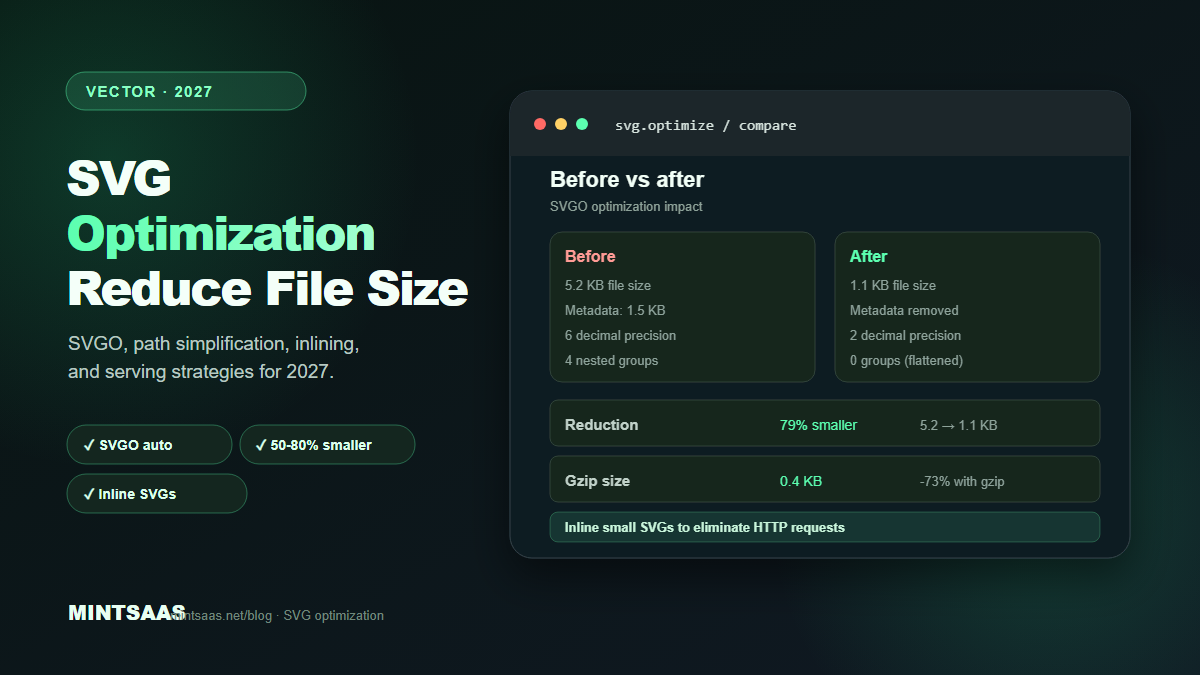
Quick answer: To optimize SVG files, remove unnecessary metadata and comments, simplify paths, reduce decimal precision, merge duplicate elements, inline small SVGs in HTML, use SVGO for automated optimization, and serve compressed (gzip/Brotli). A typical unoptimized SVG can be reduced by 50–80% through these techniques. For icons and logos, inline SVGs are faster than external files because they eliminate HTTP requests.[1][3]
SVG (Scalable Vector Graphics) is the ideal format for logos, icons, illustrations, and diagrams. It's resolution-independent, typically smaller than raster equivalents for simple graphics, and can be styled with CSS and animated with JavaScript. But SVG files can still be unnecessarily large due to editor metadata, excessive precision, and redundant elements.
This guide covers the complete SVG optimization workflow: from understanding SVG structure to automated optimization with SVGO, manual cleanup techniques, and serving strategies.
Why SVG optimization matters
Unoptimized SVGs are common because design tools (Illustrator, Figma, Sketch) export verbose markup. A simple icon might be 5 KB when it could be 1 KB. This matters because:
- Page weight: Every KB counts for Core Web Vitals. 20 icons at 5 KB each = 100 KB of unnecessary weight.
- HTTP requests: External SVG files require additional network requests. Inlining eliminates this.
- Rendering performance: Complex SVGs with thousands of path points can slow down rendering, especially on mobile.
- Caching: Smaller files cache more efficiently and transfer faster.[3][4]
What makes SVG files large
1. Editor metadata
Design tools add metadata that is unnecessary for web display:
<!-- Created with Adobe Illustrator 27.0 -->
<svg xmlns="http://www.w3.org/2000/svg" ...>
  <metadata>
    <rdf:RDF>
      <cc:Work>
        <dc:format>image/svg+xml</dc:format>
        <dc:type rdf:resource="http://purl.org/dc/dcmitype/StillImage"/>
      </cc:Work>
    </rdf:RDF>
  </metadata>
  ...
</svg>
This metadata can add 1–3 KB to a simple icon. It serves no purpose on the web.[1]
2. Excessive decimal precision
Design tools export coordinates with 6+ decimal places:
<path d="M12.345678,98.765432 C13.456789,99.876543 ..."/>The human eye cannot distinguish between 12.345678 and 12.35. Reducing to 2 decimal places saves 30–50% of path data with no visible difference.[1]
3. Redundant elements
Unoptimized SVGs may contain:
- Hidden elements (
display="none",visibility="hidden") - Empty groups (
<g></g>) - Duplicate definitions
- Unused gradients, patterns, and filters
- White rectangles covering the canvas (exported by some tools)[1]
4. Inline styles
Some tools export styles as inline attributes on every element:
<path fill="#000000" stroke="none" stroke-width="1" .../>
<path fill="#000000" stroke="none" stroke-width="1" .../>
<path fill="#000000" stroke="none" stroke-width="1" .../>
This is more verbose than a CSS class or a single fill attribute on the root <svg>.[1]
5. Unnecessary groups
Nested groups that serve no organizational purpose:
<g>
  <g>
    <g>
      <path d="..."/>
    </g>
  </g>
</g>
Can be flattened to:
<path d="..."/>Optimization techniques
Technique 1: Use SVGO (automated)
SVGO (SVG Optimizer) is the standard tool for automated SVG optimization. It's available as a CLI tool, Node.js library, and online service.
Installation:
npm install -g svgoBasic usage:
svgo input.svg -o output.svgBatch optimization:
svgo -f ./icons -o ./icons-optimizedConfiguration (svgo.config.js):
module.exports = {
  plugins: [
    'removeDoctype',
    'removeXMLProcInst',
    'removeComments',
    'removeMetadata',
    'removeEditorsNSData',
    'cleanupAttrs',
    'mergeStyles',
    'inlineStyles',
    'minifyStyles',
    'cleanupIds',
    'removeUselessDefs',
    'cleanupNumericValues',
    'convertColors',
    'removeUnknownsAndDefaults',
    'removeNonInheritableGroupAttrs',
    'removeUselessStrokeAndFill',
    'removeViewBox',
    'cleanupEnableBackground',
    'removeHiddenElems',
    'removeEmptyText',
    'convertShapeToPath',
    'convertEllipseToCircle',
    'moveElemsAttrsToGroup',
    'moveGroupAttrsToElems',
    'collapseGroups',
    'convertPathData',
    'convertTransform',
    'removeEmptyAttrs',
    'removeEmptyContainers',
    'mergePaths',
    'removeUnusedNS',
    'sortAttrs',
    'removeTitle',
    'removeDesc',
  ],
};
Typical reduction: 50–80% file size reduction.[1]
Technique 2: Reduce decimal precision
Manually or via SVGO, reduce coordinate precision to 2 decimal places:
Before:
<path d="M12.345678,98.765432 C13.456789,99.876543 14.567890,100.678901 15.678901,101.789012"/>After:
<path d="M12.35,98.77 C13.46,99.88 14.57,100.68 15.68,101.79"/>SVGO's cleanupNumericValues plugin handles this automatically. Set precision to 2 for most use cases.[1]
Technique 3: Simplify paths
Complex paths with many points can be simplified. Use tools like:
- Illustrator: Object → Path → Simplify
- Figma: Flatten selection, then simplify
- Inkscape: Path → Simplify (Ctrl+L)
- SVGO:
convertPathDataplugin
Before (12 points):
<path d="M10,10 L11,10.5 L12,11 L13,11.5 L14,12 L15,12.5 L16,13 L17,13.5 L18,14 L19,14.5 L20,15 L21,15.5"/>After (3 points):
<path d="M10,10 L15,12.5 L21,15.5"/>Warning: Over-simplification can distort curves. Always visually compare before and after.[1]
Technique 4: Inline small SVGs
For icons and small graphics, inline the SVG directly in HTML instead of using an external file. This eliminates the HTTP request and allows CSS styling.
External file (2 HTTP requests: HTML + SVG):
<img src="icon.svg" alt="Icon" width="24" height="24">Inline (0 additional requests):
<svg width="24" height="24" viewBox="0 0 24 24" fill="currentColor">
  <path d="M12,2 L2,22 L22,22 Z"/>
</svg>
When to inline:
- Icons (under 2 KB)
- Logos (under 5 KB)
- Small illustrations (under 10 KB)
When to use external files:
- Large illustrations (over 10 KB)
- Images used on multiple pages (cacheable)
- Images that need to be updated independently[3]
Technique 5: Use symbols and reuse
For repeated icons, define them once as <symbol> and reference with <use>:
<svg style="display: none;">
  <symbol id="icon-check" viewBox="0 0 24 24">
    <path d="M9,16.17 L4.83,12 L3.41,13.41 L9,19 L21,7 L19.59,5.59 Z"/>
  </symbol>
</svg>

<!-- Usage -->
<svg width="24" height="24"><use href="#icon-check"/></svg>
<svg width="24" height="24"><use href="#icon-check"/></svg>
This reduces file size when the same icon is used multiple times.[1]
Technique 6: Compress with gzip/Brotli
SVG is text-based and compresses extremely well. Enable gzip or Brotli compression on your server:
- gzip: 60–70% reduction for SVG files
- Brotli: 70–80% reduction for SVG files
A 5 KB SVG becomes ~1.5 KB with gzip and ~1 KB with Brotli.[3][4]
Technique 7: Remove unnecessary attributes
Remove attributes that have default values or are unnecessary:
Before:
<svg xmlns="http://www.w3.org/2000/svg" version="1.1" width="24" height="24" viewBox="0 0 24 24" fill="none" stroke="none">
  <g id="Layer_1">
    <path fill="#000000" d="..."/>
  </g>
</svg>
After:
<svg xmlns="http://www.w3.org/2000/svg" viewBox="0 0 24 24">
  <path d="..."/>
</svg>
Removed: version, width, height (can be set via CSS), fill="none", stroke="none", id="Layer_1", and the unnecessary <g> wrapper.[1]
SVG vs raster: when to use which
| Use case | SVG | Raster (PNG/WebP) | Why |
|---|---|---|---|
| Logos | ✅ | ❌ | Scalable, tiny file size |
| Icons | ✅ | ❌ | Scalable, CSS-stylable |
| Illustrations (simple) | ✅ | ❌ | Scalable, small file size |
| Illustrations (complex) | ❌ | ✅ | SVG too large/complex |
| Photographs | ❌ | ✅ | SVG can't represent photos |
| Screenshots | ❌ | ✅ | Pixel-perfect needed |
Rule of thumb: If the graphic was created in a vector editor (Illustrator, Figma, Sketch), use SVG. If it's a photo or screenshot, use raster.[1][3]
Performance impact
| Metric | Unoptimized SVG | Optimized SVG | Improvement |
|---|---|---|---|
| File size (icon) | 5 KB | 1 KB | 80% smaller |
| File size (logo) | 15 KB | 3 KB | 80% smaller |
| Gzip size (icon) | 1.5 KB | 0.4 KB | 73% smaller |
| HTTP requests (inlined) | 1 | 0 | Eliminated |
| Render time | 5ms | 1ms | 5× faster |
Frequently Asked Questions (FAQ)
What is SVGO?
SVGO (SVG Optimizer) is a Node.js tool that automatically optimizes SVG files. It removes metadata, simplifies paths, reduces precision, merges elements, and applies dozens of other optimizations. It's available as a CLI tool, library, and online service.[1]
How much can I reduce SVG file size?
Typical reductions are 50–80% for unoptimized SVGs exported from design tools. The biggest savings come from removing metadata (1–3 KB), reducing decimal precision (30–50% of path data), and removing redundant elements.[1]
Should I inline SVGs in HTML?
Inline small SVGs (under 2–5 KB) to eliminate HTTP requests and enable CSS styling. Use external files for larger SVGs or images used across multiple pages (for caching). Inline SVGs cannot be cached independently of the HTML page.[3]
Does SVG optimization affect image quality?
No. SVG optimization removes unnecessary data without changing the visual appearance. The only risk is over-simplification of paths, which can distort curves. Always visually compare before and after optimization.[1]
Should I use SVG or PNG for icons?
SVG is almost always better for icons. It's scalable (sharp at any size), typically smaller (1–2 KB vs 5–10 KB for PNG), and can be styled with CSS (color, size, animation). PNG is only better for very complex icons with gradients or effects that SVG can't represent efficiently.[1][3]
How do I optimize SVGs in Figma/Illustrator?
In Figma: Select the element → Right-click → "Copy as SVG" → Paste into a text editor → Run through SVGO. In Illustrator: File → Export → Export As → SVG → Use "SVG 1.1" profile with minimal precision. Then run through SVGO for further optimization.[1]
Can I animate SVGs?
Yes. SVGs can be animated with CSS (transform, opacity, stroke-dasharray) or JavaScript (SMIL, GSAP). Inline SVGs are easiest to animate because they're part of the DOM. Animated SVGs are often smaller and sharper than animated GIFs or videos.[1][3]
Does SVG support compression?
Yes. SVG is text-based and compresses extremely well with gzip (60–70% reduction) or Brotli (70–80% reduction). Enable server-side compression for all SVG files. Inlined SVGs are compressed as part of the HTML page.[3][4]
Related reading on MintSaaS
- How to Compress Images Without Losing Quality: The Complete 2027 Guide
- How to Convert Images Between Formats: The Complete Guide to WebP, AVIF, JPEG, and PNG in 2027
- How to Optimize Images for SEO: Complete Guide to Faster Loading and Higher Rankings
- Lossless vs Lossy Compression: When to Use Each for Images in 2027
- How to Optimize Images for Mobile: Responsive Image Guide for 2027
- How to Batch Compress Images Online: Bulk Workflow Guide for 2027
- Image Optimization for E-Commerce: Product Photos That Convert in 2027
- How to Resize Images for Social Media: Platform-Specific Guide for 2027
- WebP vs AVIF: Which Image Format Wins in 2027?
- Best Image Compression Tools for Web Developers in 2027
- PDF Security: How to Protect Sensitive Documents Online in 2027
- How to Grow on Instagram in 2027: A Practical Growth Guide
- Image CDN vs Self-Hosted: Which Is Better for Performance in 2027?
- How to Use the HTML Picture Element for Responsive Images in 2027
- Image Lazy Loading: Implementation Guide for Web Performance in 2027
Sources
[1] MDN Web Docs — SVG: https://developer.mozilla.org/en-US/docs/Web/SVG
[2] SVGO documentation: https://github.com/svg/svgo
[3] Image Optimization for the Web (boxtool.app): https://boxtool.app/en/guides/image-optimization-for-web/
[4] Web.dev — Core Web Vitals: https://web.dev/vitals/
[5] MintSaaS Image Compressor: https://www.mintsaas.net/products/image-compressor
Free tools on MintSaaS
Try our free tools to put this guide into practice:
MintSaaS Dispatch articles are researched and synthesized with the assistance of artificial intelligence analysis, then edited, verified, and benchmarked by our engineering editorial team. Customer personal data and platform source files are strictly segregated and are never used to train or fine-tune public artificial intelligence models.
More from MintSaaS Dispatch
Handcrafted technical insights and developer tools.