How to Batch Compress Images Online: Bulk Workflow Guide for 2027
Batch compress images online: client-side (no upload), CLI (Sharp), and build-time methods. Settings reference, automation, and best practices for bulk workflows.
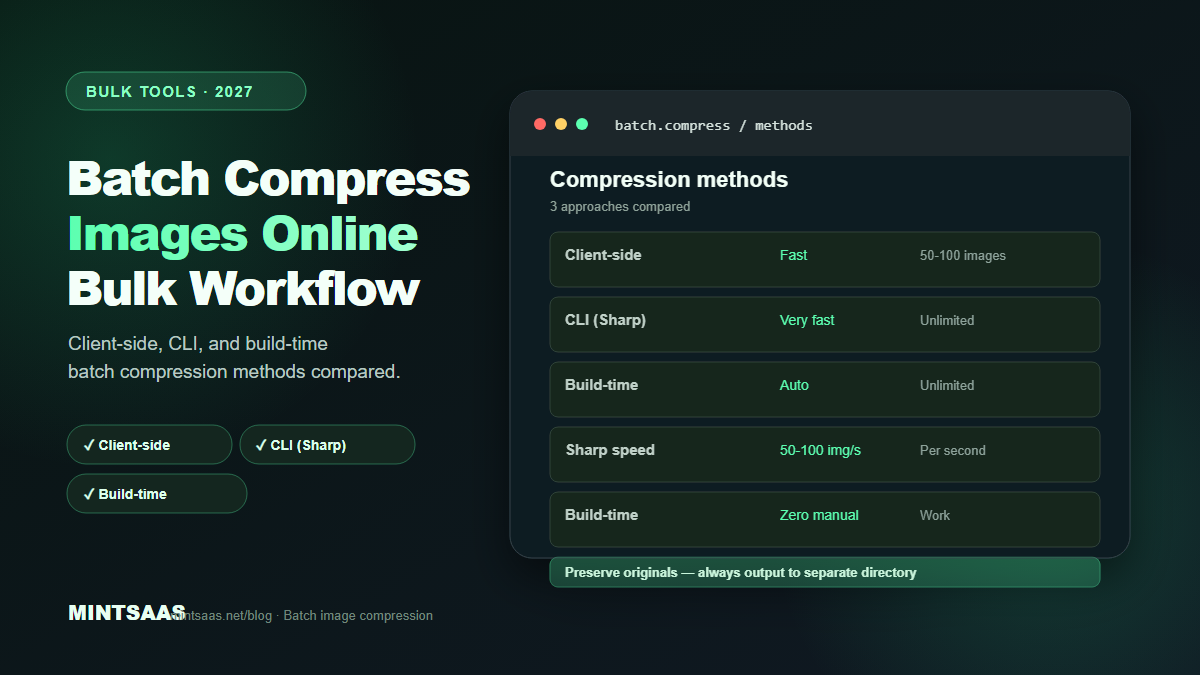
How to Batch Compress Images Online: Bulk Workflow Guide for 2027
Quick answer: To batch compress images online, use a client-side tool like the MintSaaS Batch Image Converter (no upload, unlimited files) or a command-line tool like Sharp with a Node.js script (fastest for 1000+ images). Set quality to 75–85 for WebP/JPEG, 45–55 for AVIF, resize to maximum display dimensions first, and output to a separate folder to preserve originals. For build-time batch processing, use Next.js Image or Vite plugins.[1][3][5]
Batch image compression is essential for any website with more than a handful of images. Manually compressing images one at a time is tedious, error-prone, and doesn't scale. A typical e-commerce site might have 10,000+ product images. A blog might have hundreds of post images. A portfolio might have thousands of photos.
This guide covers the complete batch compression workflow: from choosing the right tool to setting up automated pipelines that compress images as part of your build process.
Why batch compression matters
Manual image compression doesn't scale. If you have 100 images and each takes 30 seconds to compress manually, that's 50 minutes of tedious work. If you have 10,000 images, that's 83 hours. And manual compression is inconsistent — different quality settings, different formats, different dimensions.
Batch compression solves all of these problems:
- Consistency: Same settings applied to every image
- Speed: Process hundreds or thousands of images in minutes
- Automation: Integrate into your build pipeline for zero manual work
- Quality control: Preview before/after to verify settings[3][5]
Method 1: Client-side batch compression (no upload)
For sensitive images or quick batch processing, use a client-side tool that processes files in your browser.
MintSaaS Batch Image Converter
The MintSaaS Batch Image Converter processes multiple images simultaneously in your browser using WebAssembly. No files are uploaded to any server.
Features:
- Batch processing (unlimited files)
- Format conversion (JPEG, PNG, WebP, AVIF)
- Quality adjustment with live preview
- Resize to maximum dimensions
- Client-side only (no upload, no server)
- Download as ZIP
Best for: Sensitive images (ID documents, medical records, unreleased products), quick batch processing, users who don't want to install software.
Workflow:
- Drag and drop multiple images (or select a folder)
- Choose output format (WebP recommended)
- Set quality (80 for WebP, 50 for AVIF)
- Set maximum dimensions (resize if needed)
- Click "Compress All"
- Download as ZIP
Limitations: Browser memory limits for very large batches (1000+ images). For larger batches, use CLI tools.[5]
Method 2: Command-line batch compression (Sharp)
For large batches (1000+ images) or automated pipelines, use Sharp with a Node.js script.
Basic Sharp batch script
const sharp = require('sharp');
const fs = require('fs');
const path = require('path');

const inputDir = './images/original';
const outputDir = './images/optimized';
const quality = 80;
const maxWidth = 1920;

// Create output directory
if (!fs.existsSync(outputDir)) fs.mkdirSync(outputDir, { recursive: true });

// Process all images
const files = fs.readdirSync(inputDir).filter(f => /\.(jpg|jpeg|png|webp)$/i.test(f));

for (const file of files) {
  const inputPath = path.join(inputDir, file);
  const outputPath = path.join(outputDir, file.replace(/\.(jpg|jpeg|png)$/i, '.webp'));

  sharp(inputPath)
    .resize(maxWidth, null, { withoutEnlargement: true })
    .webp({ quality })
    .toFile(outputPath)
    .then(info => console.log(`✓ ${file} → ${info.size} bytes`))
    .catch(err => console.error(`✗ ${file}: ${err.message}`));
}
Performance: Sharp processes ~50–100 images per second on a modern CPU. A batch of 10,000 images takes ~2–3 minutes.[3]
Advanced Sharp script with format selection
const sharp = require('sharp');
const fs = require('fs');
const path = require('path');

const config = {
  inputDir: './images/original',
  outputDir: './images/optimized',
  formats: {
    photo: { format: 'webp', quality: 80, maxWidth: 1920 },
    graphic: { format: 'webp', quality: 100, lossless: true, maxWidth: 1920 },
    thumbnail: { format: 'webp', quality: 75, maxWidth: 400 },
  },
};

// Auto-detect image type and apply appropriate settings
function getConfig(filename) {
  if (filename.includes('thumb')) return config.formats.thumbnail;
  if (filename.includes('logo') || filename.includes('icon')) return config.formats.graphic;
  return config.formats.photo;
}

const files = fs.readdirSync(config.inputDir).filter(f => /\.(jpg|jpeg|png|webp|avif)$/i.test(f));

for (const file of files) {
  const cfg = getConfig(file);
  const inputPath = path.join(config.inputDir, file);
  const outputPath = path.join(config.outputDir, file.replace(/\.[^.]+$/, '.webp'));

  let pipeline = sharp(inputPath).resize(cfg.maxWidth, null, { withoutEnlargement: true });

  if (cfg.lossless) {
    pipeline = pipeline.webp({ lossless: true });
  } else {
    pipeline = pipeline.webp({ quality: cfg.quality });
  }

  pipeline.toFile(outputPath)
    .then(info => console.log(`✓ ${file} → ${info.size} bytes (${cfg.format} Q${cfg.quality})`))
    .catch(err => console.error(`✗ ${file}: ${err.message}`));
}
ImageMagick batch (alternative)
If you prefer ImageMagick or need format-specific features:
# Convert all JPEGs to WebP
mogrify -format webp -quality 80 -resize "1920x>" *.jpg

# Convert all PNGs to lossless WebP
mogrify -format webp -define webp:lossless=true *.png

# Batch resize and compress
mogrify -resize "1920x1920>" -quality 80 -strip *.jpg
Note: ImageMagick is 4–5× slower than Sharp. Use Sharp for large batches.[3]
Method 3: Build-time batch compression
The most efficient approach is to compress images automatically during your build process. This ensures every image is optimized without manual intervention.
Next.js Image Optimization
Next.js automatically optimizes images served via the <Image> component:
import Image from 'next/image';

<Image
  src="/product.jpg"
  alt="Product name"
  width={800}
  height={800}
  quality={80}
  priority={true} // for above-the-fold images
/>
Next.js generates WebP/AVIF variants at build time and serves them via the /_next/image endpoint. Configure formats in next.config.js:
module.exports = {
  images: {
    formats: ['image/avif', 'image/webp'],
    deviceSizes: [640, 750, 828, 1080, 1200, 1920],
    imageSizes: [16, 32, 48, 64, 96, 128, 256, 384],
  },
};
Vite Image Optimization
For Vite-based projects, use vite-plugin-image-optimizer:
// vite.config.js
import { ViteImageOptimizer } from 'vite-plugin-image-optimizer';

export default {
  plugins: [
    ViteImageOptimizer({
      png: { quality: 80 },
      jpeg: { quality: 80 },
      webp: { quality: 80 },
      avif: { quality: 50 },
    }),
  ],
};
Webpack Image Webpack Loader
For Webpack-based projects:
// webpack.config.js
module.exports = {
  module: {
    rules: [
      {
        test: /\.(png|jpe?g|gif|svg)$/i,
        use: [
          {
            loader: 'image-webpack-loader',
            options: {
              mozjpeg: { progressive: true, quality: 80 },
              optipng: { enabled: true },
              pngquant: { quality: [0.75, 0.85] },
              webp: { quality: 80 },
            },
          },
        ],
      },
    ],
  },
};
Batch compression settings reference
| Use case | Format | Quality | Max width | Target size |
|---|---|---|---|---|
| Blog images | WebP | 80 | 1200px | < 200 KB |
| Product photos | WebP | 80 | 1200px | < 200 KB |
| Thumbnails | WebP | 75 | 400px | < 50 KB |
| Hero images | AVIF | 50 | 1920px | < 300 KB |
| Screenshots | WebP (lossless) | 100 | 1920px | < 500 KB |
| Social media | JPEG | 85 | 1080px | < 1 MB |
| JPEG | 80 | 600px | < 100 KB |
Best practices for batch compression
1. Always preserve originals. Never overwrite source files. Output to a separate directory. You may need to re-compress at different settings later.[3]
2. Use consistent naming. Rename files during compression to include dimensions or quality (e.g., product-1200x1200-q80.webp). This makes it easy to identify optimized vs original files.[3]
3. Validate results. After batch compression, spot-check 5–10 images visually. Compare original and compressed at 100% zoom. Look for artifacts in gradients, text, and fine details.[3]
4. Monitor file sizes. Log the before/after file sizes for each image. If an optimized image is larger than the original, investigate (may indicate wrong format or quality setting).[3]
5. Automate in CI/CD. Add image compression to your build pipeline. This ensures every image is optimized without manual intervention. Use GitHub Actions, Vercel, or your CI provider's build hooks.[5]
6. Set up image optimization budgets. Define maximum file sizes for each image type (e.g., product image < 200 KB). Fail the build if an image exceeds the budget.[5]
Frequently Asked Questions (FAQ)
What is the fastest way to batch compress images?
For 100+ images, use Sharp with a Node.js script. It processes 50–100 images per second. For 10,000+ images, use a build-time tool (Next.js Image, Vite plugin) that compresses automatically during builds. For quick browser-based batch compression, use the MintSaaS Batch Image Converter.[3][5]
Can I batch compress images without uploading them?
Yes. The MintSaaS Batch Image Converter processes files entirely in your browser using WebAssembly. No files are uploaded to any server. This is essential for sensitive images like ID documents, medical records, and unreleased product photos.[5]
How do I batch convert JPEG to WebP?
Use Sharp with a Node.js script (see code examples above), or use the command-line tool cwebp in a loop:
for f in *.jpg; do cwebp -q 80 "$f" -o "${f%.jpg}.webp"; doneOr use the MintSaaS Batch Image Converter for browser-based conversion.[3][5]
What quality setting should I use for batch compression?
Quality 80 for WebP/JPEG (visually identical to 95, 40% smaller), quality 50 for AVIF (equivalent to WebP 80), quality 75 for thumbnails, and lossless for graphics/screenshots. Always test on a sample before batch processing.[3]
How do I preserve original images during batch compression?
Always output to a separate directory. Never use mogrify (which overwrites in place) without backing up first. Use Sharp's toFile() method with a different output path. Keep the original folder intact.[3]
Can I automate image compression in my CI/CD pipeline?
Yes. Add a Sharp script or image optimization plugin to your build process. In GitHub Actions, add a step that runs your compression script before deployment. In Vercel, use the Next.js Image component which optimizes automatically. In Netlify, use build plugins for image optimization.[5]
How do I handle different image types in a batch?
Use a script that auto-detects image type (photo vs graphic vs thumbnail) based on filename or dimensions, and applies appropriate settings. See the advanced Sharp script example above. Alternatively, organize images into folders by type and process each folder with different settings.[3]
What is the maximum number of images I can batch compress in a browser?
Browser-based tools are limited by available memory. Most modern browsers can handle 50–100 images simultaneously. For larger batches, process in chunks of 50, or use CLI tools (Sharp) which have no practical limit.[5]
Related reading on MintSaaS
- How to Compress Images Without Losing Quality: The Complete 2027 Guide
- Best Image Compression Tools for Web Developers in 2027
- How to Convert Images Between Formats: The Complete Guide to WebP, AVIF, JPEG, and PNG in 2027
- Batch Convert Images Online: The Definitive 2026 Bulk Image Conversion & Compression Guide
- Image Optimization for E-Commerce: Product Photos That Convert in 2027
- How to Resize Images for Social Media: Platform-Specific Guide for 2027
- WebP vs AVIF: Which Image Format Wins in 2027?
- How to Optimize Images for SEO: Complete Guide to Faster Loading and Higher Rankings
- PDF Security: How to Protect Sensitive Documents Online in 2027
- How to Grow on Instagram in 2027: A Practical Growth Guide
- SVG Optimization: How to Reduce Vector File Size for Web in 2027
- How to Optimize Images for Mobile: Responsive Image Guide for 2027
- Lossless vs Lossy Compression: When to Use Each for Images in 2027
- Image CDN vs Self-Hosted: Which Is Better for Performance in 2027?
- How to Use the HTML Picture Element for Responsive Images in 2027
- Image Lazy Loading: Implementation Guide for Web Performance in 2027
Sources
[1] MDN Web Docs — Image file type and format guide: https://developer.mozilla.org/en-US/docs/Web/Media/Guides/Formats/Image_types
[2] Sharp documentation: https://sharp.pixelplumbing.com/
[3] Image Optimization for the Web (boxtool.app): https://boxtool.app/en/guides/image-optimization-for-web/
[4] Web.dev — Core Web Vitals: https://web.dev/vitals/
[5] MintSaaS Batch Image Converter: https://www.mintsaas.net/products/image-compressor/batch-convert
Free tools on MintSaaS
Try our free tools to put this guide into practice:
MintSaaS Dispatch articles are researched and synthesized with the assistance of artificial intelligence analysis, then edited, verified, and benchmarked by our engineering editorial team. Customer personal data and platform source files are strictly segregated and are never used to train or fine-tune public artificial intelligence models.
More from MintSaaS Dispatch
Handcrafted technical insights and developer tools.